

Escalate tickets across Slack, SMS and email based on priority
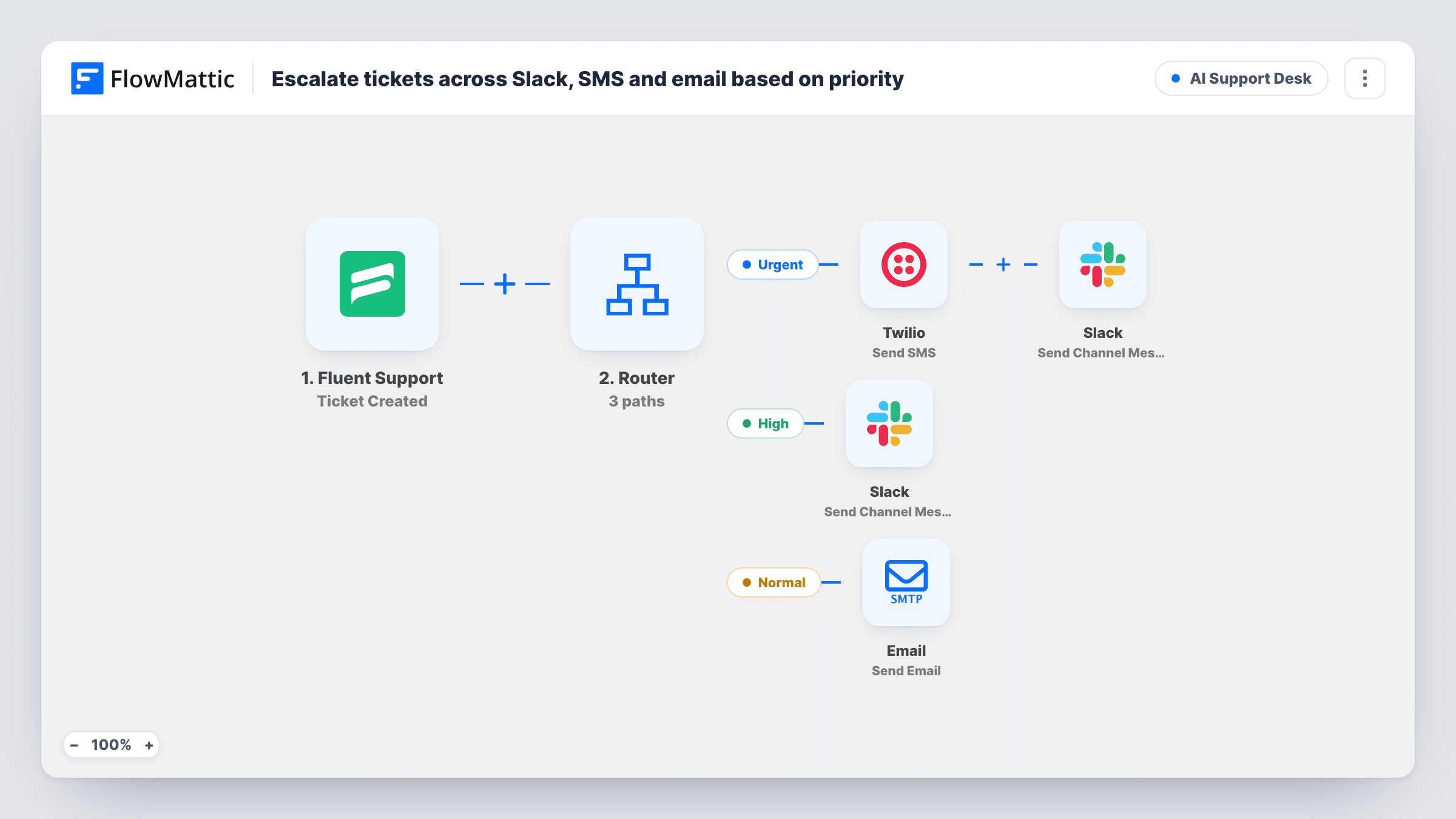
A Router reads the priority of each new Fluent Support ticket: critical tickets trigger a Twilio SMS and a Slack alert, medium ones post to Slack, and normal ones send an email.
 Fluent Support
 Router
 Twilio
 Slack
 Email
6 steps Setup ~12 min Used on 918 sites Agentic Support Free to import
What this workflow does
Not every support ticket deserves a phone buzzing at midnight. A critical outage does, a medium issue can wait for someone to check Slack, and a routine question just needs to reach the support inbox. This workflow matches the alert to the ticket's priority so your team isn't paged for everything.
The Fluent Support trigger fires when a ticket is created, whether a customer or an agent opens it. A Router then checks whether the ticket's priority is exactly critical, medium or normal. Because a ticket has a single priority, it follows only one route.
On the Critical route, Twilio texts the on-call number with the ticket number and subject, and a Slack channel gets a matching CRITICAL alert. On the Medium route, a Slack message labelled Medium priority goes to the channel you choose. On the Normal route, an email titled New ticket and the ticket number goes to a support inbox, with the subject in the body.
The phone number and inbox are placeholders: +15559990000 and [email protected]. Replace both, connect Twilio and Slack, and pick the channels before you turn the workflow on. A priority value outside the three takes no route.
On-call paging for a SaaS product
A small software team texts the engineer on call when a customer files a critical ticket, while lower priorities wait for working hours.
Hosting company triage
A web host sends medium tickets to a shared Slack channel the support team watches and keeps normal tickets flowing into the support inbox.
Agency client support
An agency gets SMS and Slack alerts when a client marks a ticket critical, so a site-down report reaches someone even after hours.
How this workflow runs
What happens at each step once the workflow is on, and what you need before you import it.
 Fluent Support Ticket Created
Starts when a ticket is created in Fluent Support by a customer or an agent. The ticket ID, subject and priority are passed on to the Router and the alerts.
- Router 3 paths
Compares the ticket's priority with critical, medium and normal as exact values, ignoring case. A ticket follows the one route that matches its priority.
- Twilio Send SMS
On the Critical route, sends an SMS through Twilio with CRITICAL ticket, the ticket number and subject. Replace the placeholder number +15559990000 with your on-call phone.
- Slack Send Channel Message
On the Critical route, posts CRITICAL followed by the ticket number and subject to a Slack channel. Connect Slack and choose the channel for urgent alerts.
- Slack Send Channel Message
On the Medium route, posts Medium priority with the ticket number and subject to a Slack channel. This can be the same channel as critical alerts or a quieter one.
 Email Send Email
On the Normal route, emails [email protected] with the subject New ticket and the ticket number, and the ticket subject as the body. Replace the placeholder address.
What you need
- FlowMatticCore
- Fluent Support PluginPlugin
- Twilio AccountAccount
- Slack AccountAccount
After importing, map your own data. To keep the template universal, not every step is pre-filled. Open each step in the builder and connect your accounts and fields (channels, lists, sheets, recipients) before you switch the workflow on.
Make it yours
Changes worth making after you import it.
- Map the customer's name or email into the critical SMS, so the on-call person knows who is affected before opening the ticket.
- Keep the critical Slack alerts in their own channel with notifications switched on, separate from the medium-priority channel.
- Send a test ticket for each priority after import, then check Task History to confirm the SMS, the two Slack posts and the email each went where you meant.
- If your team uses other priority names, update the three Router conditions so each one matches a single priority value.
Questions about this workflow
Which Fluent Support priorities does the Router handle?
Exactly critical, medium and normal, compared without regard to case. Tickets with any other value, or no priority, match no route and send no alert.
Can one ticket trigger both the SMS and the support email?
No. The routes compare the priority against different exact values, so a ticket with one priority runs one route only.
Do I need a Twilio phone number for the critical SMS?
Yes. Twilio sends texts from a number on your Twilio account. Connect the account in FlowMattic and set the destination number in the Send SMS step.
Does changing a ticket's priority later send a new alert?
No. The trigger fires when a ticket is created, so the Router uses the priority the ticket had at that moment.
More AI Support Desk workflows
Other ready-to-import templates from the same category.




Import this workflow into your WordPress site
Download the JSON, import it from the Workflows screen and connect your accounts. Every run stays on your server, with no per-task fees.
30-day money-back guarantee Unlimited workflows and runs Self-hosted