

Draft AI replies to new reviews and email them for approval
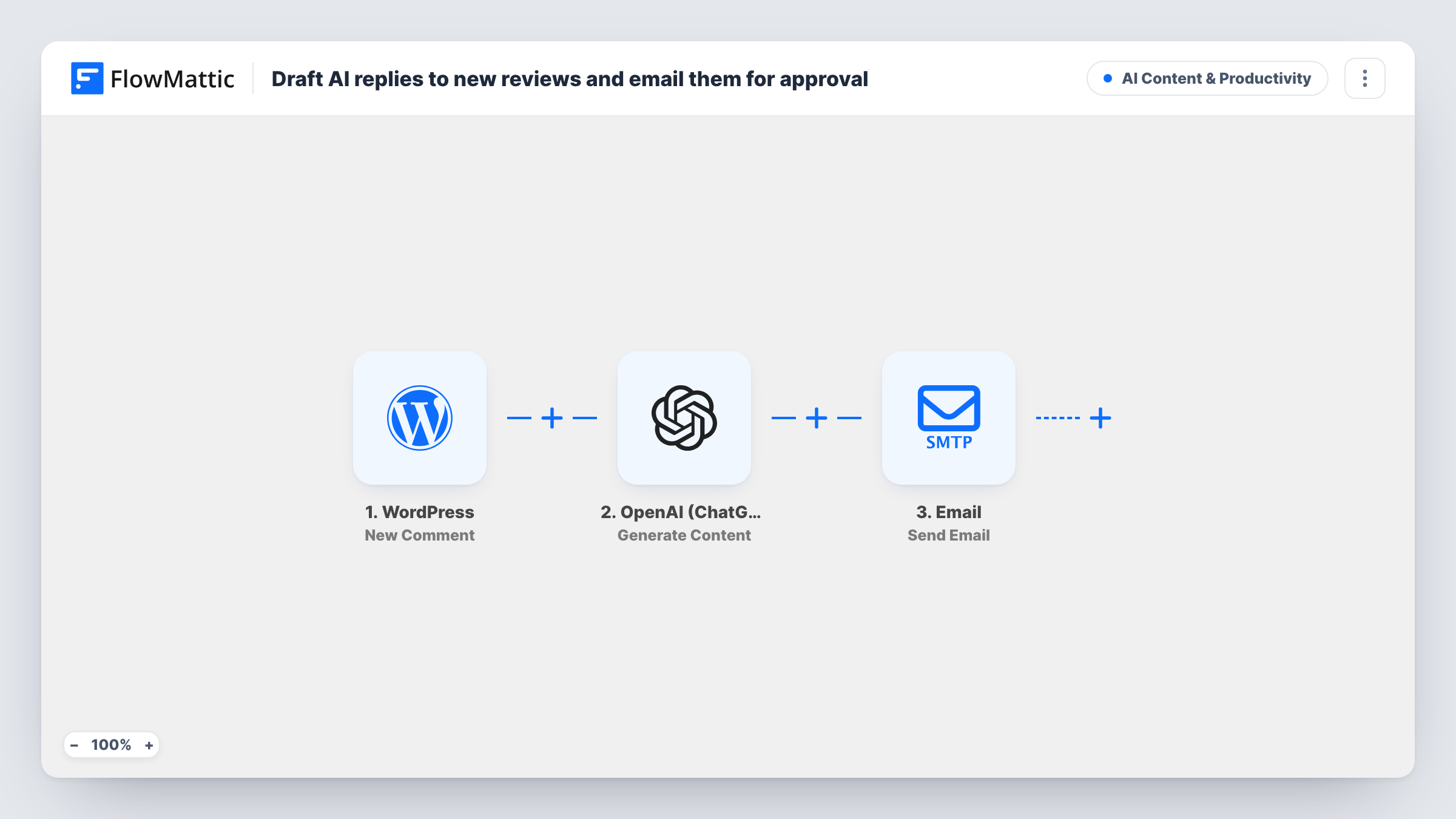
When a new comment is posted on your WordPress site, OpenAI writes a suggested reply and FlowMattic emails you the comment and the draft, so you can edit it and post the reply yourself.
 WordPress
 OpenAI (ChatGPT)
 Email
3 steps Setup ~5 min Used on 544 sites Content Ops Free to import
What this workflow does
Replying to every review or comment takes time, and a blank reply box makes it slower. This workflow gives you a first draft for each new comment, delivered to your inbox next to the original text. Nothing is posted on your site; you decide what goes out.
The WordPress New Comment trigger starts a run when a comment is added. FlowMattic sends the comment text to OpenAI with the prompt "Write a warm, professional reply to this review", using the gpt-4o model with a 600-token limit. The Email step then sends a message to [email protected]. Its subject is "Suggested reply to" plus the commenter's name, and the body shows the review followed by the suggested reply.
The trigger is New Comment, with no Filter after it, so every comment on the site gets a draft, not only reviews. If your site takes blog comments as well, add a Filter or expect drafts for those too. Change the placeholder address before you turn the workflow on, and connect your OpenAI account and SMTP settings.
A local business answering reviews
Customers leave reviews as comments on your site. You get each one by email with a polite draft reply, edit a line or two, and post it from the WordPress dashboard.
A course creator with busy lesson pages
Students comment on lessons. The email gives you a starting reply for each comment, which you can adjust before answering on the page.
Sharing reply duties with an assistant
Point the email at an assistant's inbox. They see the comment and a draft side by side and post the reply after a quick check.
How this workflow runs
What happens at each step once the workflow is on, and what you need before you import it.
 WordPress New Comment
Starts a run when a new comment is added on your WordPress site. The comment text and the author's name are passed to the OpenAI and Email steps.
- OpenAI (ChatGPT) Generate Content
Sends the comment to OpenAI with a prompt asking for a warm, professional reply to the review. The template uses gpt-4o with a 600-token limit. The reply comes back as the step's response.
 Email Send Email
Emails [email protected] with the subject "Suggested reply to" and the commenter's name. The body holds the original review and the AI-drafted reply below it. Replace the address with your own.
What you need
- FlowMatticCore
- OpenAI (ChatGPT) AccountAccount
After importing, map your own data. To keep the template universal, not every step is pre-filled. Open each step in the builder and connect your accounts and fields (channels, lists, sheets, recipients) before you switch the workflow on.
Make it yours
Changes worth making after you import it.
- If your site also has blog comments you answer differently, add a Filter after the trigger. Base it on a value from a test comment that tells reviews apart from other comments.
- Edit the OpenAI prompt to set your voice, for example signing off with your business name or keeping replies under three sentences.
- Add a link to the post or product in the email body, using a value from the trigger, so you can open the page and reply straight away. A test comment shows which values are available.
Questions about this workflow
Does this workflow post the OpenAI reply on my WordPress site?
No. It only emails the draft to you. You read it, edit it if needed, and post the reply yourself.
Will blog comments trigger a draft as well as reviews?
Yes. The trigger is New Comment and there is no Filter, so every new comment gets a draft. Add a Filter after the trigger to narrow it down.
Do I need an OpenAI account to use this template?
Yes. The Generate Content step runs through your own OpenAI connection, which you add in FlowMattic when you import the workflow.
Can I change who receives the suggested reply email?
Yes. The recipient is a placeholder, [email protected]. Replace it with any address, such as a shared support inbox.
More AI Content & Productivity workflows
Other ready-to-import templates from the same category.





Import this workflow into your WordPress site
Download the JSON, import it from the Workflows screen and connect your accounts. Every run stays on your server, with no per-task fees.
30-day money-back guarantee Unlimited workflows and runs Self-hosted