

When a new media file is uploaded in WordPress, remove background in BackgroundCut
Each file added to your WordPress media library is sent to BackgroundCut for background removal. The template stops there, so you add a step to keep or use the cut-out image.
 WordPress
 BackgroundCut
2 steps Setup ~5 min Used on 2.6k sites Free to import
What this workflow does
Product photos, team headshots and logos often need a clean background before they go on a page. Removing it by hand for every upload takes time. This workflow sends each new upload in your WordPress media library to BackgroundCut as soon as it lands.
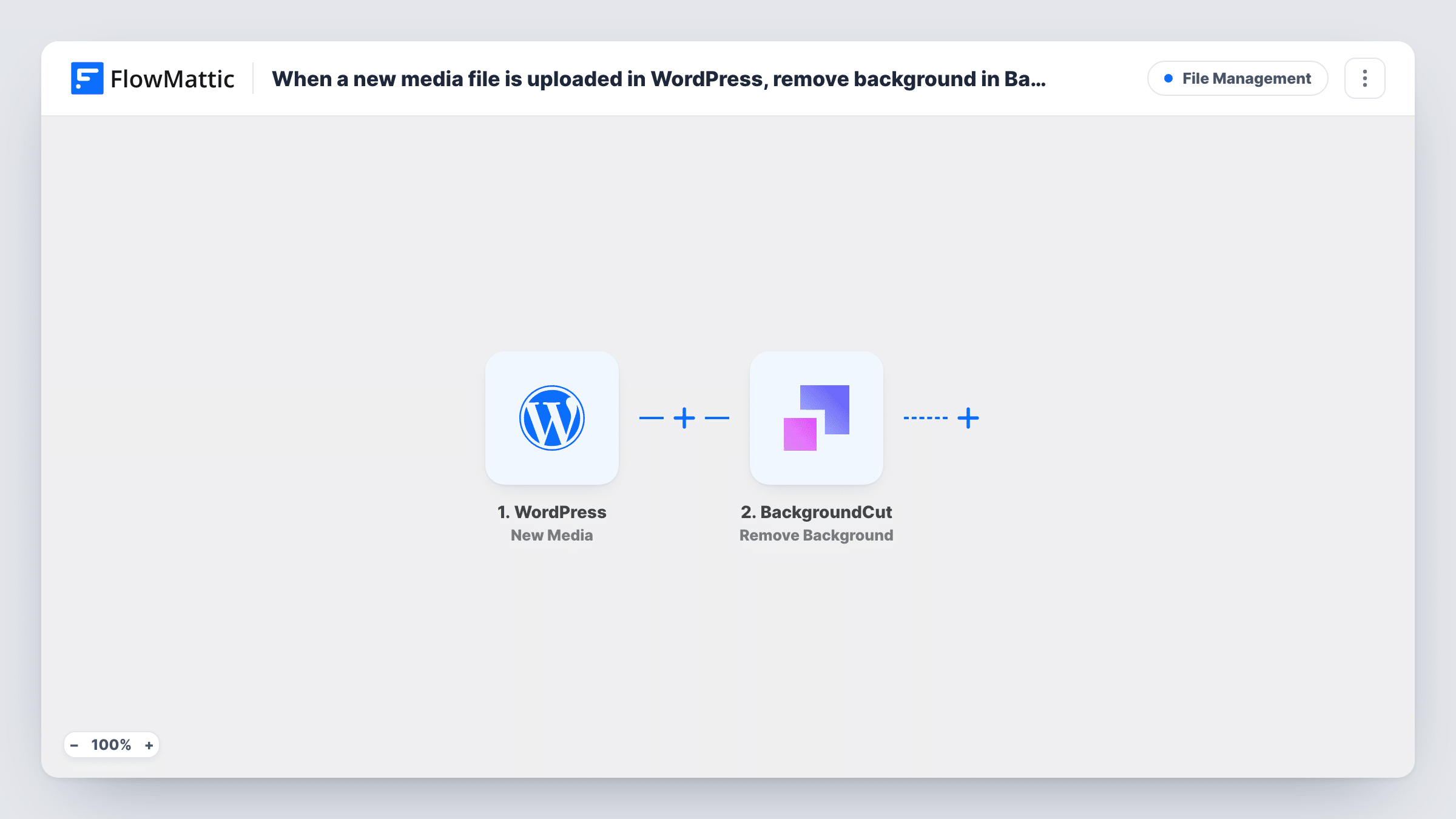
The WordPress trigger fires on the New Media event. FlowMattic then runs Remove Background in BackgroundCut. That step has nothing mapped in the template, so after import you connect BackgroundCut and map the uploaded file from the trigger into it.
Two things to know before importing. First, the workflow ends after BackgroundCut. It doesn't save the result back to your media library or anywhere else, so add a step that uses the response if you want to keep the image. Second, the template doesn't check the file type. If your library also receives PDFs or videos, add a Filter so only images are sent. Task History shows what BackgroundCut returned on each run.
Product photos for a small shop
You upload product shots to WordPress, and each one is sent to BackgroundCut so a cut-out version is available to the next step you add.
Team page headshots
Staff photos uploaded for the team page go through background removal, giving you consistent cut-outs to place on a single backdrop.
Testing BackgroundCut on real uploads
Run the workflow for a while and compare BackgroundCut's results in Task History before you decide where the processed images should go.
How this workflow runs
What happens at each step once the workflow is on, and what you need before you import it.
 WordPress New Media
Starts the workflow when a new file is added to the WordPress media library. The upload's details are passed to BackgroundCut. The template doesn't check the file type.
- BackgroundCut Remove Background
Sends the uploaded file to BackgroundCut to remove its background. Connect BackgroundCut and map the file from the trigger into the step. The response is available to any step you add after it.
What you need
- FlowMatticCore
- BackgroundCut AccountAccount
After importing, map your own data. To keep the template universal, not every step is pre-filled. Open each step in the builder and connect your accounts and fields (channels, lists, sheets, recipients) before you switch the workflow on.
Make it yours
Changes worth making after you import it.
- Add a step after BackgroundCut that uses its response, so the cut-out image is kept somewhere. As imported, nothing stores it.
- Add a Filter after the trigger that continues only for image uploads, using a field from a test upload that shows the file type, so PDFs and videos are not sent.
- Upload one test image after import and check Task History to see what BackgroundCut returns before you build the next step.
Questions about this workflow
Does the image without its background go back into the WordPress media library?
Not as imported. The workflow ends at BackgroundCut and doesn't save the result. Add a step after it if you want the image stored.
What happens when a PDF is uploaded to WordPress?
The template doesn't check the file type, so a PDF that fires the trigger is sent to BackgroundCut like any other upload. Add a Filter for image uploads to avoid that.
Do I need a BackgroundCut account to use this?
Yes. The Remove Background step runs through your BackgroundCut account, which you connect after import.
Are images already in my media library processed by BackgroundCut?
No. Only files uploaded after the workflow is switched on start a run.
More File Management workflows
Other ready-to-import templates from the same category.







Import this workflow into your WordPress site
Download the JSON, import it from the Workflows screen and connect your accounts. Every run stays on your server, with no per-task fees.
30-day money-back guarantee Unlimited workflows and runs Self-hosted