

When a LiveChat canned response is modified, find its Airtable record and update it
When a canned response changes in LiveChat, FlowMattic searches your Airtable table for the record that documents it and updates that record, so your reply library in Airtable matches what agents use.
 LiveChat
 Airtable
3 steps Setup ~5 min Used on 2.2k sites Free to import
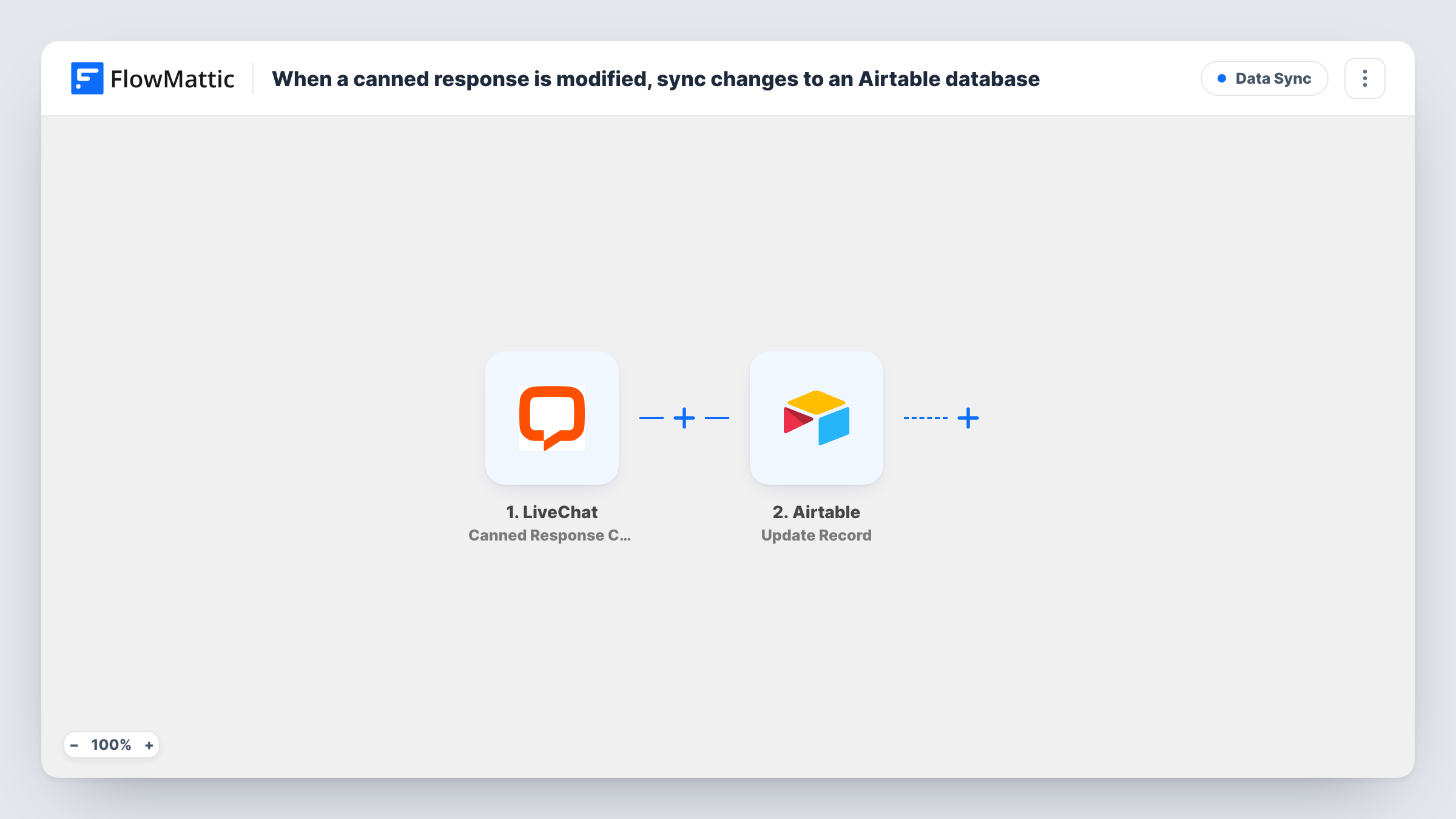
What this workflow does
Support teams often keep a list of their LiveChat canned responses in Airtable: who owns each one, when it was last reviewed, what it is for. The list goes stale as soon as someone edits a response in LiveChat and forgets the table. This workflow updates the matching Airtable record whenever a canned response changes.
The LiveChat trigger, Canned Response Changed, fires when a canned response changes and passes its data on. Edit a test response after import to see the values LiveChat sends, such as the response's ID, text and tags.
Next, the Airtable Search Record step looks for records using a filter formula. It ships unmapped: pick the base and table, and write a formula that compares a field holding the LiveChat response ID with the ID from the trigger. Your table needs that ID column for the search to find the right record. The Update Record step then changes the record it found. Map the record ID from the search result, then the fields you want refreshed, such as the response text and a last-changed date.
This flow only updates records that already exist. If the search finds no match, for example for a response added after you built the table, there is no record ID to update; Task History shows what the search returned for that run.
A reviewed library of chat replies
A support manager keeps canned responses in Airtable with an owner and review date. When an agent edits a reply in LiveChat, the record's text is refreshed so the next review starts from the current version.
Training material for new agents
A team shares an Airtable view of approved replies with new hires. The text in that view follows the edits made in LiveChat.
Tracking when replies change
A quality lead maps a last-changed date into the record, then sorts the table to see which replies were edited this week.
How this workflow runs
What happens at each step once the workflow is on, and what you need before you import it.
 LiveChat Canned Response Changed
Starts when a canned response changes in LiveChat. The response's data, such as its ID and text, is passed on to the Airtable steps. Edit a test response to see the exact values.
- Airtable Search Record
Looks for the matching Airtable record using a filter formula. The step ships unmapped: choose the base and table and write a formula that matches the LiveChat response ID stored in your table.
- Airtable Update Record
Updates the record the search found. Map its record ID from step 2's result, then map the LiveChat values, such as the new text, into the fields you want kept current.
What you need
- FlowMatticCore
- LiveChat AccountAccount
- Airtable AccountAccount
After importing, map your own data. To keep the template universal, not every step is pre-filled. Open each step in the builder and connect your accounts and fields (channels, lists, sheets, recipients) before you switch the workflow on.
Make it yours
Changes worth making after you import it.
- Add a column in Airtable for the LiveChat canned response ID and fill it for existing records before you turn the workflow on. The search needs it to find the right record.
- To stop runs where nothing was found, put a Filter between the Search Record step and the Update Record step that continues only when the search returned a record ID.
- Map a date field in the Update Record step to the run time, so you can see in Airtable when each reply last changed in LiveChat.
Questions about this workflow
What if the canned response isn't in my Airtable table yet?
The search finds nothing, so there is no record to update. This template doesn't create records. Add new responses to the table yourself, or build a separate workflow with Airtable's Create Record action.
Do I need a column for the LiveChat response ID in Airtable?
It is the reliable way to match. Matching on the response text would fail as soon as the text changes, which is exactly when this workflow runs.
What if the search returns more than one Airtable record?
Keep each LiveChat response ID in only one record, so the formula has a single match. Check a test run to see which record ID step 2 returns and that it is the one you expect.
Do edits in Airtable change the canned response in LiveChat?
No. The workflow only runs from LiveChat to Airtable. Edits in the table stay in Airtable.
More Data Sync workflows
Other ready-to-import templates from the same category.






Import this workflow into your WordPress site
Download the JSON, import it from the Workflows screen and connect your accounts. Every run stays on your server, with no per-task fees.
30-day money-back guarantee Unlimited workflows and runs Self-hosted