

When a new lead is created in Perfex CRM, create a corresponding task in ClickUp
Each new lead in Perfex CRM creates a ClickUp task with the lead’s details you map, so the follow-up sits in the same place your team already plans its work.
 Perfex CRM
 ClickUp
2 steps Setup ~5 min Used on 1.3k sites Productivity Free to import
What this workflow does
Leads arrive in Perfex CRM, but many teams run their day from ClickUp. When the two don't talk, someone has to remember to check the CRM, and new enquiries wait. This workflow puts a task in ClickUp for every new Perfex lead, so following up becomes part of the normal task list.
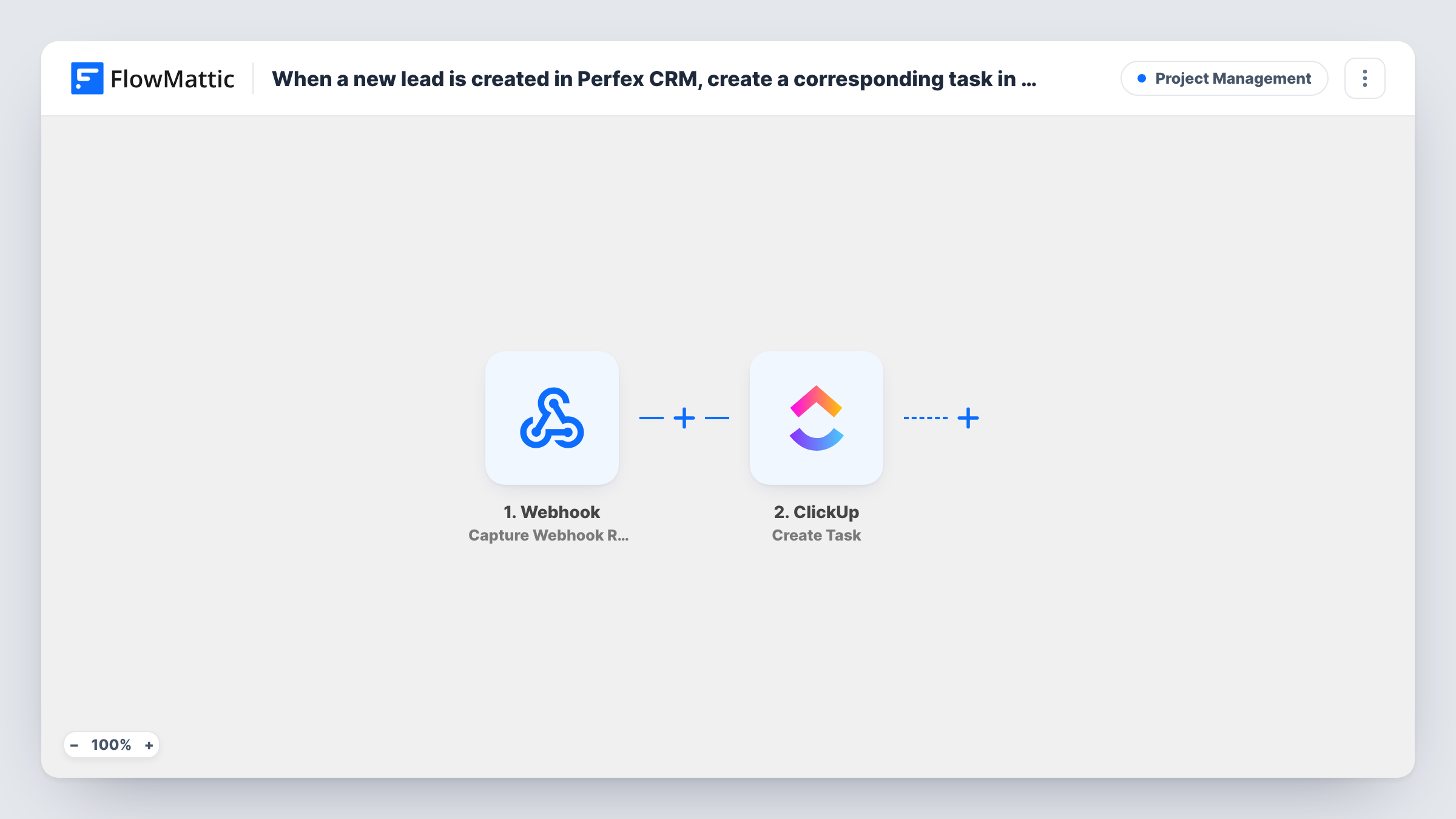
The Perfex CRM New Lead trigger fires when a lead is created in your Perfex install. The lead's details are passed on to the next step; add a test lead to see exactly which values arrive.
The ClickUp Create Task step makes one new task per lead. It ships unmapped: after import you connect ClickUp, finish choosing where the task is created, and map the Perfex values into the task, for example the lead's name in the task name and its contact details in the task text.
Changes to an existing lead, such as a new status, don't start a run, and the ClickUp task won't update when the lead does. Run a test by adding a lead in Perfex and check Task History to see what Perfex sent and what ClickUp returned.
Sales follow-ups for a small agency
An agency logs enquiries in Perfex CRM and gets a ClickUp task for each one, named after the lead, in the list the sales person works from.
Enquiries that need a call back
A consultancy's team adds enquiries to Perfex as leads through the day, and each becomes a ClickUp task to call the person back the next morning.
Shared lead queue for a team
A service business with several reps keeps new Perfex leads in one ClickUp list, where the manager assigns each task to whoever is free.
How this workflow runs
What happens at each step once the workflow is on, and what you need before you import it.
 Perfex CRM New Lead
Starts when a new lead is created in Perfex CRM. Each new lead is one run, and its details become available to map into ClickUp.
- ClickUp Create Task
Adds one follow-up task to ClickUp for each Perfex lead. The step ships unmapped: connect ClickUp, finish choosing where tasks go, and map the Perfex lead's name and contact details into the task.
What you need
- FlowMatticCore
- Perfex CRM AccountAccount
- ClickUp AccountAccount
After importing, map your own data. To keep the template universal, not every step is pre-filled. Open each step in the builder and connect your accounts and fields (channels, lists, sheets, recipients) before you switch the workflow on.
Make it yours
Changes worth making after you import it.
- Start the task name with a fixed word such as "Call" or "Follow up" followed by the lead's name, so these tasks are easy to spot in a busy ClickUp list.
- Put the lead's email and phone number in the task's text as well, if a test lead carries them, so whoever picks up the task can contact the lead without opening Perfex CRM.
- To create tasks only for some leads, put a Filter between the Perfex trigger and the ClickUp step that checks a value from a test lead, such as its source. Leads it stops create no task.
Questions about this workflow
Does updating a Perfex CRM lead change the ClickUp task?
No. The New Lead trigger fires only when a lead is created. Later changes in Perfex don't start a run, so the task keeps the details from when the lead was added.
Which Perfex lead details reach ClickUp?
Only the ones you map. The Create Task step ships empty, so after import you choose where the task goes and match the Perfex values to the task's name and other details.
Will leads already in Perfex CRM get ClickUp tasks?
No. A run starts only for leads that Perfex creates once the workflow is active, so your existing leads get no task.
More Project Management workflows
Other ready-to-import templates from the same category.


Import this workflow into your WordPress site
Download the JSON, import it from the Workflows screen and connect your accounts. Every run stays on your server, with no per-task fees.
30-day money-back guarantee Unlimited workflows and runs Self-hosted