

Create a ClickUp task for each new Uptime.com downtime alert
Every new alert from Uptime.com becomes a task in ClickUp, built from the alert details you map, so downtime gets tracked and followed up in the same place as the rest of your team’s work.
 Uptime.com
 ClickUp
2 steps Setup ~5 min Used on 1.9k sites Productivity Free to import
What this workflow does
Uptime.com tells you when a site or service has a problem, but an alert is not a work item. Someone still has to look into the cause, note what happened and close it out. This workflow creates a ClickUp task for each new alert, so that follow-up has a home.
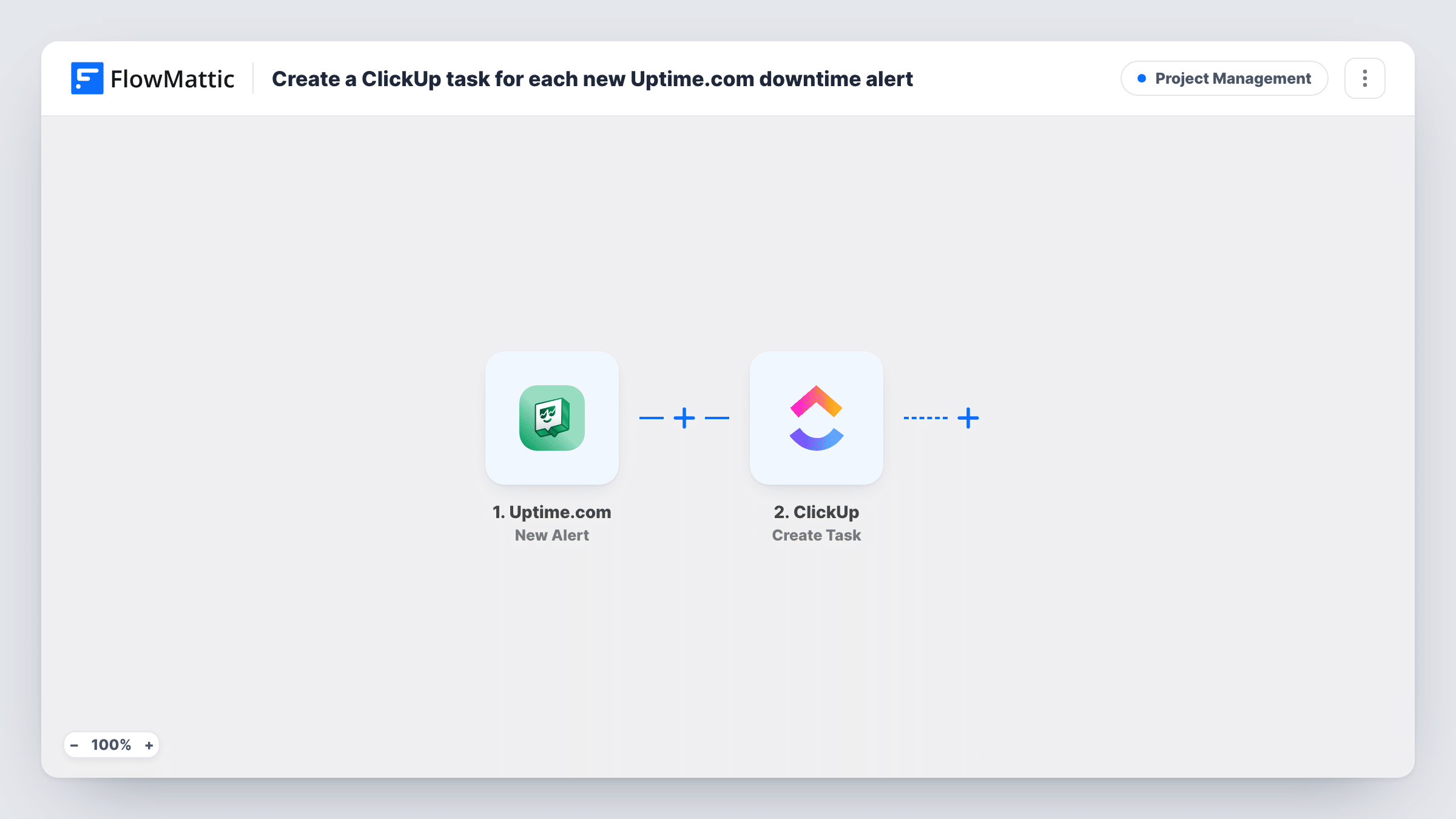
The Uptime.com trigger, New Alert, runs when Uptime.com raises an alert. FlowMattic passes the alert data to the Create Task action in ClickUp. You pick where the task is created and fill it from whichever alert values you map.
Every alert creates its own task, with no condition in between. If one check alerts several times during an incident, you get several tasks. Look at a few captured alerts before you decide whether to add a Filter. Task History keeps each run with the alert data Uptime.com sent.
Incident follow-up for a web team
Each downtime alert becomes a task in an Incidents list in ClickUp, where someone records the cause and closes it when the site is stable.
Hosting provider tracking client outages
Alerts for client sites become ClickUp tasks, giving you a list of outages to review with each client at month end.
Small team without an on-call tool
The team already works in ClickUp, so a new task for each alert is how downtime reaches them without adding another app.
How this workflow runs
What happens at each step once the workflow is on, and what you need before you import it.
 Uptime.com New Alert
Starts a run each time Uptime.com sends FlowMattic a new alert. The alert data is passed to the ClickUp step so you can build the task from it.
- ClickUp Create Task
Creates a task in ClickUp from the Uptime.com alert. Choose where it goes, fill it from the alert values you map, and use a test run to confirm it looks right.
What you need
- FlowMatticCore
- Uptime.com AccountAccount
- ClickUp AccountAccount
After importing, map your own data. To keep the template universal, not every step is pre-filled. Open each step in the builder and connect your accounts and fields (channels, lists, sheets, recipients) before you switch the workflow on.
Make it yours
Changes worth making after you import it.
- Wait for a real or test alert from Uptime.com after import, so FlowMattic captures alert data. Then map it into the ClickUp task.
- Add a Filter after the trigger if some alerts do not need a task, such as checks for staging sites. Use a captured alert to pick the value to check.
- Add a Slack step after ClickUp if the team should also hear about each alert in chat, using the same Uptime.com data.
Questions about this workflow
Will one Uptime.com outage create several ClickUp tasks?
It can. Every alert Uptime.com sends starts a run and creates a task, so repeated alerts for the same check give you repeated tasks.
Does the ClickUp task close when the Uptime.com check recovers?
No. The workflow only creates tasks. Your team closes them in ClickUp.
Which Uptime.com alert details can go into the task?
Whatever the New Alert trigger returns. Capture an alert after import and look at its data in the ClickUp step to see your options.
Do I need accounts for both Uptime.com and ClickUp?
Yes. The trigger receives alerts from your Uptime.com account, and the task is created in the ClickUp workspace you connect.
More Project Management workflows
Other ready-to-import templates from the same category.





Import this workflow into your WordPress site
Download the JSON, import it from the Workflows screen and connect your accounts. Every run stays on your server, with no per-task fees.
30-day money-back guarantee Unlimited workflows and runs Self-hosted