

Create tasks in ClickUp for new rows in Smartsheet
When a row is added to a Smartsheet sheet, this workflow creates a matching task in ClickUp, so work that is planned or requested in the sheet shows up where your team actually tracks and completes it.
 Smartsheet
 ClickUp
2 steps Setup ~5 min Used on 593 sites Productivity Free to import
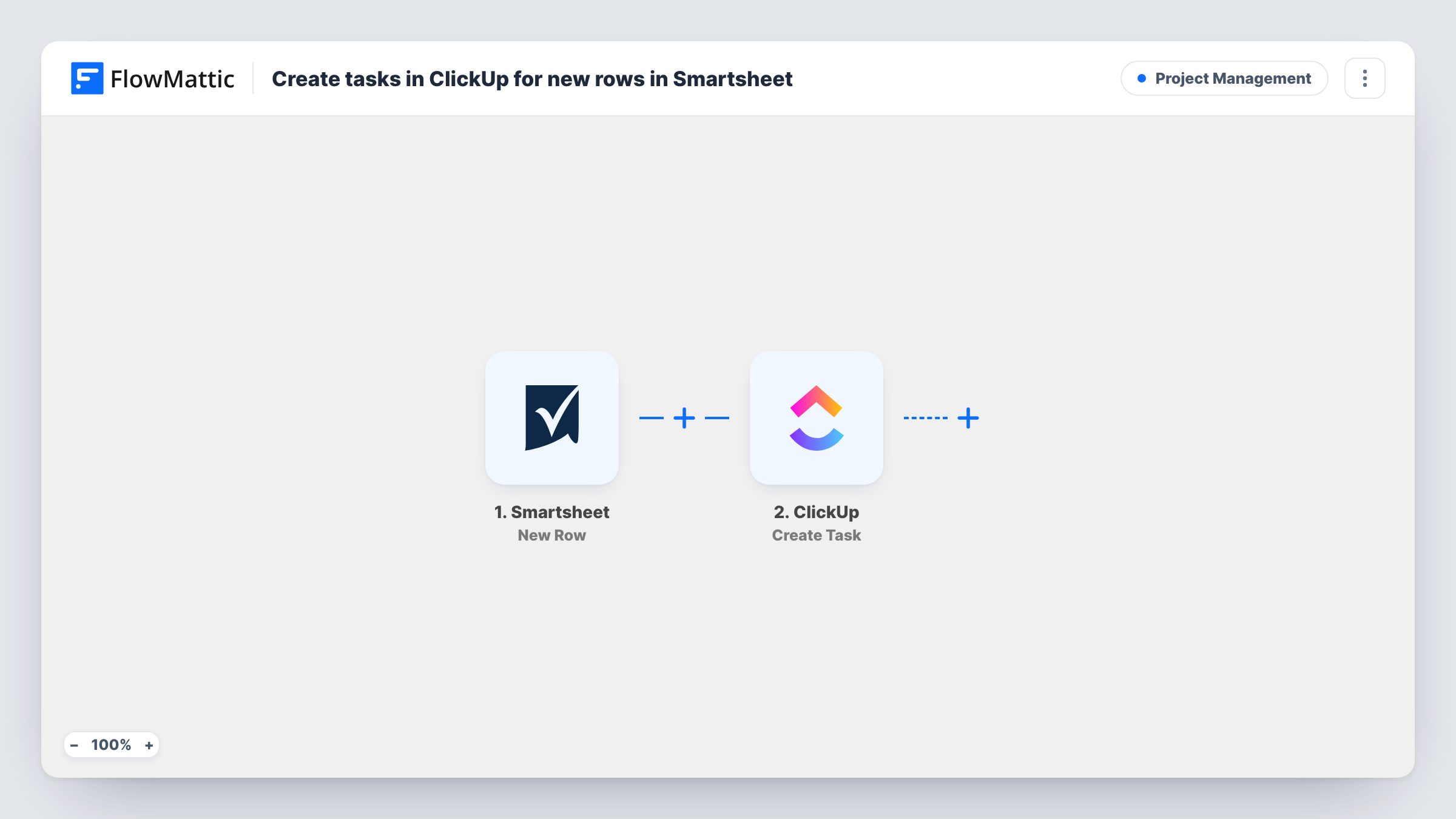
What this workflow does
Plenty of teams plan in a spreadsheet and execute in a task manager. A manager adds a line to a Smartsheet plan, and someone has to retype it into ClickUp before anyone starts. This workflow removes that hand-off: each new row becomes a ClickUp task.
The Smartsheet trigger watches the sheet you connect and fires when a new row is added. The values in that row's cells are passed to ClickUp, where the Create Task action makes a new task in the place you choose. You map which cell becomes the task name and which cells fill in the rest of the task.
Only new rows start a run. Changing a row that already exists does not create a second task, and the workflow does not write anything back to Smartsheet. If a row is deleted later, its ClickUp task stays where it is. Task History records every run, so you can match a task to the row it came from while you test.
Project plans built in Smartsheet
A project lead lists deliverables in a Smartsheet plan, and each new line turns into a ClickUp task for the team that will do the work.
Intake sheets filled by other departments
Sales or support add requests as rows in a shared Smartsheet sheet, and the delivery team picks them up as tasks in their ClickUp list.
Event or launch checklists
Coordinators add checklist items to a Smartsheet sheet as they come up, and each item appears in ClickUp so owners can be assigned there.
How this workflow runs
What happens at each step once the workflow is on, and what you need before you import it.
 Smartsheet New Row
Fires when a new row is added to the Smartsheet sheet you connect. The row's cell values become data you can map into ClickUp.
- ClickUp Create Task
Creates a new task in ClickUp from the row. Connect your ClickUp account, choose where the task should be created, and map the row's cells into the task. Run a test to see which task details the step lets you fill.
What you need
- FlowMatticCore
- Smartsheet AccountAccount
- ClickUp AccountAccount
After importing, map your own data. To keep the template universal, not every step is pre-filled. Open each step in the builder and connect your accounts and fields (channels, lists, sheets, recipients) before you switch the workflow on.
Make it yours
Changes worth making after you import it.
- Add a Filter after the trigger if only some rows should become tasks, for example rows where a Type column equals Task.
- Insert a Delay before the ClickUp step if people add a row first and fill in its cells a little later, so the task is built from a completed row.
- Add one test row to Smartsheet after import so FlowMattic captures the column values, then map them in ClickUp before you turn the workflow on.
Questions about this workflow
Do existing Smartsheet rows become ClickUp tasks when I turn this on?
No. The trigger only reacts to rows added after the workflow is active, so rows already in the sheet are left alone.
If I edit a Smartsheet row, does the ClickUp task change?
No. The workflow only creates tasks for new rows. Edits in Smartsheet are not sent to ClickUp, and the task keeps the details it was created with.
Can rows from one Smartsheet sheet go to different ClickUp lists?
Not as imported, since every task goes to the location set in the step. Replace the single ClickUp step with a Router whose routes check a column value, each with its own Create Task step pointing at a different list.
Does completing the task in ClickUp update the Smartsheet row?
No. Data only flows from Smartsheet to ClickUp in this workflow. Nothing is written back to the sheet.
More Project Management workflows
Other ready-to-import templates from the same category.


Import this workflow into your WordPress site
Download the JSON, import it from the Workflows screen and connect your accounts. Every run stays on your server, with no per-task fees.
30-day money-back guarantee Unlimited workflows and runs Self-hosted