

When new note is added to a ticket in Freshdesk, add the member note for the subscriber in Mailchimp
When a note is added to a Freshdesk ticket, this workflow adds that note to the matching member in your Mailchimp audience, so your marketing team can see support context next to the subscriber.
 Freshdesk
 Mailchimp
2 steps Setup ~5 min Used on 1.0k sites Free to import
What this workflow does
Support and marketing often look at the same customers through different tools. A subscriber who just had a rough support experience probably shouldn't get a cheerful upsell the same afternoon. This workflow copies Freshdesk ticket notes onto the subscriber's Mailchimp record so marketers can see them.
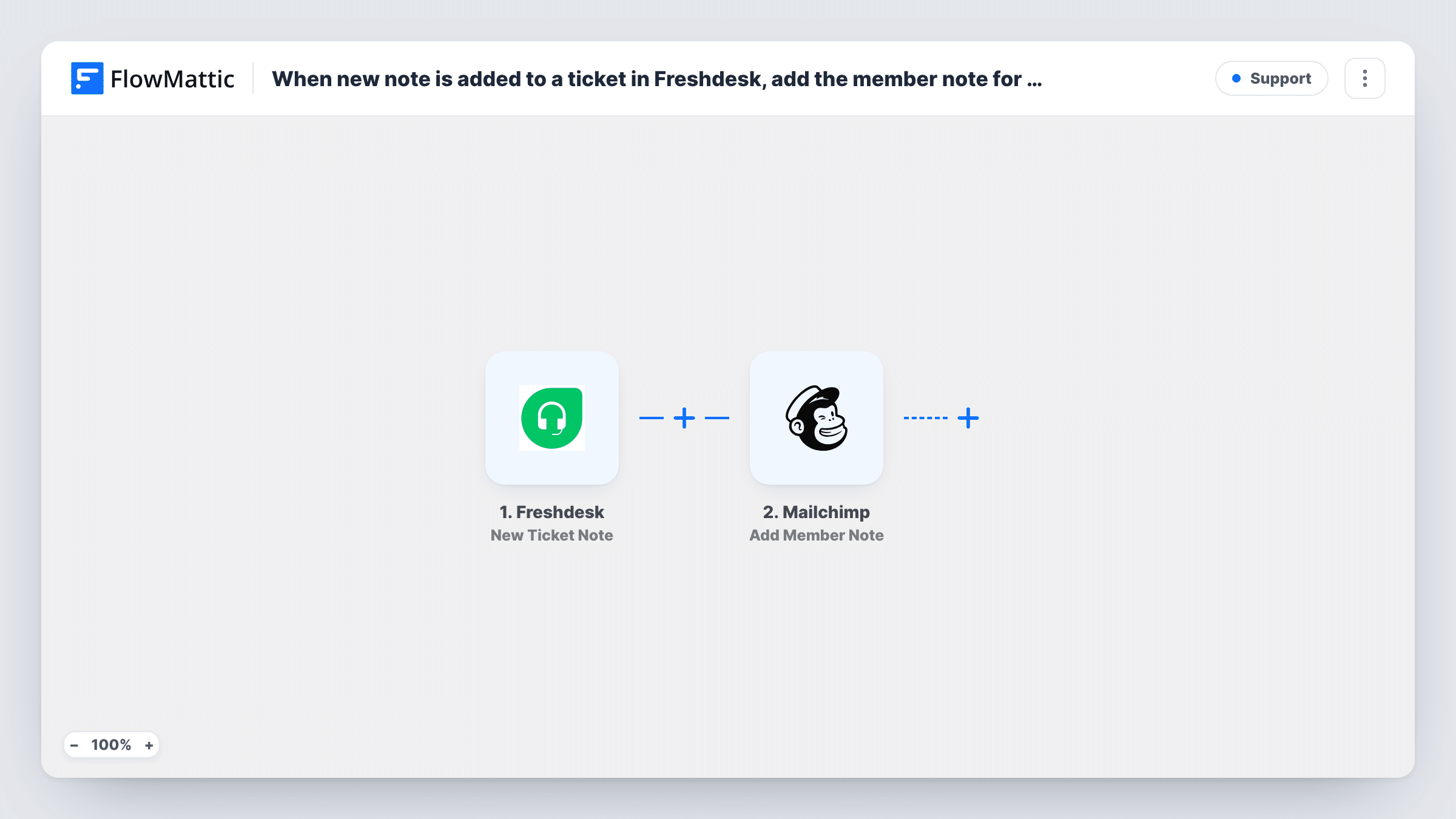
The Freshdesk trigger runs when a new note is added to a ticket. FlowMattic receives the note data and passes it to Mailchimp, where Add Member Note adds a note to an existing member of your audience. Mailchimp finds that member by email address, so you map an email from the Freshdesk data into the step along with the note text.
Two things to check before you rely on it. First, look at a test run to confirm the trigger data includes the requester's email; if it doesn't, add a step that looks up the requester first. Second, the member must already be in your Mailchimp audience, or there is nothing to attach the note to. Task History shows Mailchimp's reply for each run.
Pausing promotions after a complaint
An agent notes a billing complaint on a Freshdesk ticket. The note appears on the customer's Mailchimp profile, so the marketer sees it before adding them to the next promotion.
Context for account-based campaigns
A B2B team reviews Mailchimp profiles before a targeted campaign, and recent support notes show which customers had open issues.
Recording feature requests
Agents log feature requests as ticket notes. Those notes reach Mailchimp, where the product marketer can find subscribers who asked for a feature when it ships.
How this workflow runs
What happens at each step once the workflow is on, and what you need before you import it.
 Freshdesk New Ticket Note
Fires when a new note is added to a ticket in your Freshdesk account. The note's data is passed to the Mailchimp step for mapping.
- Mailchimp Add Member Note
Adds a note to an existing member of your Mailchimp audience. Map the customer's email so Mailchimp can find the member, map the note text, and test with a known subscriber.
What you need
- FlowMatticCore
- Freshdesk AccountAccount
- Mailchimp AccountAccount
After importing, map your own data. To keep the template universal, not every step is pre-filled. Open each step in the builder and connect your accounts and fields (channels, lists, sheets, recipients) before you switch the workflow on.
Make it yours
Changes worth making after you import it.
- Freshdesk notes can be private to your team. Add a Filter so only notes you are comfortable sharing with marketing reach Mailchimp, using a value in the note data such as whether it is private, if the data includes it.
- Add a short prefix like Freshdesk ticket and the ticket ID to the note text, so marketers know where it came from and can ask support for detail.
- Run your first test on a ticket from a customer you know is in your Mailchimp audience, then open their Mailchimp profile to see the note.
Questions about this workflow
What if the Freshdesk customer is not in my Mailchimp audience?
Add Member Note works on existing members only, so no note is added for that person. Task History shows the step's response for the run.
Does every Freshdesk ticket note go to Mailchimp?
Yes, as imported, including private notes your agents write for each other. Add a Filter after the trigger if some notes should stay in Freshdesk.
Can the Freshdesk note reach Mailchimp without the customer's email?
No. Mailchimp needs the member's email to find them. If the note data has no email, add a step that finds the requester before the Mailchimp step.
Will the Mailchimp subscriber see the note?
Member notes are kept inside your Mailchimp account for your team. They are not sent to the subscriber by this workflow.
More Support workflows
Other ready-to-import templates from the same category.






Import this workflow into your WordPress site
Download the JSON, import it from the Workflows screen and connect your accounts. Every run stays on your server, with no per-task fees.
30-day money-back guarantee Unlimited workflows and runs Self-hosted