

Add new Zoom meeting registrants to Google Sheets
Each time someone registers for one of your Zoom meetings, this workflow adds their registration details to a new Google Sheets row, building a registrant list you can sort, share and work from.
 Zoom
 Google Sheets
2 steps Setup ~5 min Used on 2.9k sites Free to import
What this workflow does
Zoom keeps registrants inside its own reports, which you download meeting by meeting. If a colleague needs the list, or you want to compare sign-ups across sessions, that export becomes a regular chore. This workflow writes each registration to a spreadsheet as it happens.
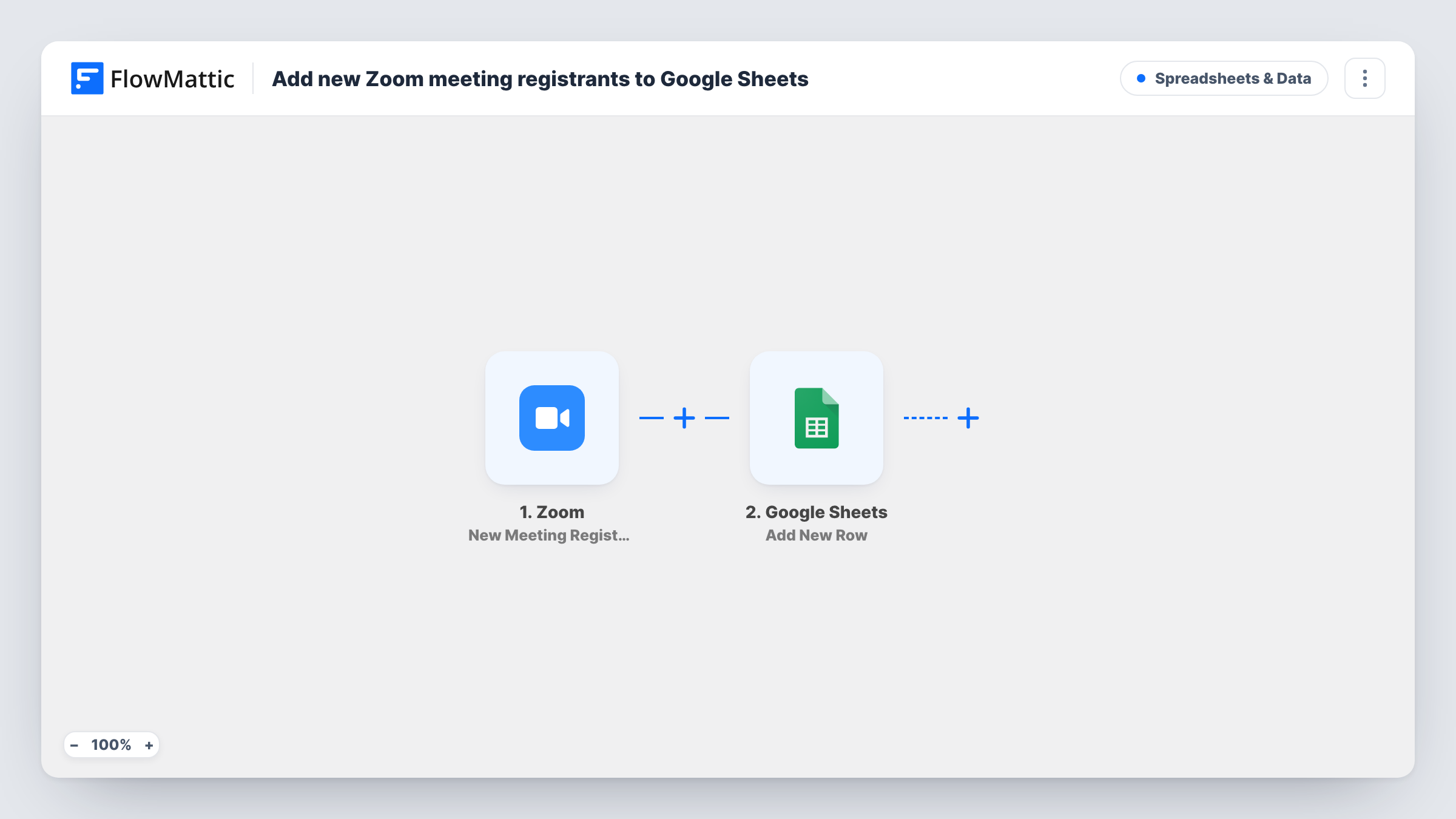
The Zoom trigger fires when a new registrant is added to a meeting on the connected account. That only happens for meetings that have registration turned on in Zoom. FlowMattic takes the registration data from the event and passes it to the Google Sheets step, which adds a new row to the spreadsheet and sheet you pick. You decide which values fill which columns.
Every registration adds its own row, so a person who registers twice, or for two meetings, appears twice. Including the meeting topic or ID in a column lets one sheet hold registrants from several meetings and still be sorted by session. Registrants who signed up before you turned the workflow on are not copied across. Task History lists each run, which helps when you want to check a row that looks wrong.
Webinar-style meetings with sign-up
You run a monthly product walkthrough as a Zoom meeting with registration. Your marketing lead reads the sheet each week to see who has signed up so far.
Workshop seats for a training business
A trainer caps each workshop and needs a list to prepare materials. The shared sheet shows the registrants without giving anyone access to the Zoom account.
Combining sessions in one list
A column for the meeting topic lets registrants from several repeat sessions share one sheet, so you can sort and see who came back for a second session.
How this workflow runs
What happens at each step once the workflow is on, and what you need before you import it.
 Zoom New Meeting Registrant
Runs when a new registrant is added to a meeting on your Zoom account. The meeting needs registration enabled in Zoom for this event to happen.
- Google Sheets Add New Row
Adds a row to the Google Sheets spreadsheet you choose with the registration data you map. Set up column headers first, then match each one to a value from the Zoom event.
What you need
- FlowMatticCore
- Zoom AccountAccount
- Google Sheets AccountAccount
After importing, map your own data. To keep the template universal, not every step is pre-filled. Open each step in the builder and connect your accounts and fields (channels, lists, sheets, recipients) before you switch the workflow on.
Make it yours
Changes worth making after you import it.
- Add a Filter after the Zoom trigger that continues only when the meeting ID matches one meeting, if you want a separate sheet per event instead of one combined list.
- Before you map the row, register for a test meeting yourself so FlowMattic captures a real Zoom registration and every value it carries is ready to pick.
- Add a second action after the Google Sheets step, such as a FluentCRM contact or a Slack post, if registrants also need to reach your email list or your team.
Questions about this workflow
Does this work for Zoom Webinars as well as meetings?
This template uses the New Meeting Registrant trigger, so it reacts to meeting registrations. Webinars are a separate Zoom product with their own events, and this trigger does not cover them.
Which Zoom registrant details can I put in the sheet?
Any value the registration event carries can be mapped to a column. Register for a test meeting after import and look at the captured data to see exactly what Zoom sends.
What happens if someone registers twice for the same Zoom meeting?
Each registration event adds a new row, so you may see the same person more than once. The Google Sheets step does not check for existing rows.
Can the Google Sheet be shared with people outside my team?
Yes. Sharing is set in Google Sheets itself, so anyone you give access to can read the registrant list without a Zoom login.
More Spreadsheets & Data workflows
Other ready-to-import templates from the same category.



Import this workflow into your WordPress site
Download the JSON, import it from the Workflows screen and connect your accounts. Every run stays on your server, with no per-task fees.
30-day money-back guarantee Unlimited workflows and runs Self-hosted