

Send a Telegram message when an 8x8 agent leaves a call
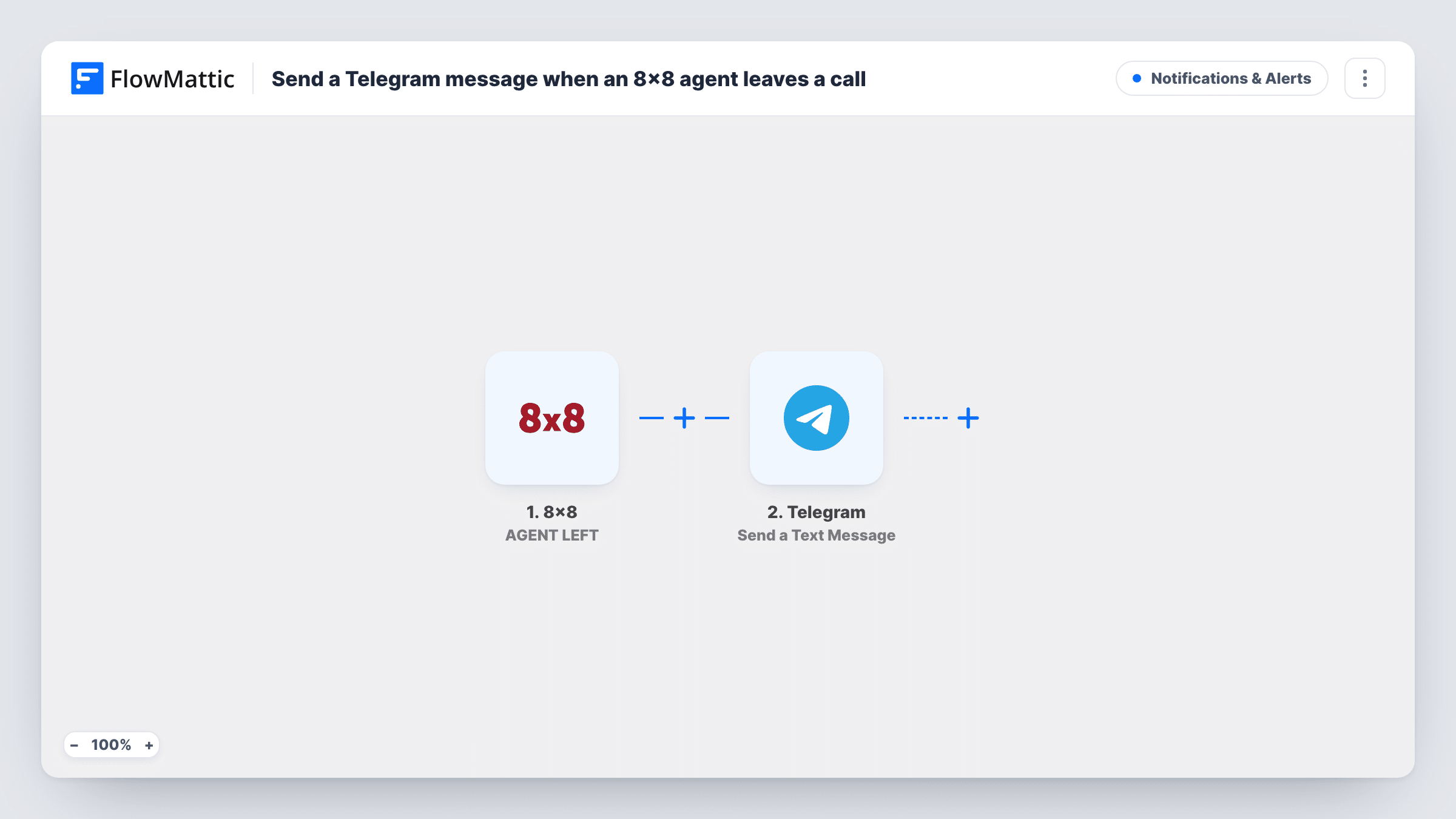
When the agent handling an 8×8 interaction leaves the conversation, this workflow sends a Telegram message to the chat you choose, so supervisors see agent departures without watching the 8×8 console.
 8x8
 Telegram
2 steps Setup ~5 min Used on 2.9k sites Free to import
What this workflow does
In a contact centre, an agent leaving a conversation can mean a call wrapped up, a transfer or a dropped interaction. Supervisors who want to keep an eye on this usually have to watch the 8x8 console. This workflow sends each departure to Telegram instead.
The 8x8 trigger fires whenever the agent handling an interaction has left the conversation. FlowMattic takes the event data, such as the agent and interaction details 8x8 sends, and passes it to Telegram. The Send a Text Message action posts a message, with markup support, to the chat or group you set.
The template doesn't judge why the agent left. Every agent-left event produces a message, including normal call endings, so a busy team will see many of them. Use a Filter, described in the tips, if you only want some. Task History keeps a record of every message sent.
Supervisor channel for a small support team
A team lead follows a Telegram group that shows each time an agent leaves an interaction, which helps spot an agent who drops out more often than the rest.
Watching a new agent's first week
Filter on a trainee's name so their supervisor gets a Telegram message each time that agent leaves an interaction.
Out-of-hours coverage
A manager on call after hours sees agent departures in Telegram on their phone and can check whether a queue has been left uncovered.
How this workflow runs
What happens at each step once the workflow is on, and what you need before you import it.
 8x8 AGENT LEFT
Fires whenever the agent handling an 8x8 interaction has left the conversation. The event details 8x8 sends are made available to the Telegram message.
- Telegram Send a Text Message
Sends a text message through your Telegram bot to the chat you set. Write the message with markup if you like and insert agent or interaction fields from 8x8.
What you need
- FlowMatticCore
- 8x8 AccountAccount
- Telegram AccountAccount
After importing, map your own data. To keep the template universal, not every step is pre-filled. Open each step in the builder and connect your accounts and fields (channels, lists, sheets, recipients) before you switch the workflow on.
Make it yours
Changes worth making after you import it.
- Add a Filter after the trigger on a field such as the agent name or queue, so only the departures you care about reach Telegram.
- Use Telegram markup to bold the agent's name at the start of the message, so the group can read each alert at a glance.
- Let one agent leave a test interaction after import so FlowMattic captures the event, then map its fields into the Telegram text.
Questions about this workflow
Will Telegram get a message every time an 8x8 call ends normally?
Yes, if the agent leaving the conversation is part of how it ends. The trigger fires on every agent-left event, with no check on the reason.
Which 8x8 details can go into the Telegram message?
Whatever 8x8 sends with the agent-left event. A test run after import shows the fields, and you insert the ones you want.
Do I need a Telegram bot for this?
Yes. FlowMattic sends Telegram messages through a bot you connect. Add the bot to the group or chat where the alerts should appear.
Can I send the 8x8 alert to Slack instead of Telegram?
Yes. Replace the Telegram step with Slack's Send Channel Message action and map the same 8x8 fields into the text.
More Notifications & Alerts workflows
Other ready-to-import templates from the same category.





Import this workflow into your WordPress site
Download the JSON, import it from the Workflows screen and connect your accounts. Every run stays on your server, with no per-task fees.
30-day money-back guarantee Unlimited workflows and runs Self-hosted