

Send a OneSignal push when a new post is published in WordPress
Each time you publish a WordPress post, this workflow sends a OneSignal push notification with the post’s title and link to the subscribers or segments you choose, so readers hear about it without checking your site.
 WordPress
 OneSignal
2 steps Setup ~5 min Used on 1.8k sites Free to import
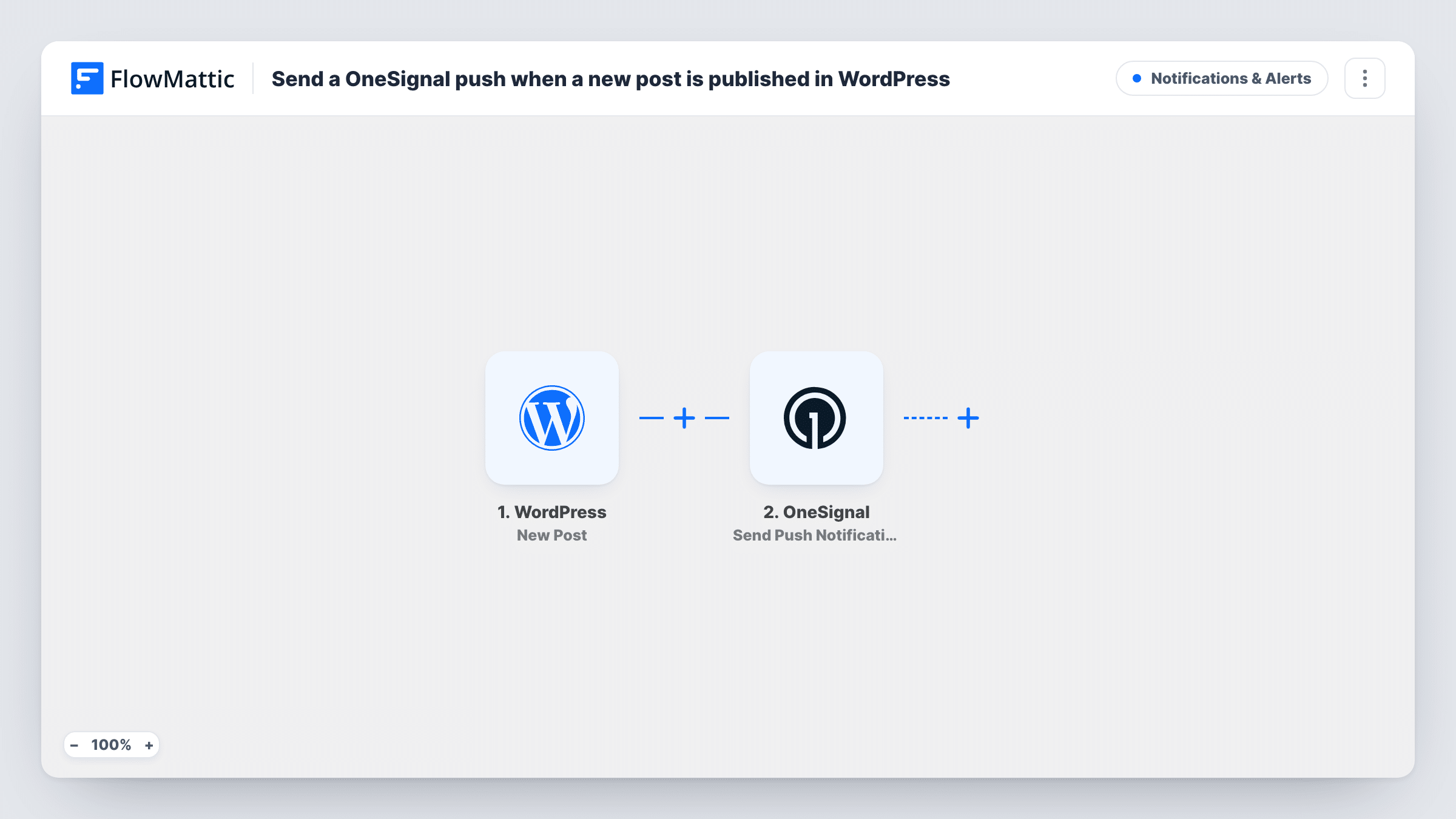
What this workflow does
Readers who opted in to push notifications want to know when you publish. Sending each push by hand from the OneSignal dashboard is easy to forget on a busy day. This workflow sends one for every new post as it goes live.
The WordPress New Post trigger fires when a post is published. FlowMattic passes the post data, such as the title, excerpt and permalink, to OneSignal. Send Push Notification then sends a push to the segments or specific recipients you set, with the text and link built from the post fields you map.
The push goes out for every new post, including short updates you might not want to announce. Add a Filter on a post field the trigger provides if you only want some posts pushed. Updating a post that is already live does not send another push. Task History shows each run and what OneSignal returned.
News sites with breaking stories
Each new story goes out as a push to subscribers, carrying the headline and a link straight to the article.
Blogs with a loyal readership
Readers who subscribed to push hear about a new article on the day it goes up, without relying on social feeds.
Membership or course sites
Members who allowed notifications get a push when a new lesson write-up or announcement post is published, with a link to read it.
How this workflow runs
What happens at each step once the workflow is on, and what you need before you import it.
 WordPress New Post
Starts a run when a post is published on your WordPress site. The post's title, link and other fields become available for the push message.
- OneSignal Send Push Notification
Sends a OneSignal push notification to the segments or recipients you choose. Map the post title and permalink into the push, then connect your OneSignal account.
What you need
- FlowMatticCore
- OneSignal AccountAccount
After importing, map your own data. To keep the template universal, not every step is pre-filled. Open each step in the builder and connect your accounts and fields (channels, lists, sheets, recipients) before you switch the workflow on.
Make it yours
Changes worth making after you import it.
- Add a Filter after the trigger on a value from the post data, so not every update goes out as a push. Check a test post to see which fields the trigger carries.
- Map the post excerpt into the message body so the push shows a short summary rather than just the title.
- Point the step at a small test segment while you check the wording, then switch it to your full audience.
Questions about this workflow
Does updating a published WordPress post send another push?
No. The New Post trigger fires when a post is published. Edits to posts that are already live don't start the workflow.
Do subscribers need to opt in for OneSignal pushes?
Yes. Push notifications only reach browsers or devices that subscribed through your OneSignal setup.
Can I push only some WordPress posts?
Yes. Add a Filter after the trigger that checks a field from the post data, and only posts that pass send a push.
Will scheduled WordPress posts send a push?
They should send when they publish, since the trigger fires on publishing. Schedule a test post a few minutes ahead to confirm on your site.
More Notifications & Alerts workflows
Other ready-to-import templates from the same category.




Import this workflow into your WordPress site
Download the JSON, import it from the Workflows screen and connect your accounts. Every run stays on your server, with no per-task fees.
30-day money-back guarantee Unlimited workflows and runs Self-hosted