

Create an Airtable record for every new Hiver external reply from anyone
Each time an external reply arrives in Hiver from any sender, this workflow creates a record in Airtable, building a table of incoming replies you can sort, group and report on.
 Hiver
 Airtable
2 steps Setup ~5 min Used on 1.8k sites Free to import
What this workflow does
Hiver keeps shared inbox conversations inside Gmail, which is good for answering and less good for counting. If you want to see how many replies come in, from whom and about what, you need the data in a table. This workflow adds a row in Airtable for every external reply.
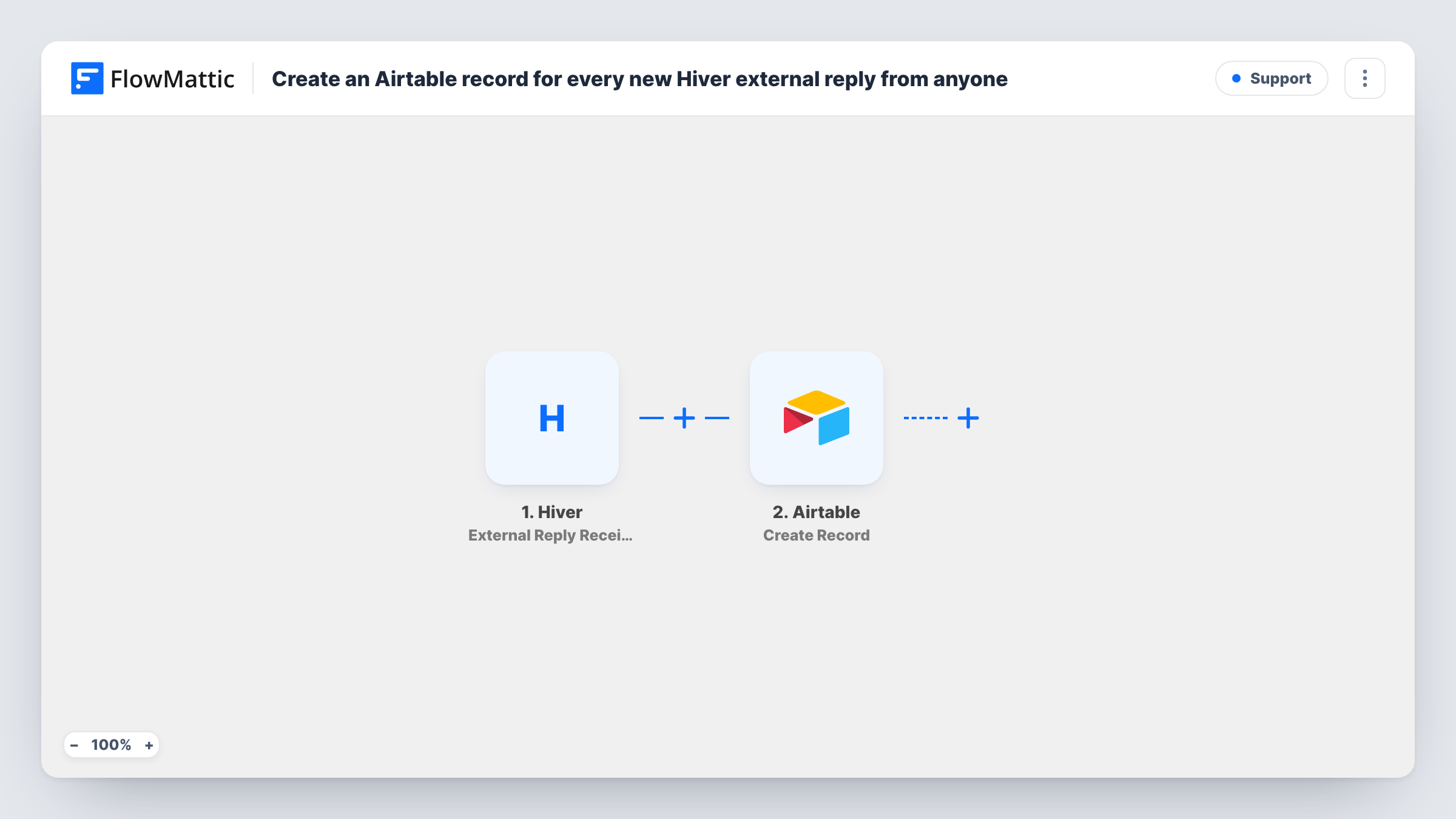
The Hiver trigger fires when an external reply is received from any contact. FlowMattic passes the reply data to Airtable, where the Create Record action adds a record to the base and table you choose. You map the reply details to your fields, so the table holds what you want to analyse.
Every external reply creates its own record, so a busy inbox fills the table quickly. The workflow only reads from Hiver and writes to Airtable; it does not change the conversation. Task History shows the data received for each run and the record Airtable created.
Response volume by shared inbox
A support manager groups the Airtable records by inbox each week to see where customer replies pile up.
Tracking replies from key accounts
Filter the Airtable view by sender domain to see every reply your largest customers sent this month.
Vendor and partner correspondence log
An operations team keeps a searchable table of external replies on a partnerships inbox, separate from Gmail.
How this workflow runs
What happens at each step once the workflow is on, and what you need before you import it.
 Hiver External Reply Received from Anyone
Fires when Hiver receives an external reply from any contact. The reply details are passed to Airtable for mapping.
- Airtable Create Record
Creates a record in the Airtable table you select. Connect Airtable and map the Hiver reply data to your fields.
What you need
- FlowMatticCore
- Hiver AccountAccount
- Airtable AccountAccount
After importing, map your own data. To keep the template universal, not every step is pre-filled. Open each step in the builder and connect your accounts and fields (channels, lists, sheets, recipients) before you switch the workflow on.
Make it yours
Changes worth making after you import it.
- Set up the Airtable table first with fields for the details you care about, then send a test reply so FlowMattic captures Hiver's data to map.
- If only known contacts matter, use Hiver's External Reply Received from Contact trigger instead of the any-sender one.
- Add a Filter after the trigger to leave out automatic replies, for example when the subject, if Hiver sends it, contains a phrase like out of office.
Questions about this workflow
Which Hiver replies create Airtable records?
External replies received from anyone. Hiver also has a trigger for replies from known contacts only, which this template does not use.
Do my own team's Hiver replies get logged in Airtable?
This trigger is for external replies. FlowMattic has a separate Mailbox Reply Sent trigger for Hiver if you also want your team's replies.
Are older Hiver replies added to Airtable?
No. Only replies received after the workflow is turned on create records.
More Support workflows
Other ready-to-import templates from the same category.







Import this workflow into your WordPress site
Download the JSON, import it from the Workflows screen and connect your accounts. Every run stays on your server, with no per-task fees.
30-day money-back guarantee Unlimited workflows and runs Self-hosted