

When New Submission in Getform, Create Task in ClickUp
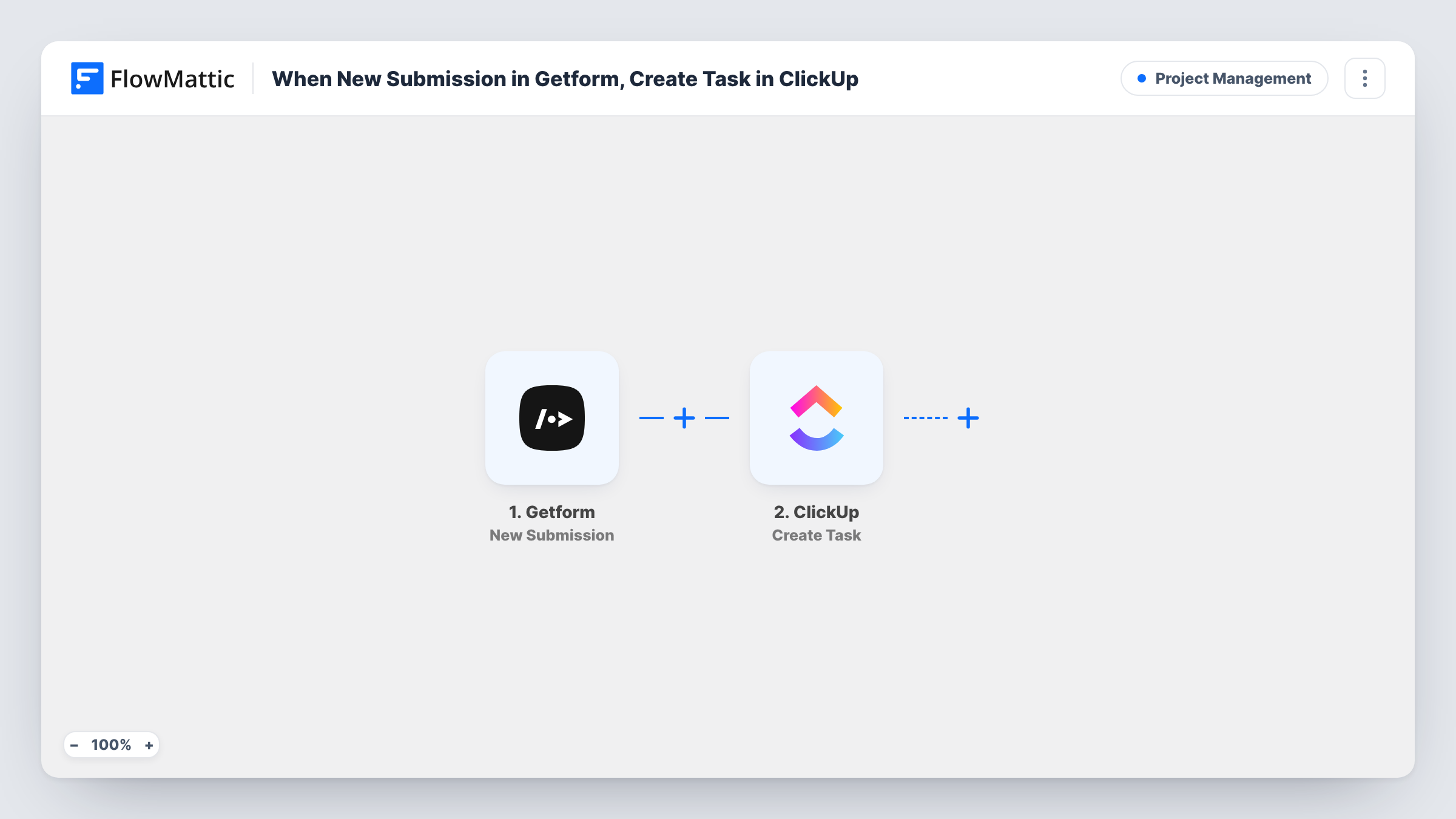
Every new Getform submission becomes a task in ClickUp, built from the submitted fields, so requests sent through your form land in your project tool without being retyped.
 Getform
 ClickUp
2 steps Setup ~5 min Used on 1.7k sites Productivity Free to import
What this workflow does
Getform collects submissions from forms on any website, but those entries don't turn into work by themselves. Someone has to read each one and create a task for it. This workflow skips that step: each submission is turned into a ClickUp task that your team can assign, schedule and close.
The Getform trigger fires when a new submission is received on your form endpoint. The fields the visitor sent become data in FlowMattic. The next step uses the Create Task action in ClickUp, and you decide which submitted values go into the task, for example the visitor's request as the task name and the rest of their answers in the description.
Every submission creates one task, because the template has no Filter. Spam or test entries that reach Getform will therefore also become tasks, so it is worth adding a check if your form attracts junk. Task History records each run, so you can see the data that arrived and the response from ClickUp.
Website change requests from clients
Clients send change requests through a Getform-powered form on a static site. Each request opens a ClickUp task your developers pick up from their list.
Contact form on a portfolio or landing page
A freelancer's contact form posts to Getform. New enquiries become ClickUp tasks, so following up on each one sits alongside the rest of the week's work.
Internal IT or facilities requests
Staff report problems through a simple form handled by Getform. A task appears in ClickUp for each report, ready to be assigned to whoever fixes it.
How this workflow runs
What happens at each step once the workflow is on, and what you need before you import it.
 Getform New Submission
Runs when Getform receives a new submission. Each field the visitor sent is passed to FlowMattic, ready to map into the ClickUp task. Send a test submission after connecting to capture the fields.
- ClickUp Create Task
Creates a new task in ClickUp from the Getform data. Map submission values into it, for instance a subject line as the task name and the message as its description, then check a test run to confirm the task appears where you expect.
What you need
- FlowMatticCore
- Getform AccountAccount
- ClickUp AccountAccount
After importing, map your own data. To keep the template universal, not every step is pre-filled. Open each step in the builder and connect your accounts and fields (channels, lists, sheets, recipients) before you switch the workflow on.
Make it yours
Changes worth making after you import it.
- Add a Filter after the Getform trigger that stops runs where the email or message field is empty. Blank or half-filled entries then won't create tasks.
- Put the submitter's email address in the task description so whoever picks up the ClickUp task can reply to the person directly.
- Use a Router if one form serves several teams: give each route a condition on a field such as the request type, and its own Create Task step set up for that team.
Questions about this workflow
Does every Getform submission create a ClickUp task?
Yes. With no Filter in the template, each submission Getform receives produces one task. Add a Filter after the trigger if some entries should be left out.
Can the ClickUp task include all the Getform fields?
Yes. Any field sent with the submission can be mapped into the task. Combine several fields in the description if you want the whole entry in one place.
Will a spam submission become a ClickUp task?
If Getform passes it on as a new submission, yes. To keep junk out, add a Filter that checks a field spam entries tend to leave blank or fill oddly.
Are submissions sent before I import this copied to ClickUp?
No. The trigger only reacts to submissions received after the workflow is turned on. Earlier entries stay in Getform.
More Project Management workflows
Other ready-to-import templates from the same category.




Import this workflow into your WordPress site
Download the JSON, import it from the Workflows screen and connect your accounts. Every run stays on your server, with no per-task fees.
30-day money-back guarantee Unlimited workflows and runs Self-hosted