

Create a ClickUp task for each new Monetizze complete
Each time a Monetizze sale is complete, this workflow creates a task in ClickUp, so delivery, onboarding or follow-up work for that buyer starts in your task list.
 Monetizze
 ClickUp
2 steps Setup ~5 min Used on 1.5k sites Productivity Free to import
What this workflow does
A finished sale often means work for someone: sending access details, scheduling an onboarding call or shipping a bonus. When those jobs live in ClickUp but the sale lives in Monetizze, a person has to copy each one across. This workflow creates the task for you when the sale completes.
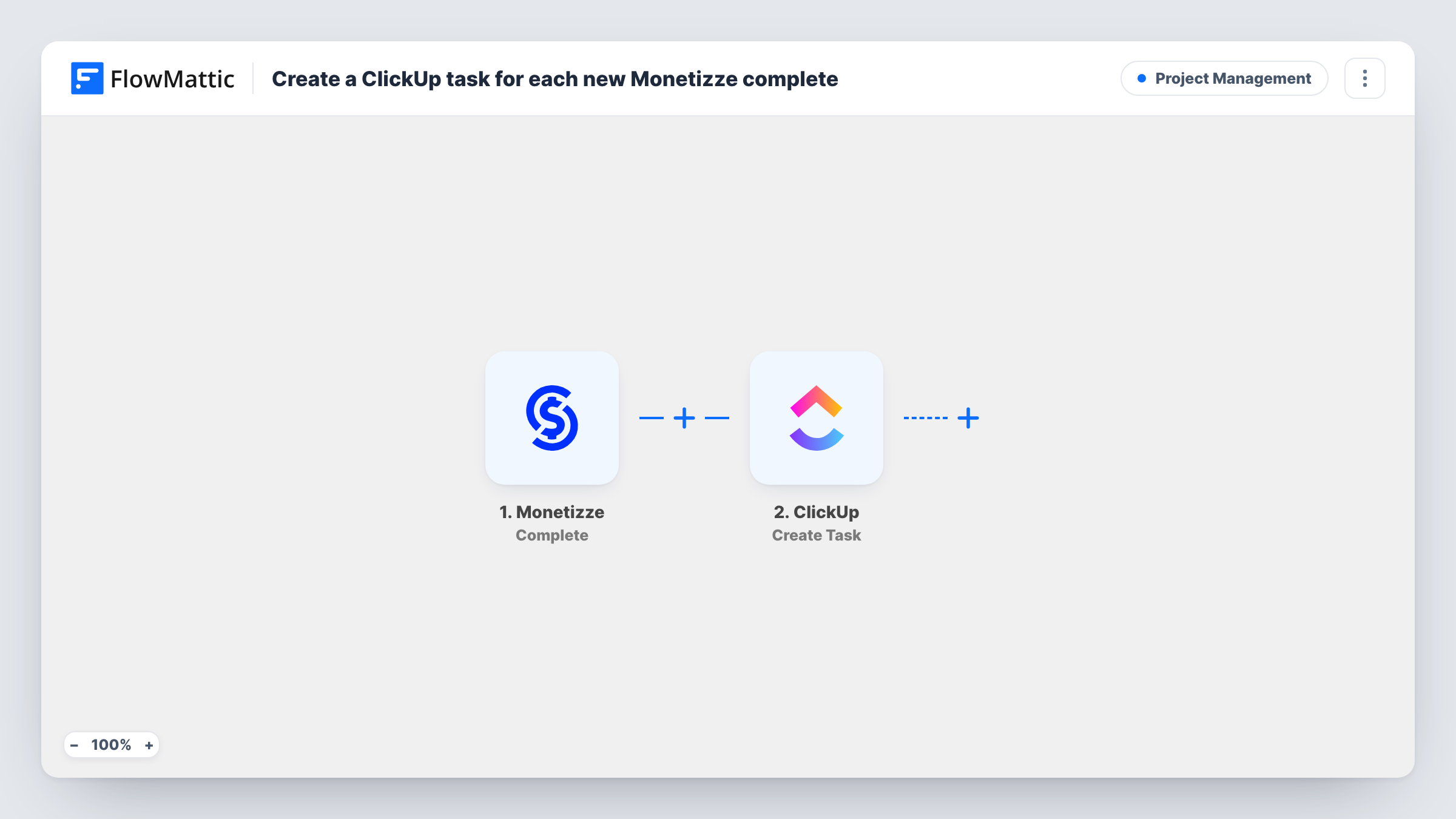
The Monetizze trigger fires when a sale is complete. FlowMattic then passes the sale data to ClickUp, where the Create Task action adds a task to the list you choose. You can put the buyer's name and the product into the task name, and other sale details into the description.
Each completed sale creates one task, and nothing is filtered as imported. A buyer who completes two sales gets two tasks. Task History shows each run with the data Monetizze sent, which helps when you map the ClickUp fields.
Onboarding calls for coaching clients
Every completed coaching sale adds a task to the onboarding list, and the coach books the first call from there.
Manual delivery of a physical bonus
When a course sale completes, the fulfillment person gets a ClickUp task to post the printed workbook to that buyer.
Thank-you follow-up
A support team member picks up each task and sends a personal welcome note, ticking the task off when done.
How this workflow runs
What happens at each step once the workflow is on, and what you need before you import it.
 Monetizze Complete
Fires when a sale in your Monetizze account is complete. The sale data becomes available to map into the ClickUp task.
- ClickUp Create Task
Adds a ClickUp task for the completed sale. Pick where it goes, map Monetizze data into the task, and connect your ClickUp account on import.
What you need
- FlowMatticCore
- Monetizze AccountAccount
- ClickUp AccountAccount
After importing, map your own data. To keep the template universal, not every step is pre-filled. Open each step in the builder and connect your accounts and fields (channels, lists, sheets, recipients) before you switch the workflow on.
Make it yours
Changes worth making after you import it.
- Add a Filter after the trigger so only sales of the products that need manual work create tasks.
- Put the Monetizze sale reference in the task name, so you can search ClickUp for it if the buyer writes in later.
- Add a second step that posts to Slack or email when the task is created, if the assignee should be told right away.
Questions about this workflow
What is the difference between Monetizze's Complete and Completed / Approved triggers?
They are separate triggers in FlowMattic. This template uses Complete, which fires when a sale is complete. If your process depends on the approved event, swap the trigger and remap the ClickUp step.
Can each Monetizze sale task go to a set ClickUp assignee?
That depends on the options the Create Task step shows when you set it up. Run a test after import to see what you can set.
Do refunded sales remove the ClickUp task?
No. Nothing in this template edits or closes ClickUp tasks. A refund is a different Monetizze event and does nothing here unless you build another workflow for it.
More Project Management workflows
Other ready-to-import templates from the same category.






Import this workflow into your WordPress site
Download the JSON, import it from the Workflows screen and connect your accounts. Every run stays on your server, with no per-task fees.
30-day money-back guarantee Unlimited workflows and runs Self-hosted