

Create a ClickUp task for each new Sprintful booking
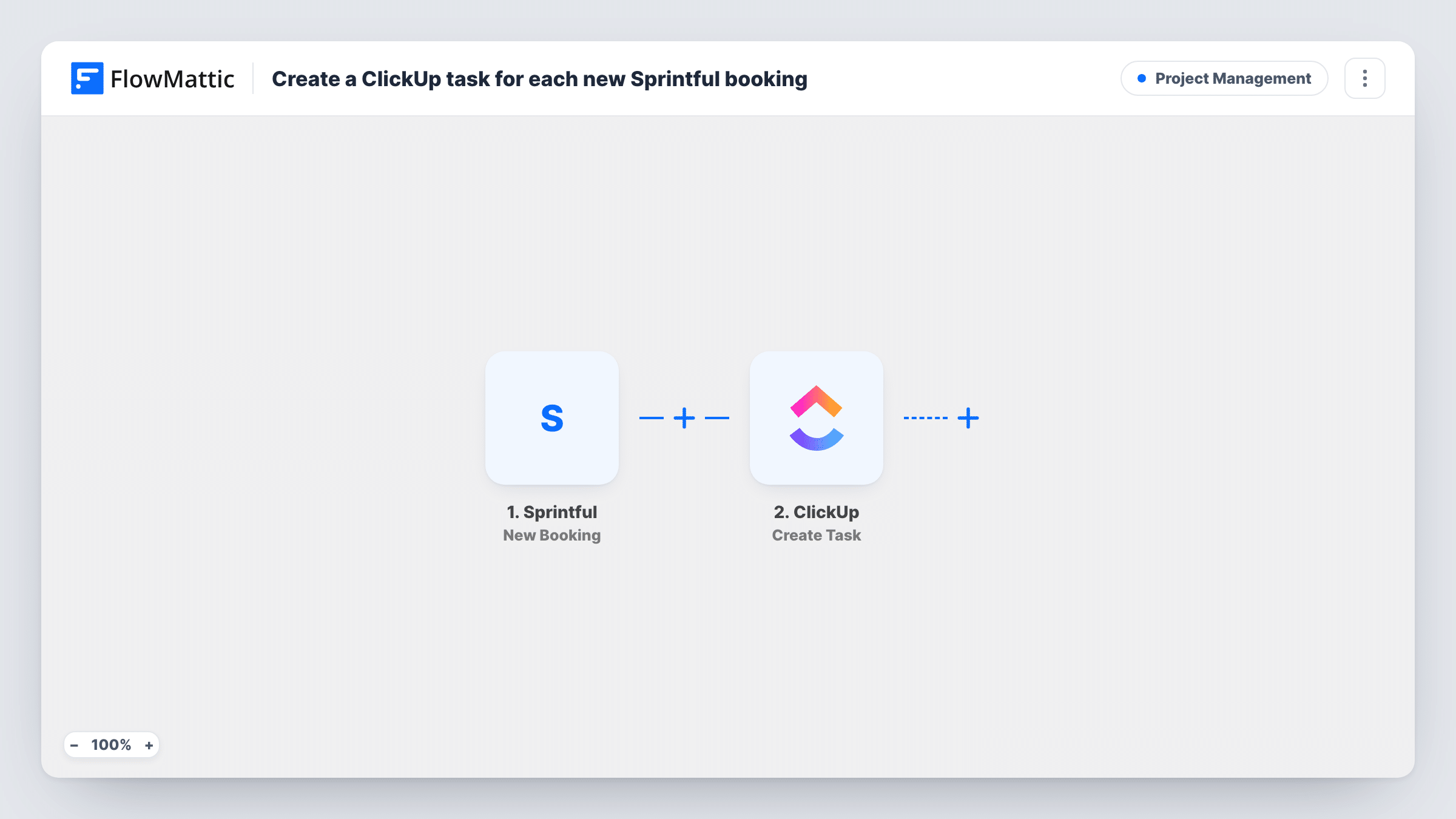
Every new booking made through Sprintful creates a task in ClickUp, so the prep for each call or meeting is tracked in the same place as the rest of your team’s work.
 Sprintful
 ClickUp
2 steps Setup ~5 min Used on 2.5k sites Productivity Free to import
What this workflow does
A booked meeting usually comes with work attached: research the guest, prepare a demo, send an agenda. When the booking only lives in Sprintful and on a calendar, that prep is easy to miss. This workflow turns each new booking into a ClickUp task, so it shows up in the lists you already work from.
The Sprintful New Booking trigger runs whenever someone books time with you. FlowMattic takes the booking data and sends it to ClickUp, where the Create Task action adds a new task. You decide which booking values go into the task when you set the step up.
Every booking makes one task, with no conditions in between. Cancellations and reminders are separate Sprintful events, so a cancelled meeting leaves its task in place until you close it. Each run shows in Task History if you need to check what was sent to ClickUp.
Sales demo preparation
A prospect books a demo through Sprintful. A ClickUp task appears for the sales rep to research the company and set up the demo account before the call.
Client onboarding calls
Each kickoff call booked by a new client creates a task for your account manager to gather documents and draft the meeting agenda.
Consultant managing a solo practice
You run your week from ClickUp. Bookings from Sprintful drop into your task list, so meeting prep sits next to client deliverables.
How this workflow runs
What happens at each step once the workflow is on, and what you need before you import it.
 Sprintful New Booking
Starts the workflow whenever a new booking is created in Sprintful. The booking's details are passed on so you can use them in the ClickUp task.
- ClickUp Create Task
Creates a new ClickUp task from the booking. Connect your ClickUp account, map the Sprintful booking values into the task, and run a test to check where the task lands.
What you need
- FlowMatticCore
- Sprintful AccountAccount
- ClickUp AccountAccount
After importing, map your own data. To keep the template universal, not every step is pre-filled. Open each step in the builder and connect your accounts and fields (channels, lists, sheets, recipients) before you switch the workflow on.
Make it yours
Changes worth making after you import it.
- Make a test booking in Sprintful after import so FlowMattic captures real booking data. Mapping the ClickUp step is then a matter of picking values from that sample.
- Build a second workflow on Sprintful's Booking Cancelled trigger that sends you a notification, so you know which ClickUp prep tasks you can close.
- Not every meeting needs prep? Add a Filter after the trigger with a condition on a booking value, so only the bookings you choose become ClickUp tasks.
Questions about this workflow
Does a cancelled Sprintful booking remove the ClickUp task?
No. This workflow only listens for new bookings and only creates tasks. Sprintful has a separate Booking Cancelled trigger you can use in another workflow to alert you.
Will rescheduling in Sprintful create a second ClickUp task?
That depends on whether Sprintful treats the change as a new booking. Reschedule a test meeting and check Task History to see whether the workflow runs again.
Are bookings made before import turned into ClickUp tasks?
No. Only bookings created after you turn the workflow on reach ClickUp. Add earlier meetings to ClickUp by hand.
Can different Sprintful bookings go to different places in ClickUp?
Not as imported, since there is one ClickUp step. Add a Router after the trigger with a condition on a booking value and a Create Task step on each route, set up for its own destination.
More Project Management workflows
Other ready-to-import templates from the same category.




Import this workflow into your WordPress site
Download the JSON, import it from the Workflows screen and connect your accounts. Every run stays on your server, with no per-task fees.
30-day money-back guarantee Unlimited workflows and runs Self-hosted