

Detect the language of new Fluent Support tickets with Google Translate and email your team
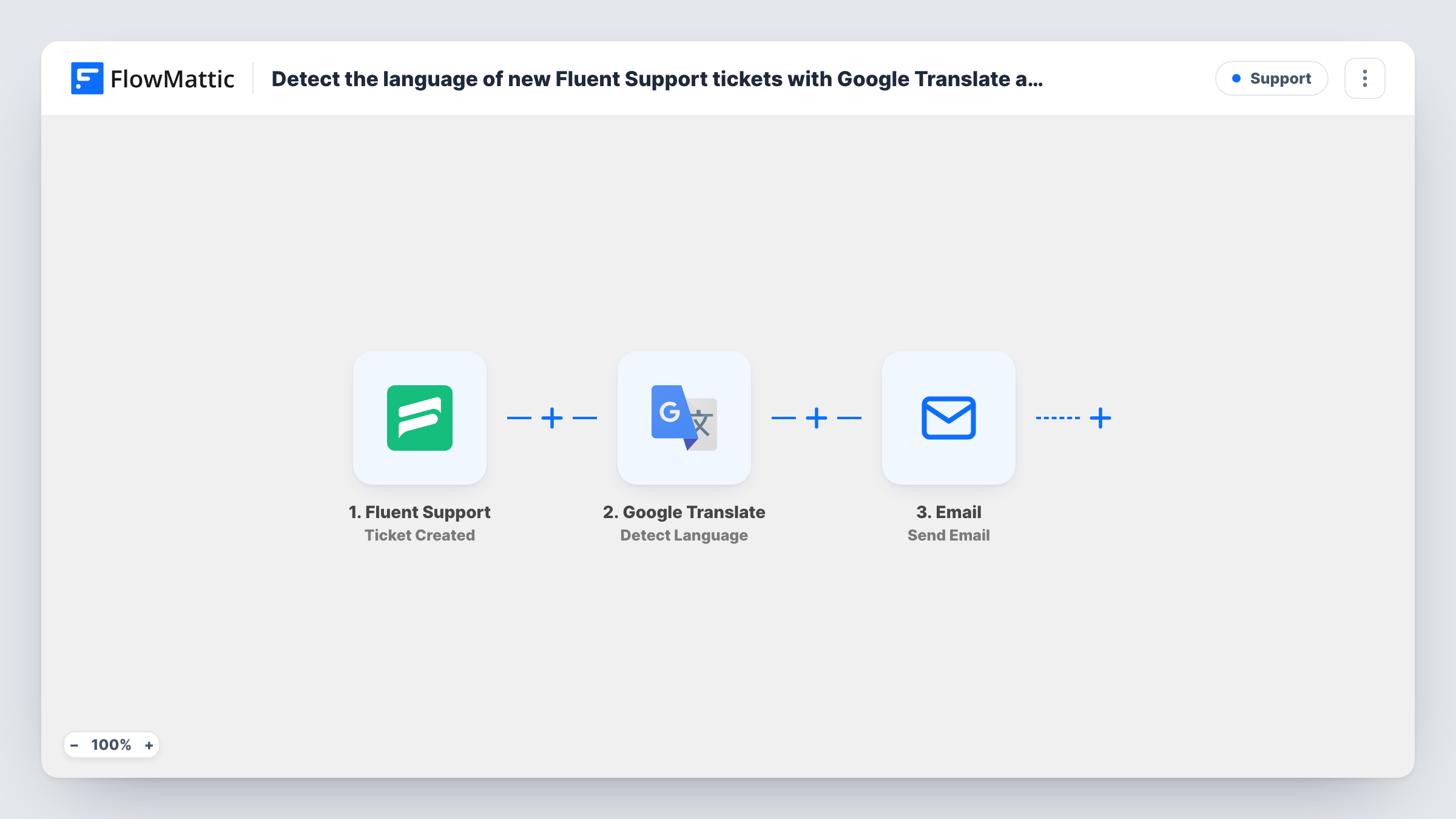
Every new Fluent Support ticket has its content checked by Google Translate’s language detection, and your support inbox gets an email with the ticket title and the detected language, so the right person can pick it up.
 Fluent Support
 Google Translate
 Email
3 steps Setup ~5 min Used on 2.4k sites Free to import
What this workflow does
A help desk that serves customers in several countries needs to know which language a ticket is in before choosing who answers it. Instead of opening each ticket to guess, this workflow tells your team the language as soon as the ticket is created.
A run starts for each new Fluent Support ticket, including ones an agent logs for a customer. Its content goes straight to Google Translate, whose Detect Language step is already mapped to the ticket content and returns the language it finds.
The alert goes out through FlowMattic's Email step, using WordPress mail or an SMTP account you connect. It is pre-filled: the subject reads "New ticket in language:" followed by the detected language, and the body lists the ticket title and that language. The recipient is a placeholder, [email protected], so replace it with your team's address before you turn the workflow on.
Short tickets, or ones mixing two languages, can give a less certain result. Check Task History on a few real tickets to see what Google Translate returned for each.
Route tickets to bilingual agents
A software company with Spanish and German speakers on its team uses the email subject to see which agent should take each new ticket.
Spot demand for a new support language
A store notices from the alert emails how many tickets arrive in French each week before deciding whether to hire a French-speaking agent.
Prepare a translation before replying
A small team that answers only in English sees the detected language first and runs the ticket through a translator before writing back.
How this workflow runs
What happens at each step once the workflow is on, and what you need before you import it.
 Fluent Support Ticket Created
Fires when a new Fluent Support ticket is created by a customer or by an agent. The ticket's title and content are passed on.
- Google Translate Detect Language
Detects the language of the ticket content, which is already mapped from Fluent Support. Connect your Google Translate account after import; the detected language is passed to the email.
 Email Send Email
Emails your team with the detected language in the subject and the ticket title in the body. Change the placeholder address [email protected] to your own before going live.
What you need
- FlowMatticCore
- Fluent Support PluginPlugin
- Google Translate AccountAccount
After importing, map your own data. To keep the template universal, not every step is pre-filled. Open each step in the builder and connect your accounts and fields (channels, lists, sheets, recipients) before you switch the workflow on.
Make it yours
Changes worth making after you import it.
- To send each language to a different inbox, put a Router between the Google Translate step and the Email step with one route per language code, and give each route its own Email step in place of the current one. Use language values that can't both match.
- Add the ticket's customer email or ticket link to the email body, mapped from the Fluent Support trigger, so the reader can open the ticket in one click.
- If you use Fluent Support Pro, add an Add Tag to Ticket step between Detect Language and the Email step that tags the ticket with its language, so agents can filter by it.
Questions about this workflow
Does this translate Fluent Support tickets too?
No. It only detects the language and emails your team. To translate as well, add a Google Translate Translate Text step after Detect Language and put its result in the email.
Who receives the language alert email?
The address in the Email step's recipient. The template ships with the placeholder [email protected], so change it to your team's address after import.
Do tickets agents create on a customer's behalf count?
Yes. The Fluent Support trigger fires for new tickets created by either a customer or an agent, so both kinds run language detection.
More Support workflows
Other ready-to-import templates from the same category.






Import this workflow into your WordPress site
Download the JSON, import it from the Workflows screen and connect your accounts. Every run stays on your server, with no per-task fees.
30-day money-back guarantee Unlimited workflows and runs Self-hosted