

When a new article is published in NeetoKB, add a new row in Google Sheets
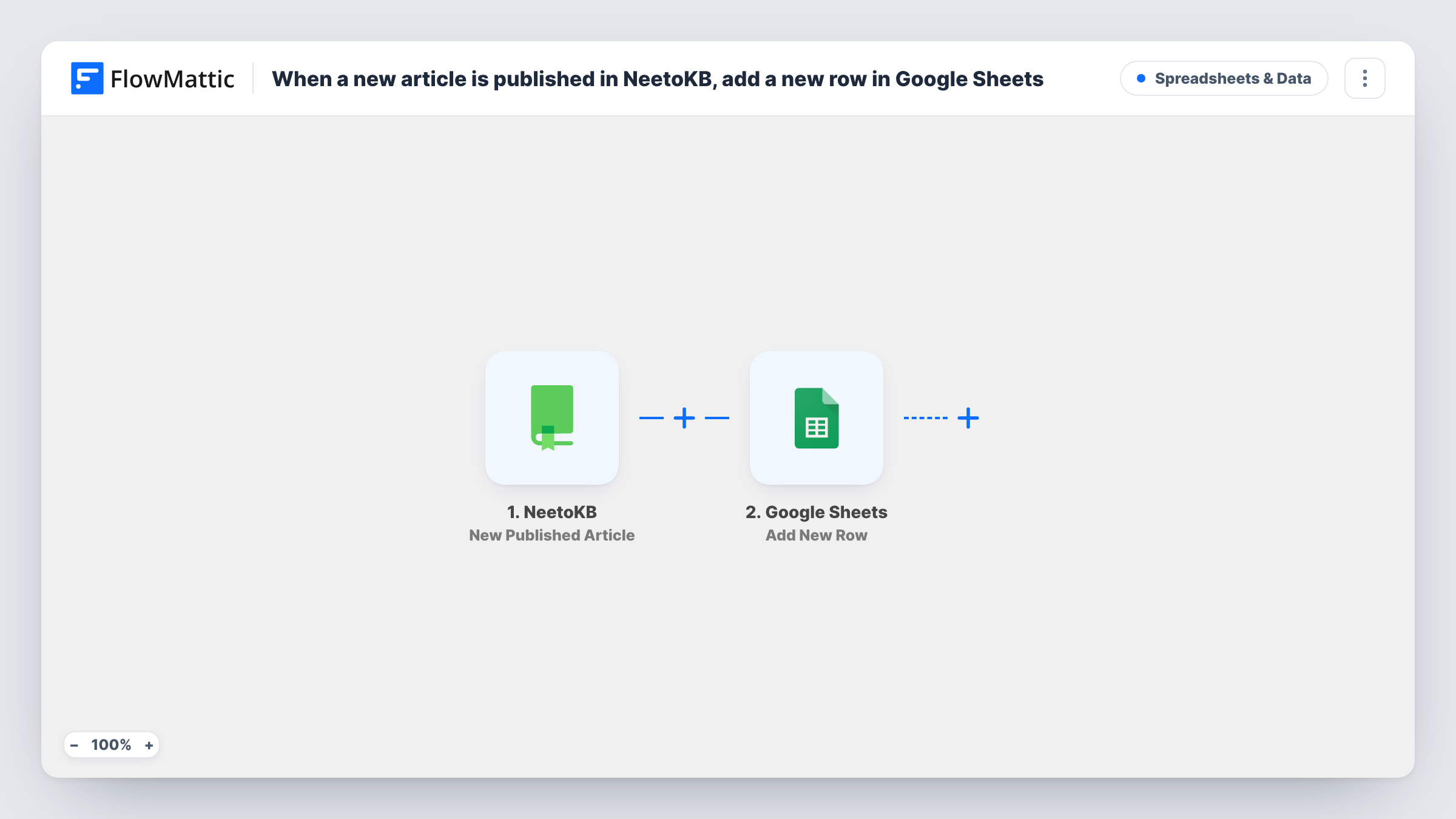
When a new article is published in NeetoKB, this workflow adds a row about it to a Google Sheets spreadsheet, building a running log of your help centre content as it goes live.
 NeetoKB
 Google Sheets
2 steps Setup ~5 min Used on 1.2k sites Free to import
What this workflow does
A knowledge base grows one article at a time, and after a few months nobody remembers what went live when. A content log answers that, and it helps with planning, reviews and reporting to the rest of the company. This workflow keeps that log for you.
The NeetoKB trigger starts a run as soon as an article goes live in your knowledge base. FlowMattic receives the article details from that event and sends them to Google Sheets. Add New Row then writes one row to the sheet you pick, with the details you mapped, for example the title, the link and the publish date.
Drafts don't create rows; the trigger is about publishing. The workflow writes to the sheet and changes nothing in NeetoKB. You can check every run, and what Google Sheets returned, in Task History.
Monthly support content report
At month end, count the rows added since the 1st to report how many help articles your team published.
Review schedule for articles
Add a review-by column next to each row, so your team knows when each NeetoKB article should be checked for accuracy again.
Sharing new articles with support agents
Agents open the sheet to see which NeetoKB articles are new and can start linking them in replies to customers.
How this workflow runs
What happens at each step once the workflow is on, and what you need before you import it.
 NeetoKB New Published Article
Runs when a new article is published in your NeetoKB knowledge base. The article's details are passed on for mapping into the sheet.
- Google Sheets Add New Row
Writes one row per published NeetoKB article to the spreadsheet and tab you pick. Map article details to your columns and connect your Google account.
What you need
- FlowMatticCore
- NeetoKB AccountAccount
- Google Sheets AccountAccount
After importing, map your own data. To keep the template universal, not every step is pre-filled. Open each step in the builder and connect your accounts and fields (channels, lists, sheets, recipients) before you switch the workflow on.
Make it yours
Changes worth making after you import it.
- Map the article link into its own column so anyone reading the sheet can open the NeetoKB article in one click.
- Add a Slack or Discord step after Google Sheets to tell support agents about each new article as well as logging it.
- Publish a short test article after import so FlowMattic has real NeetoKB data to map from, then unpublish it once the row looks right.
Questions about this workflow
Are NeetoKB articles published before I import this added to the sheet?
No. Only articles published after the workflow is on are logged. Add older articles to the sheet yourself if you want a complete list.
Which NeetoKB article details can go in the spreadsheet?
Whatever NeetoKB sends with the publish event. Look at the trigger output from a test article to see the fields, then map the ones you need.
Does deleting a NeetoKB article remove its row?
No. The workflow only adds rows when articles are published. Rows stay in the sheet until you remove them.
More Spreadsheets & Data workflows
Other ready-to-import templates from the same category.




Import this workflow into your WordPress site
Download the JSON, import it from the Workflows screen and connect your accounts. Every run stays on your server, with no per-task fees.
30-day money-back guarantee Unlimited workflows and runs Self-hosted