

When a Foxit eSign document is completed, archive it to Google Drive and create a ClickUp onboarding task
When every required party has signed a Foxit eSign document, this workflow uploads it to a Google Drive folder and creates a ClickUp task, so signing hands off straight to onboarding.
 Foxit eSign
 Google Drive
 ClickUp
3 steps Setup ~5 min Used on 2.6k sites Free to import
What this workflow does
A fully signed agreement usually means two jobs: file the contract somewhere the team can find it, and start the work it covers. Doing both by hand after every signature is easy to put off. This workflow handles both as soon as Foxit eSign reports the document complete.
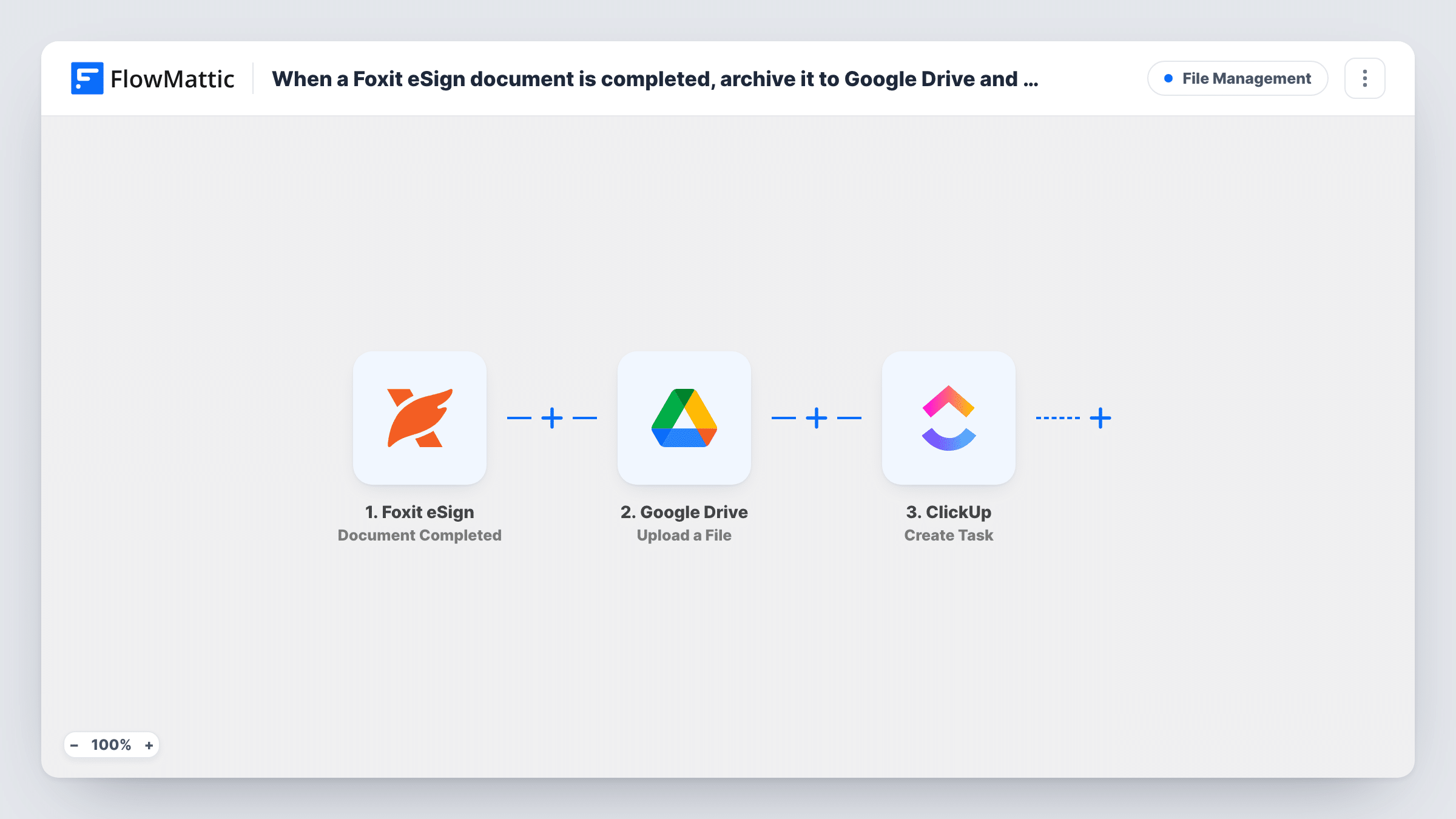
The Foxit eSign trigger is Document Completed. It fires when a document or folder has been signed by all required parties, not after each individual signature. The Google Drive step then runs Upload a File, which places a file in the Drive folder you select; you map the signed document from the Foxit eSign event into it. Finally, ClickUp runs Create Task, so onboarding for the new client or hire has a tracked starting point.
The upload depends on what the Foxit eSign event carries. Sign a short test document after import and check in Task History which file values arrived and whether the copy opened in Drive. Task History also shows what the Drive step returned, including any error from Google.
New client contracts at an agency
Once the client and your director have both signed, the contract is filed in the client's Drive folder and a ClickUp onboarding task appears for the account manager.
Employment contracts in HR
A completed offer and contract goes to the HR archive in Google Drive, and a ClickUp task prompts the team to prepare the new starter's first day.
Service agreements for a consultancy
Every completed agreement is stored in one Drive folder for audits, while ClickUp gets a task to schedule the kick-off meeting.
How this workflow runs
What happens at each step once the workflow is on, and what you need before you import it.
 Foxit eSign Document Completed
Fires when a Foxit eSign document or folder has been signed by all required parties. The completed document's data is passed to the next two steps.
- Google Drive Upload a File
Saves the completed agreement as a file in a Google Drive folder chosen at setup. Map the signed document from the Foxit eSign event into it, and confirm with a test signing that the file arrives and opens.
- ClickUp Create Task
Creates an onboarding task in ClickUp. Map details from the signed document, such as its name, into the task so the team knows which agreement it belongs to.
What you need
- FlowMatticCore
- Foxit eSign AccountAccount
- Google Drive AccountAccount
- ClickUp AccountAccount
After importing, map your own data. To keep the template universal, not every step is pre-filled. Open each step in the builder and connect your accounts and fields (channels, lists, sheets, recipients) before you switch the workflow on.
Make it yours
Changes worth making after you import it.
- Put the document's name and the completion date in the ClickUp task name, so tasks for different clients are easy to tell apart.
- If the upload step's output in a test run includes the new file's link or ID, map it into the ClickUp task so the team can open the contract from there.
- For separate Drive folders, add a Router between the Foxit eSign trigger and the Google Drive step. Give each route its own upload step, with a condition only one kind of document matches, and end the routes in a Join before the ClickUp step.
Questions about this workflow
Does a partly signed Foxit eSign document start this workflow?
No. Document Completed waits until all required parties have signed. Individual signatures, views and cancellations are separate Foxit eSign triggers.
Where in ClickUp does the onboarding task appear?
You choose that while configuring the Create Task step after import. ClickUp keeps tasks in lists, so pick the list your onboarding team works from, then map a task name from the Foxit eSign data.
Which Google Drive folder do signed Foxit eSign documents go to?
Whichever folder the Upload a File step points at after import. Every completed document goes to that same folder unless you add a Router between the Foxit eSign trigger and the Google Drive step, with a separate upload step on each route.
More File Management workflows
Other ready-to-import templates from the same category.




Import this workflow into your WordPress site
Download the JSON, import it from the Workflows screen and connect your accounts. Every run stays on your server, with no per-task fees.
30-day money-back guarantee Unlimited workflows and runs Self-hosted