

Save new Box files to the WordPress media library
When you add a new file to a Box folder, FlowMattic gets its download URL from Box and saves the file into your WordPress Media Library as a new media item.
 Box
 WordPress
3 steps Setup ~5 min Used on 812 sites Free to import
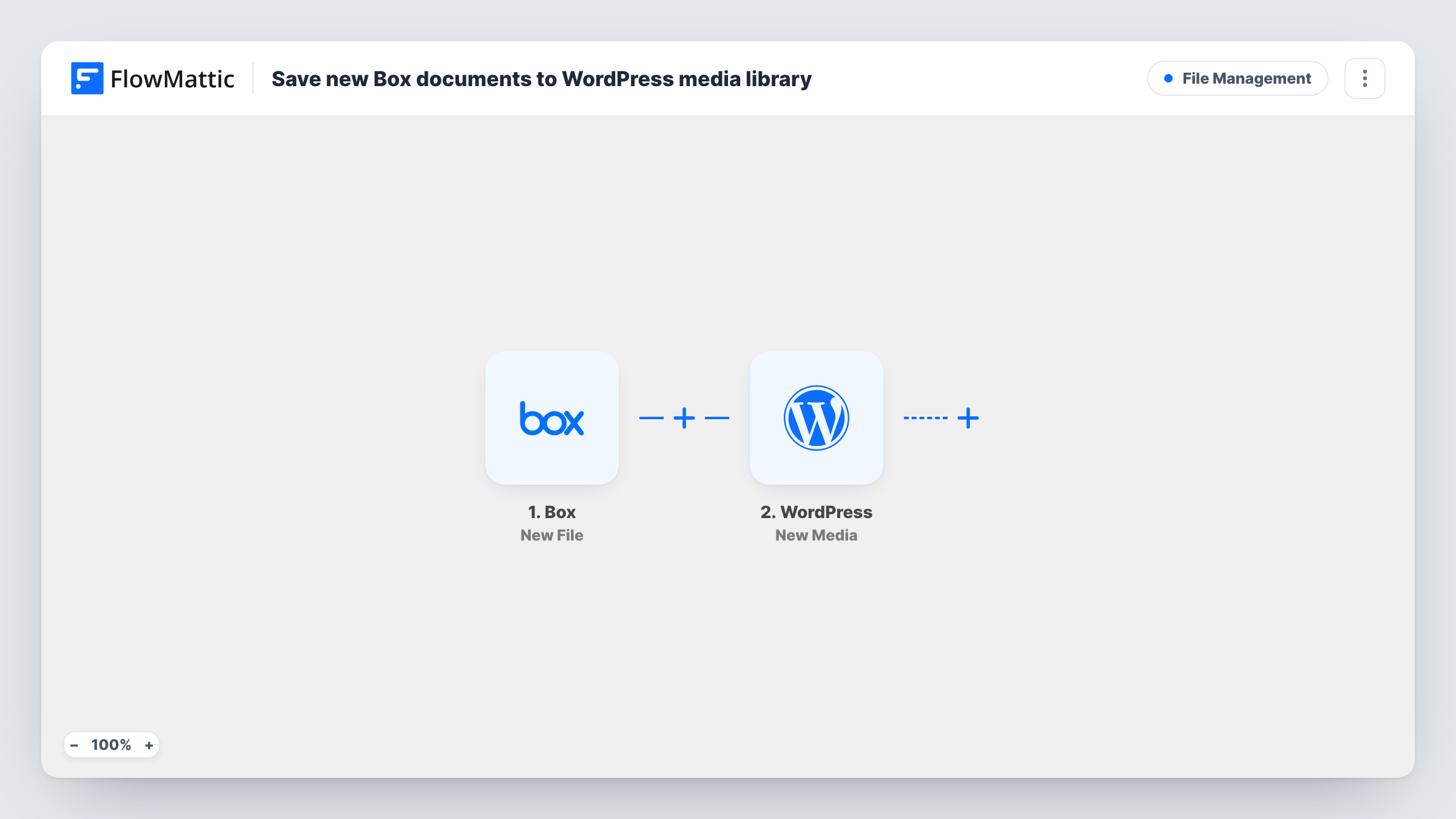
What this workflow does
Teams often keep their working files in Box, but anything that goes on the website has to be in WordPress. Downloading each image or PDF and uploading it again is slow and easy to forget. This workflow copies new files from a Box folder straight into the Media Library.
The Box trigger fires when you add a new file to a folder. After import, connect Box and add a test file to the folder you want copied, then confirm in Task History that the run picked it up. The file's details, including its Box ID, are passed on.
A second Box step asks Box for the file's download URL, using the file ID from the trigger, which is already mapped. Its option to download the file to WordPress is set to no, because the next step does the saving. The WordPress New Media step then creates a media item from that download URL, which the template also maps for you.
Each new file in the folder becomes one media item. Edits to files already in Box don't start the workflow, and nothing is removed from WordPress when you delete a file in Box. Add a test file and open Task History to check the media item that WordPress created.
Product photos from the design team
A shop's photographer drops finished product shots into a Box folder, and they appear in the Media Library ready to attach to products.
Brochures and PDFs for the website
A marketing team saves approved brochures to a Box folder, and each PDF is copied into WordPress so editors can link to it from pages.
Event photos for the blog
A nonprofit's volunteers upload event photos to a shared Box folder, and the blog editor picks from them in the Media Library.
How this workflow runs
What happens at each step once the workflow is on, and what you need before you import it.
 Box New File
Fires when a new file is added to a folder in your connected Box account. The file's details, including its ID and name, are passed to the next steps.
- Box Get File Download URL
Gets a download URL for the new file from Box, using the file ID from the trigger. Downloading to WordPress is switched off here, because the New Media step saves the file.
- WordPress New Media
Creates a new item in the WordPress Media Library from the download URL returned by Box. The URL is already mapped, so the file lands in WordPress without extra setup.
What you need
- FlowMatticCore
- Box AccountAccount
After importing, map your own data. To keep the template universal, not every step is pre-filled. Open each step in the builder and connect your accounts and fields (channels, lists, sheets, recipients) before you switch the workflow on.
Make it yours
Changes worth making after you import it.
- Use a dedicated Box folder such as "Website uploads" for this workflow, so only files meant for the site end up in the Media Library.
- If the folder also holds files you don't want on the site, put a Filter between the Box trigger and the Get File Download URL step that checks the file name's extension, such as .jpg or .pdf.
- Add a Slack or email step after the New Media step that sends the editor the new media item's details, so they know a file is ready to use.
Questions about this workflow
How do I control which Box files reach WordPress?
Check the New File trigger's settings after import and test it by adding a file to the folder you care about. If files you don't want still come through, a Filter between the Box trigger and the Get File Download URL step can check the file name or folder.
Will updating a file in Box replace it in the Media Library?
No. The trigger only fires for new files. A changed file in Box stays as it was in WordPress.
Does deleting a file in Box remove it from WordPress?
No. The workflow only adds media. Anything already copied stays in the Media Library until you delete it there.
More File Management workflows
Other ready-to-import templates from the same category.






Import this workflow into your WordPress site
Download the JSON, import it from the Workflows screen and connect your accounts. Every run stays on your server, with no per-task fees.
30-day money-back guarantee Unlimited workflows and runs Self-hosted