

Create a Google Calendar event for each new Cardz appointment
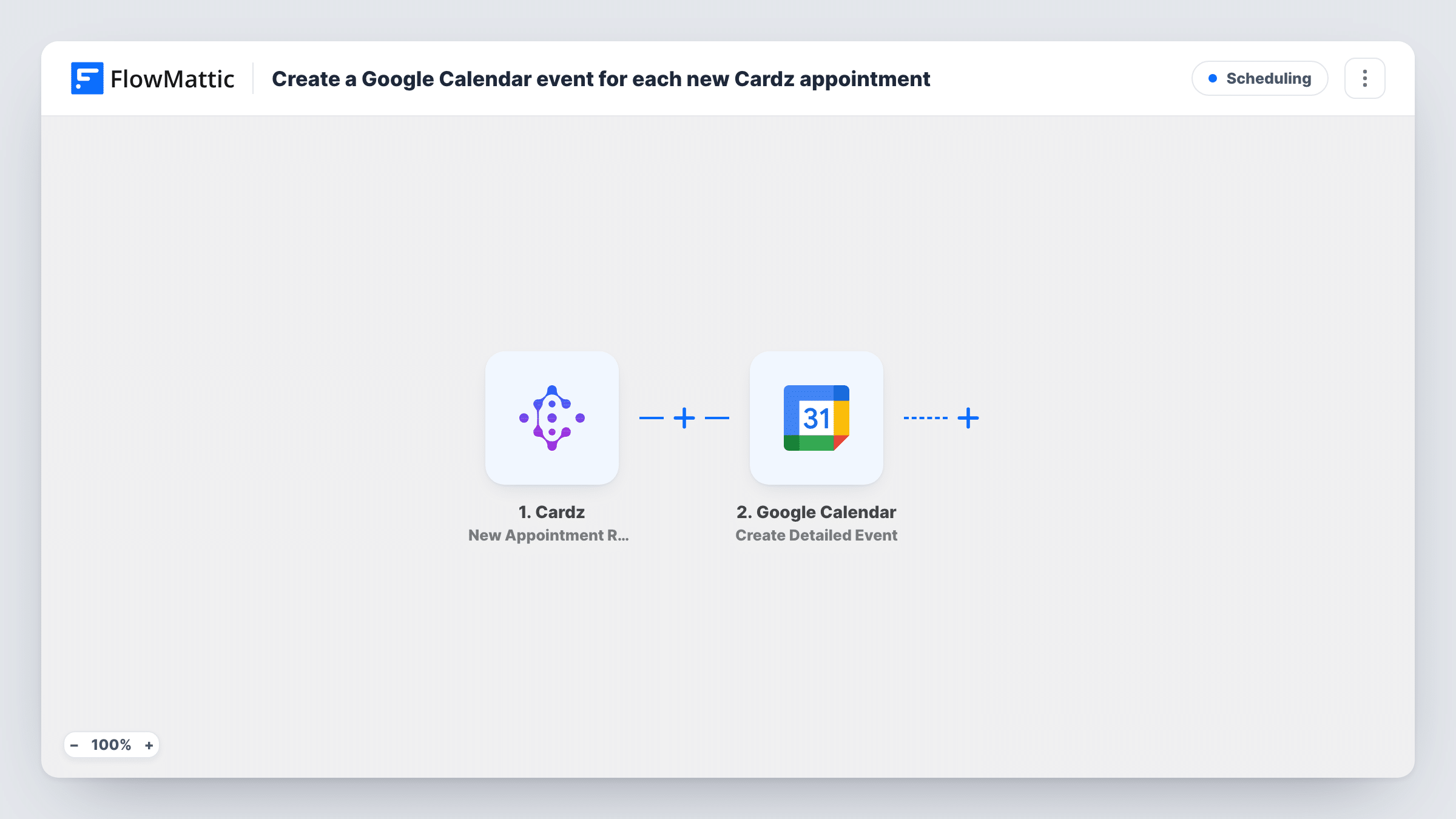
When a customer books an appointment through Cardz, this workflow creates a matching event in Google Calendar, so bookings from your digital business card show up next to the rest of your schedule.
 Cardz
 Google Calendar
2 steps Setup ~5 min Used on 2.2k sites Free to import
What this workflow does
Cardz lets people book time with you straight from your digital business card. If the rest of your day lives in Google Calendar, those bookings need to be there too, or you risk double-booking a slot. This workflow copies each new Cardz appointment into your calendar.
As soon as a customer books through your card, the Cardz trigger picks up the appointment data. FlowMattic passes that data to Google Calendar, where the Create Detailed Event action adds a new event to the calendar you choose. You map the appointment details Cardz sends into the event's fields.
Each booking creates one event. The workflow does not watch for later changes, so a rescheduled or cancelled appointment in Cardz is not reflected in the calendar. Task History shows each run and what was sent to Google.
Sales calls booked at a trade show
Prospects scan your Cardz card at a booth and book a follow-up call. Each booking appears in your Google Calendar before you leave the event.
Consultants with one shared calendar
A consultant takes bookings through Cardz and runs everything else from Google Calendar. The new appointments sit next to client work, so free time is easy to see.
Team calendar for a small agency
Point the step at a shared Google Calendar so colleagues can see the meetings booked from each person's Cardz card.
How this workflow runs
What happens at each step once the workflow is on, and what you need before you import it.
 Cardz New Appointment Received
Receives the booking data when a customer books a new appointment through Cardz. The appointment details are passed on for mapping in the next step.
- Google Calendar Create Detailed Event
Creates a new event in the Google Calendar you choose, using the detailed options the action offers. Map the Cardz appointment data into the event and connect your Google account on import.
What you need
- FlowMatticCore
- Cardz AccountAccount
- Google Calendar AccountAccount
After importing, map your own data. To keep the template universal, not every step is pre-filled. Open each step in the builder and connect your accounts and fields (channels, lists, sheets, recipients) before you switch the workflow on.
Make it yours
Changes worth making after you import it.
- Book a test appointment through your Cardz card after import so FlowMattic captures the booking data, then map the event's times and title from it.
- If the Cardz booking data includes the customer's name and contact details, put them in the event title or description so you know who you are meeting without opening Cardz.
- Add a Slack or email step after the calendar step if you also want a message each time a Cardz appointment is booked.
Questions about this workflow
Are Cardz appointments booked before I import this added to Google Calendar?
No. The trigger fires on new bookings only, so past appointments stay out of the calendar unless you add them yourself.
What happens when a customer reschedules or cancels in Cardz?
Nothing in this workflow. It reacts only to new appointments and creates an event for each. You change or delete the calendar event yourself.
Does the Cardz customer get a Google Calendar invite?
Not as imported. The template only creates the event in your calendar. A test run shows whether the step lets you add the customer as a guest.
More Scheduling workflows
Other ready-to-import templates from the same category.





Import this workflow into your WordPress site
Download the JSON, import it from the Workflows screen and connect your accounts. Every run stays on your server, with no per-task fees.
30-day money-back guarantee Unlimited workflows and runs Self-hosted