

When Appointment Booking Completed in WP Amelia, Create an Order in WooCommerce
When an appointment booking is completed in WP Amelia, this workflow creates a matching order in WooCommerce, so your bookings show up in the same order list as the rest of your sales.
 WP Amelia
 WooCommerce
2 steps Setup ~5 min Used on 330 sites Free to import
What this workflow does
Amelia keeps appointments in its own screens, while your shop's sales, reports and accounting exports live in WooCommerce. If you want every booking counted alongside product sales, you end up entering orders by hand. Here, each Amelia booking turns into a store order with no typing.
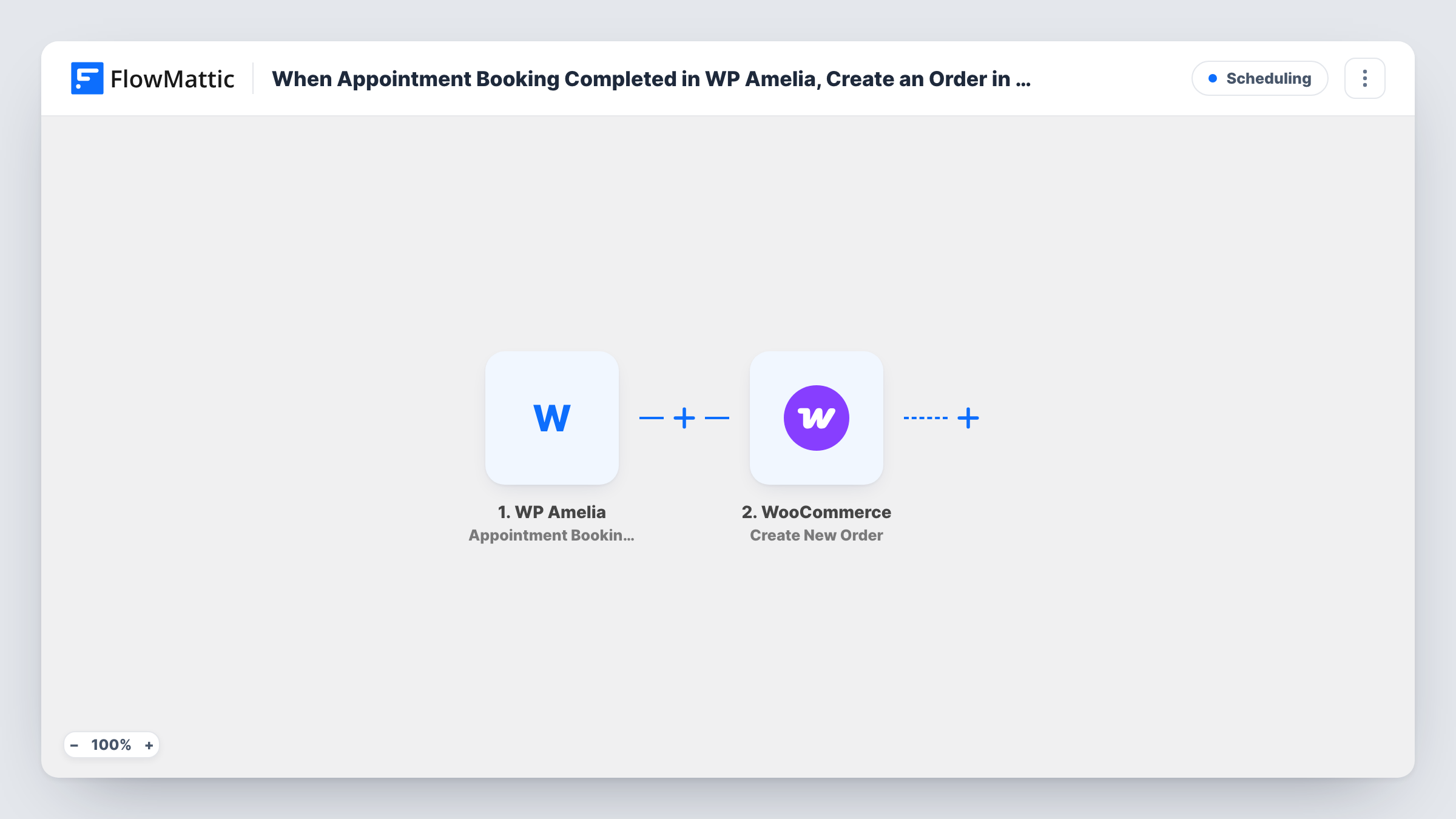
The WP Amelia trigger fires when an appointment's booking is completed. FlowMattic passes the booking data on to WooCommerce, where Create New Order adds an order to your store. You map what the order should hold from the booking, such as the customer's name and email and the service booked, then check a test order to see how it looks.
Amelia and WooCommerce both live on your own WordPress install, so this run doesn't send the booking to any outside service. The new order is a record in WooCommerce; this workflow doesn't take a payment. One order is created for every completed booking, and the template doesn't look for an existing order first. You can review each booking-to-order run in Task History.
One sales report for a salon
A salon sells hair products through WooCommerce and books cuts in Amelia. Each booking becomes an order, so the monthly WooCommerce report covers both.
Accounting export for a consultancy
Your bookkeeping tool already pulls WooCommerce orders. Creating an order per Amelia consultation means sessions reach your books with no second export.
Daily order list at a massage studio
A massage studio watches its WooCommerce order list each morning. Amelia sessions now appear there next to gift card sales, so one screen shows the day's activity.
How this workflow runs
What happens at each step once the workflow is on, and what you need before you import it.
 WP Amelia Appointment Booking Completed
Starts a run each time WP Amelia reports a completed appointment booking. Its data, such as the customer and the service, is passed to the next step.
- WooCommerce Create New Order
Creates a new order in WooCommerce from the booking. Map the Amelia data into the order and make a test booking to confirm the order matches what you expect.
What you need
- FlowMatticCore
- WP Amelia AccountAccount
- WooCommerce PluginPlugin
After importing, map your own data. To keep the template universal, not every step is pre-filled. Open each step in the builder and connect your accounts and fields (channels, lists, sheets, recipients) before you switch the workflow on.
Make it yours
Changes worth making after you import it.
- Make a WooCommerce product for each Amelia service, named the same way, so the orders read clearly in reports and exports.
- Add a Filter after the trigger if only paid services should create orders, for example a price check, if a test run shows the booking data carries the price.
- Build a second workflow on Amelia's Appointment Booking Canceled trigger to notify you, so you can deal with the matching WooCommerce order.
Questions about this workflow
Does the WooCommerce order charge the Amelia customer?
No. FlowMattic just adds the order to WooCommerce from the booking data. Payment is whatever you already set up in Amelia; this flow does not collect money.
What happens when an Amelia booking is canceled or rescheduled?
Nothing in this workflow. It runs on completed bookings only, so the WooCommerce order stays as it was. Amelia has separate triggers for canceled and rescheduled bookings that you can use in another workflow.
Will Amelia event bookings create WooCommerce orders too?
No. The trigger is for appointment bookings. Amelia's Event Booking Completed is a separate trigger, which you could add in a second workflow.
Will WooCommerce send its order emails for these orders?
That depends on your WooCommerce email settings and the order status the new order gets. Make one test booking and check which emails go out before you turn the workflow on.
More Scheduling workflows
Other ready-to-import templates from the same category.






Import this workflow into your WordPress site
Download the JSON, import it from the Workflows screen and connect your accounts. Every run stays on your server, with no per-task fees.
30-day money-back guarantee Unlimited workflows and runs Self-hosted