

Log new Calilio call logs to a Google Sheets spreadsheet
Each call log Calilio sends, incoming or outgoing, becomes a new row in the Google Sheets spreadsheet you choose, so your team keeps a running call record it can sort and share.
 Calilio
 Google Sheets
2 steps Setup ~5 min Used on 1.8k sites Free to import
What this workflow does
Calilio keeps your call history inside its own app. When you want to total calls by rep, share them with a manager or join them with sales data, a spreadsheet is easier to work with. This workflow writes each Calilio call log into Google Sheets as it arrives.
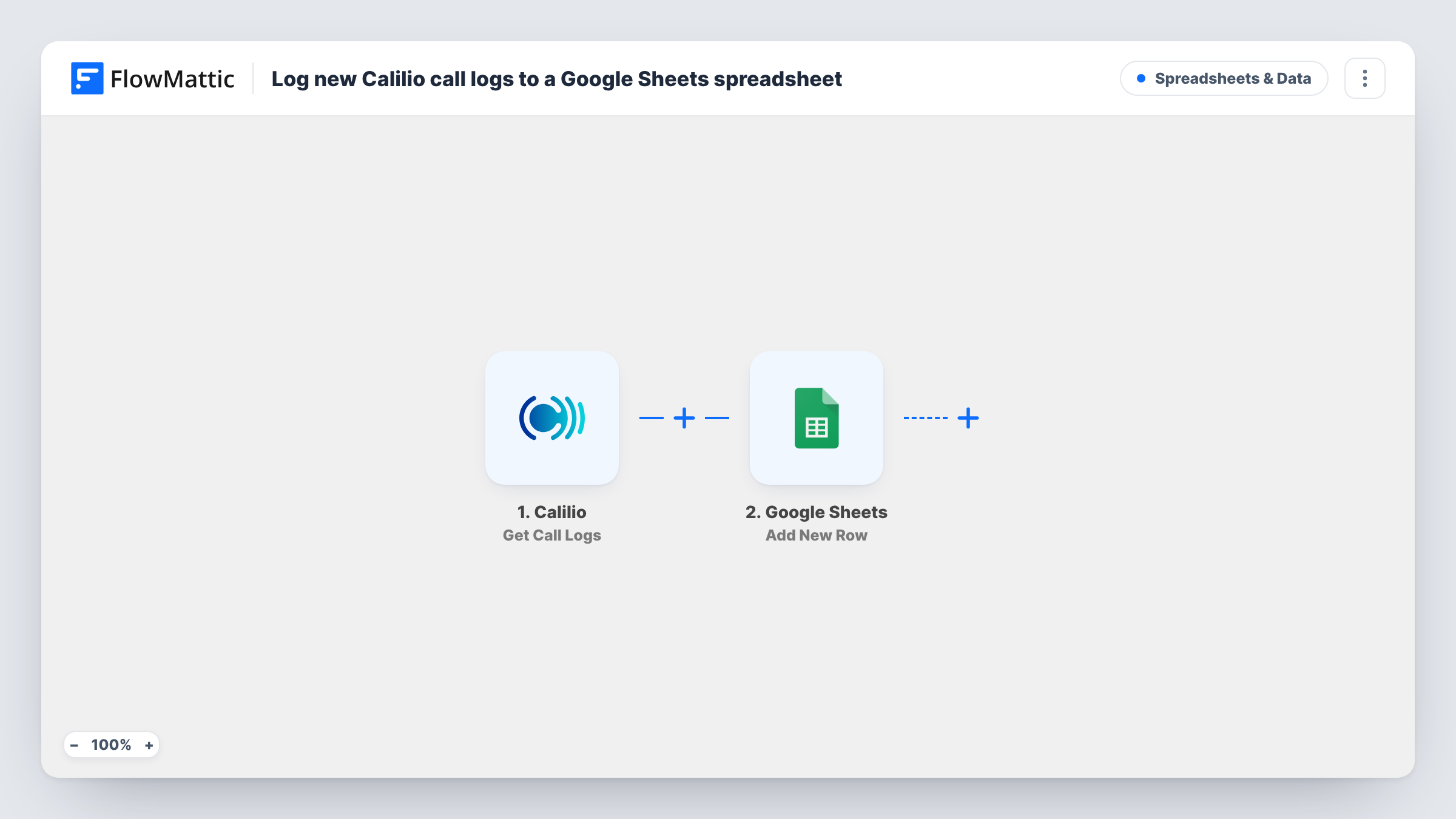
The Calilio Get Call Logs trigger fires for incoming and outgoing call logs alike. The log's details, whatever Calilio includes for that call, become data you can map. The Google Sheets step then adds a new row to the spreadsheet and sheet you pick, with each column filled from the call values you mapped.
As imported, every call lands in the sheet, in both directions. If you only care about one kind, add a Filter between the two steps. Calls logged before you turn the workflow on are not copied, and each run is listed in Task History with the row data that was sent.
Weekly call review for a sales team
Each rep's Calilio calls fill a shared sheet, and the manager sorts by caller on Friday to see who made which calls that week.
Support line history
A small support desk logs every inbound Calilio call to a sheet and adds a notes column for what the caller needed.
Feeding a reporting dashboard
Charts built on the call sheet show weekly call counts beside the sales figures you already keep in Google Sheets.
How this workflow runs
What happens at each step once the workflow is on, and what you need before you import it.
 Calilio Get Call Logs
Fires when Calilio sends a call log, for incoming and outgoing calls. The call's details become available to map into the spreadsheet row.
- Google Sheets Add New Row
Adds a row to the Google Sheets spreadsheet you choose for each call log. Set up column headers first, then map each one to a value from the Calilio log.
What you need
- FlowMatticCore
- Calilio AccountAccount
- Google Sheets AccountAccount
After importing, map your own data. To keep the template universal, not every step is pre-filled. Open each step in the builder and connect your accounts and fields (channels, lists, sheets, recipients) before you switch the workflow on.
Make it yours
Changes worth making after you import it.
- Make one test call after import so FlowMattic captures a real Calilio log, then use its values to map the spreadsheet columns.
- Add a Filter after the trigger if you only want inbound or only outbound calls in the sheet, using the direction value your test run shows.
- Put the call date and phone number in the first columns so sorting and lookups in the sheet stay simple as it grows.
Questions about this workflow
Does the Calilio call sheet get both incoming and outgoing calls?
Yes. The Get Call Logs trigger fires for incoming and outgoing call logs, so both reach Google Sheets unless you add a Filter.
Which Calilio details can I put in the spreadsheet?
Whatever the call log carries. Run a test call and look at the trigger's captured data to see the values you can map to columns.
Will my older Calilio calls be added to Google Sheets?
No. Only call logs Calilio sends after the workflow is on create rows. Export older history from Calilio if you need it in the sheet.
More Spreadsheets & Data workflows
Other ready-to-import templates from the same category.




Import this workflow into your WordPress site
Download the JSON, import it from the Workflows screen and connect your accounts. Every run stays on your server, with no per-task fees.
30-day money-back guarantee Unlimited workflows and runs Self-hosted