

Send a Slack message to the team when a new ActiveCollab project is created
When someone creates a project in ActiveCollab, this workflow posts a message about it to the Slack channel you choose, so the team sees new work without checking ActiveCollab.
 ActiveCollab
 Slack
2 steps Setup ~5 min Used on 682 sites Free to import
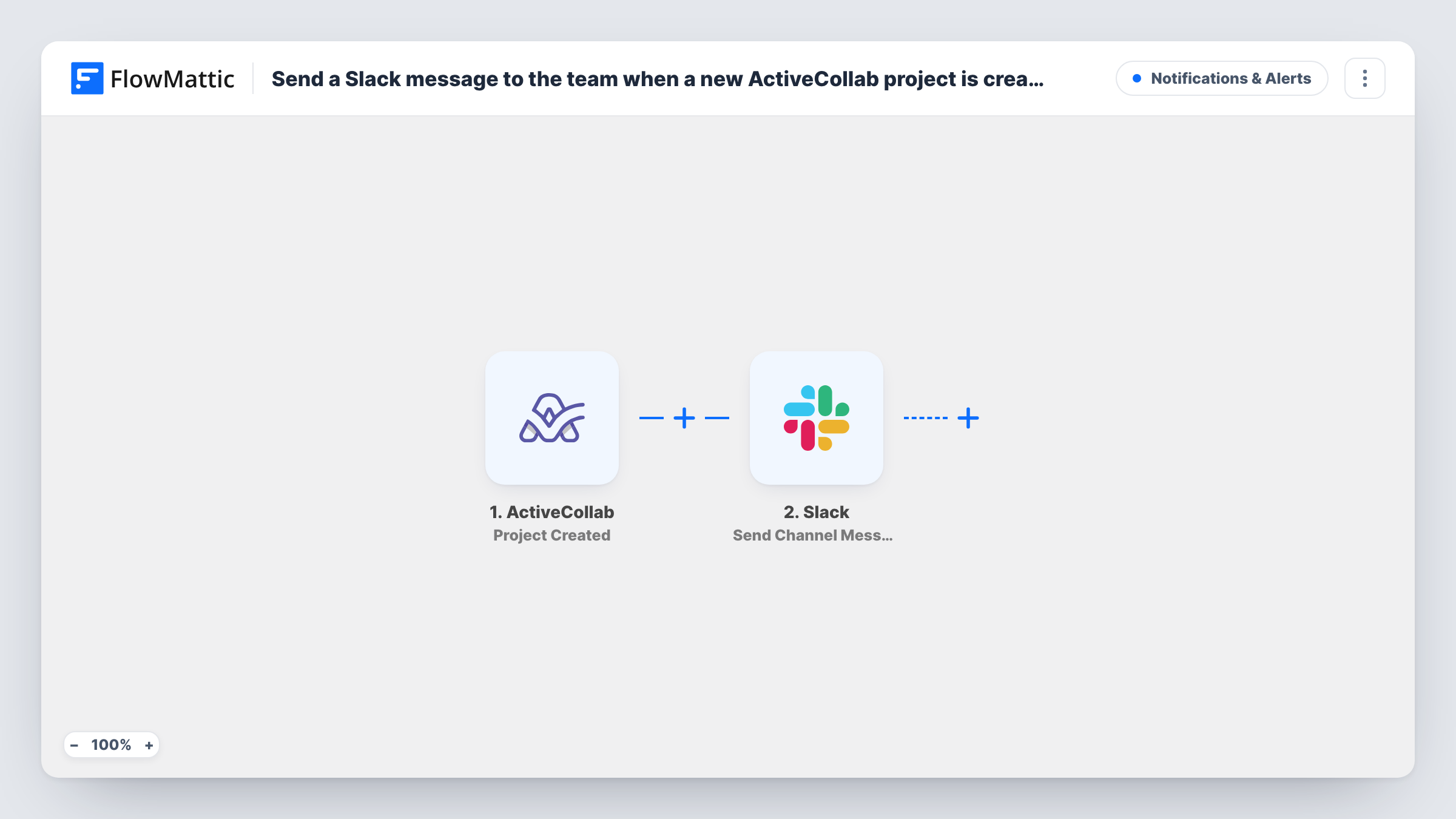
What this workflow does
New projects in ActiveCollab are easy to miss if your team spends the day in Slack. Someone sets up a project, and the people who should start on it only find out at the next meeting. This workflow tells them in the channel they already watch.
The ActiveCollab trigger fires each time a project is created. FlowMattic takes the project data from that event and passes it to Slack, where the Send Channel Message action posts a message to the channel you pick. You write the message and drop in values from the project, such as its name.
There is one action and no condition, so every new project produces one Slack post. Projects that already existed before you turned the workflow on are not announced. Task History lists each run, which helps if a message doesn't show up.
Agency kick-off channel
An account manager creates a client project in ActiveCollab, and the #new-projects channel gets a post so designers and developers know it exists.
Operations visibility
Leadership follows a Slack channel that lists every project as it is created, without needing seats in ActiveCollab.
Remote teams across time zones
A project created late in one office is waiting in Slack for colleagues who start their day hours later.
How this workflow runs
What happens at each step once the workflow is on, and what you need before you import it.
 ActiveCollab Project Created
Runs whenever a project is created in your ActiveCollab account. The project data from the event is available to map into the Slack message.
- Slack Send Channel Message
Puts a new post in whichever Slack channel you pick for project news. Write the text and insert ActiveCollab project values. Private channels need Slack's Send Private Channel Message action rather than this one.
What you need
- FlowMatticCore
- ActiveCollab AccountAccount
- Slack AccountAccount
After importing, map your own data. To keep the template universal, not every step is pre-filled. Open each step in the builder and connect your accounts and fields (channels, lists, sheets, recipients) before you switch the workflow on.
Make it yours
Changes worth making after you import it.
- Add a Filter after the trigger if only some projects matter to this channel, for example ones whose name contains a client code or a label you use.
- To tell one person instead of a channel, swap the action for Slack's Send Direct Message and pick the project lead.
- Create a test project after import so FlowMattic captures the event, then check which project fields you can place in the message.
Questions about this workflow
Will archived or edited ActiveCollab projects post to Slack?
No. The trigger is Project Created, so only new projects start a run. Edits, completions and archiving are separate events this template doesn't listen to.
Can the ActiveCollab alert go to a private Slack channel?
Not with Send Channel Message as imported. Slack has a separate Send Private Channel Message action in FlowMattic, which you can swap in for a private channel.
Do my team members need ActiveCollab accounts to see the alert?
No. The message is posted in Slack, so anyone in that channel sees it. They would need ActiveCollab access only to open the project itself.
More Notifications & Alerts workflows
Other ready-to-import templates from the same category.




Import this workflow into your WordPress site
Download the JSON, import it from the Workflows screen and connect your accounts. Every run stays on your server, with no per-task fees.
30-day money-back guarantee Unlimited workflows and runs Self-hosted