

Generate barcodes in PDF.co for new orders in WooCommerce
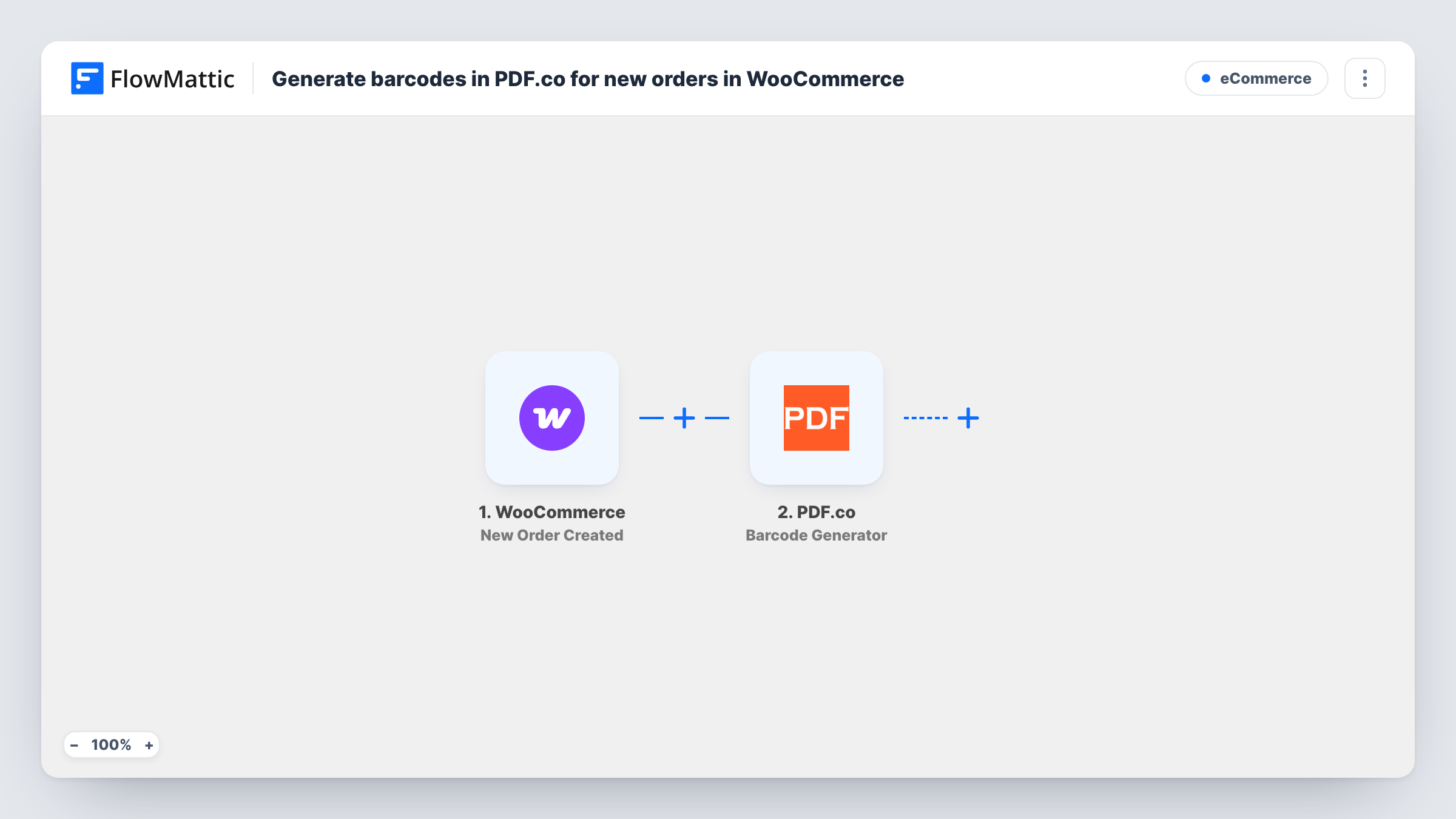
Each new WooCommerce order is sent to PDF.co’s Barcode Generator, which creates a barcode from the order value you map, such as the order number, ready for a step you add to store or print it.
 WooCommerce
 PDF.co
2 steps Setup ~5 min Used on 2.7k sites Free to import
What this workflow does
Packing and dispatch go faster when each order can be scanned instead of typed. Making a barcode for every order by hand is not realistic once orders come in steadily. This workflow asks PDF.co to generate one each time an order is created in your store.
Each order your WooCommerce shop creates starts a run, with the order number ready to map. FlowMattic passes the order data to PDF.co, where the Barcode Generator action builds a barcode from whatever value you map in. The order number is the usual choice, because it is unique and already printed on your paperwork.
As imported, the workflow stops after PDF.co returns its result. Nothing saves the barcode, attaches it to the order or sends it anywhere, so you add that step yourself. Run a test order to see what PDF.co sends back, then pass it to a step such as WooCommerce's Add Order Note or a Google Sheets row. Task History keeps the response from every run.
Scannable packing slips
A small warehouse prints a barcode for each order and sticks it on the packing slip, so staff scan the order instead of reading it off a screen.
Matching parcels at dispatch
Each parcel carries a barcode built from the order number. At the dispatch desk, a scan confirms the right parcel goes with the right order.
Order references for a fulfilment partner
A store that hands packing to a partner keeps a barcode per order, which the partner can scan against their own list once you send it to them in a step you add.
How this workflow runs
What happens at each step once the workflow is on, and what you need before you import it.
 WooCommerce New Order Created
Starts once for each order your WooCommerce store creates. The order number and other order details become available for the PDF.co step.
- PDF.co Barcode Generator
Sends the value you map, such as the order number, to PDF.co's Barcode Generator. PDF.co returns the generated barcode in its response. Connect your PDF.co account on import and check a test run for what comes back.
What you need
- FlowMatticCore
- WooCommerce PluginPlugin
- PDF.co AccountAccount
After importing, map your own data. To keep the template universal, not every step is pre-filled. Open each step in the builder and connect your accounts and fields (channels, lists, sheets, recipients) before you switch the workflow on.
Make it yours
Changes worth making after you import it.
- Add WooCommerce's Add Order Note after the PDF.co step and map PDF.co's result into the note, so staff can find the barcode on the order screen.
- Log each order number with the PDF.co result in a Google Sheets row if your packing team works from a spreadsheet.
- New Order Created can fire for orders that aren't paid yet. Add a Filter on the order status after the trigger if you only want barcodes for paid orders.
Questions about this workflow
Where does the barcode go after PDF.co generates it?
Nowhere yet. The template ends at the PDF.co step, so its result only shows in Task History until you add a step that stores or sends it.
Which WooCommerce value should the barcode hold?
Any value from the order that you map into the step. The order number is a common choice. Check a test run to confirm the value arrives as you expect.
Do I need a PDF.co account for barcode generation?
Yes. The step runs through your PDF.co account, which you connect when importing. Usage counts against that account.
Will it make barcodes for orders placed before I import it?
No. The trigger fires only for orders created after the workflow is turned on.
More E-Commerce workflows
Other ready-to-import templates from the same category.





Import this workflow into your WordPress site
Download the JSON, import it from the Workflows screen and connect your accounts. Every run stays on your server, with no per-task fees.
30-day money-back guarantee Unlimited workflows and runs Self-hosted