

When a task is updated in Workast, send an email notification via Gmail
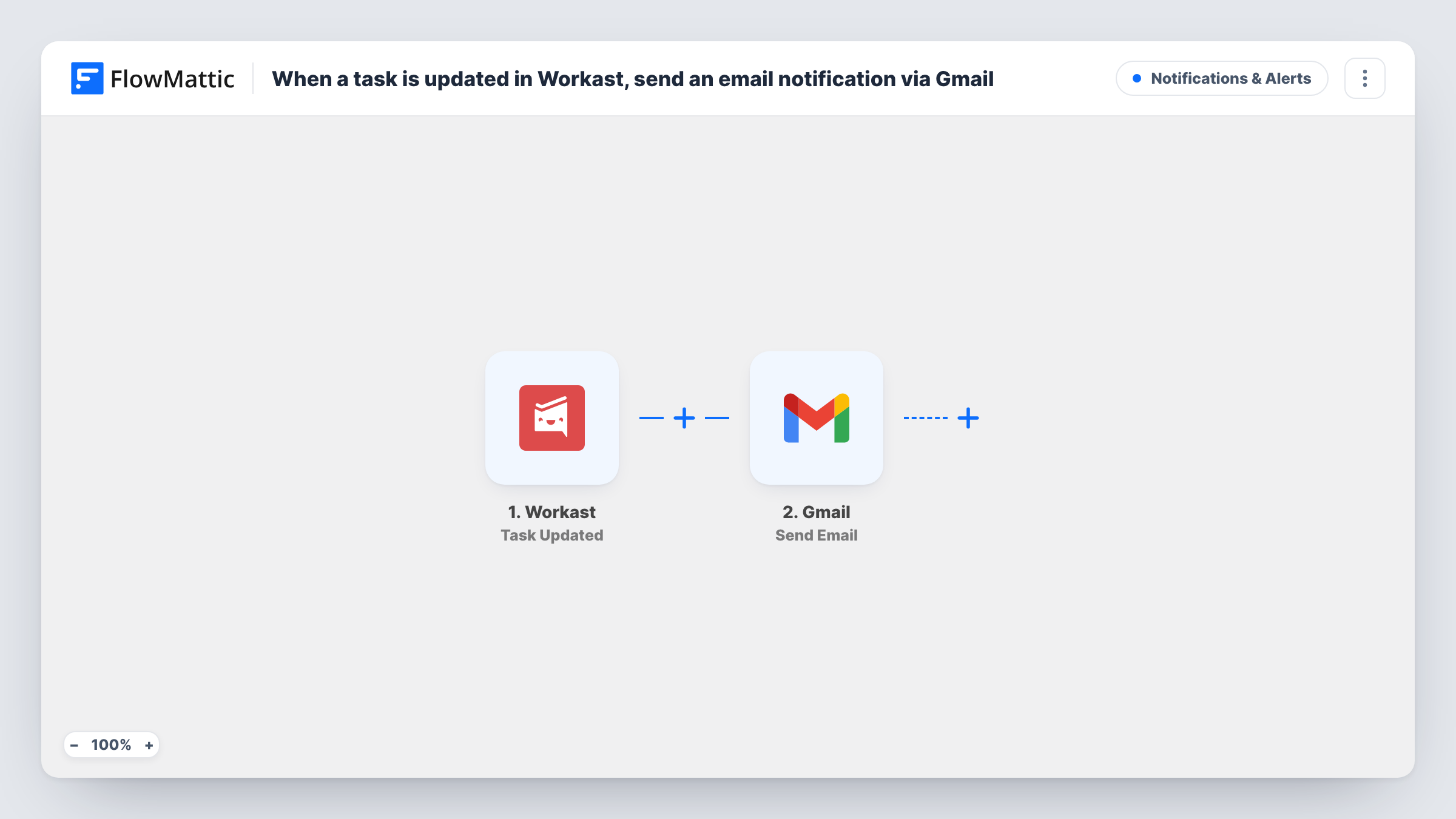
Whenever a task is updated in Workast, this workflow sends an email from your Gmail account to the address you choose, with task details in the message, so people outside Slack hear about changes.
 Workast
 Gmail
2 steps Setup ~5 min Used on 1.8k sites Free to import
What this workflow does
Workast runs your team's tasks inside Slack. Not everyone who cares about those tasks is in that Slack workspace, though: a client, a manager in another team, or an external partner may only read email. This workflow sends them an email whenever a task changes.
The Workast trigger fires when a task is updated. FlowMattic passes the task details to Gmail, where Send Email sends a message from your connected account to the recipient you set. You write the subject and body and add the task details you want them to see.
Every update starts a run, so a task edited several times sends several emails. If that is too many for your recipient, the tips cover narrowing it down. You can see every update email's run in Task History.
Keeping a client informed
A client who isn't in your Slack gets an email whenever a task on their project is updated in Workast.
Manager outside the workspace
A department head follows changes to a set of tasks by email without joining another team's Slack.
Personal email record
Send updates to your own inbox so you have a searchable email trail of task changes.
How this workflow runs
What happens at each step once the workflow is on, and what you need before you import it.
 Workast Task Updated
Runs each time a task is updated in Workast. The task's details become available for the email.
- Gmail Send Email
Emails the update from your connected Gmail account. Set the recipient, then write a subject and message that include the Workast task details.
What you need
- FlowMatticCore
- Workast AccountAccount
- Gmail AccountAccount
After importing, map your own data. To keep the template universal, not every step is pre-filled. Open each step in the builder and connect your accounts and fields (channels, lists, sheets, recipients) before you switch the workflow on.
Make it yours
Changes worth making after you import it.
- Add a Filter after the trigger so the email goes only for tasks in a certain space or assigned to a certain person, using fields the update carries.
- Use Workast's Task Completed trigger in a copy of this workflow if the recipient only needs to know when work is finished.
- Update a test task after import, then check the run to see which task fields Workast sends before you write the email.
Questions about this workflow
Will every Workast change send an email?
Yes, as imported. Each update starts a run and sends one email. Add a Filter if only some changes should reach the recipient.
Does creating a Workast task send an email?
Not through this trigger. Workast has a separate Task Created trigger in FlowMattic.
Can the Workast update email go to the task's assignee?
Only if the update includes the assignee's email. Check a test run, and map it to the recipient if it is there.
More Notifications & Alerts workflows
Other ready-to-import templates from the same category.





Import this workflow into your WordPress site
Download the JSON, import it from the Workflows screen and connect your accounts. Every run stays on your server, with no per-task fees.
30-day money-back guarantee Unlimited workflows and runs Self-hosted