

When a new submission received in Contact Form 7, check if the email is valid with Reoon Email Verifier and create a user in WordPress
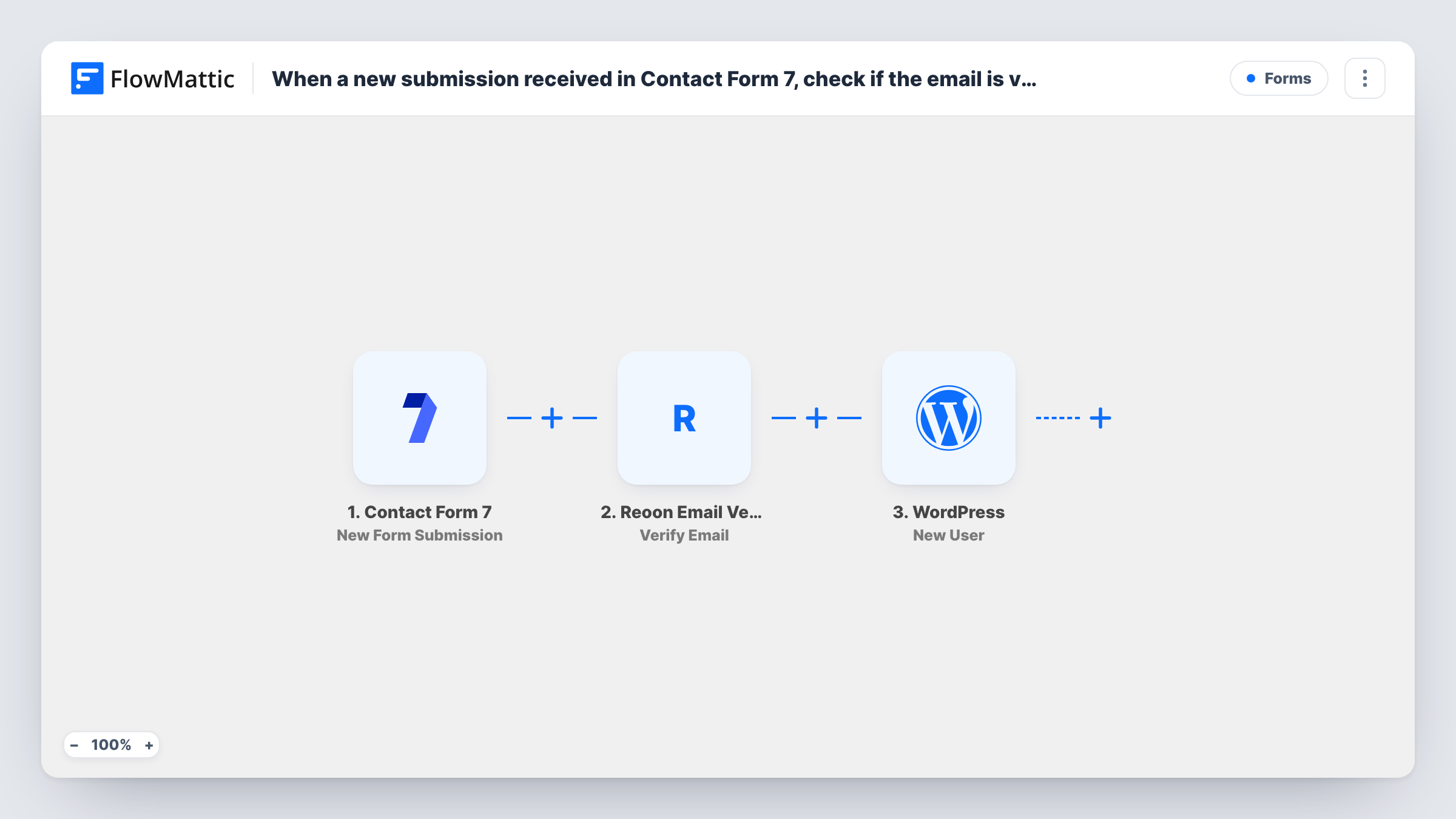
Each Contact Form 7 submission has its email address checked by Reoon Email Verifier, then a WordPress user is created from the form data. Add a Filter after import if only verified addresses should get accounts.
 Contact Form 7
 Reoon Email Verifier
 WordPress
3 steps Setup ~5 min Used on 2.8k sites Free to import
What this workflow does
Sign-up and registration forms built with Contact Form 7 don't create WordPress accounts on their own. This workflow does that, and it also asks Reoon Email Verifier about each address first, so you have the verification result alongside the new account.
When a visitor submits a Contact Form 7 form, FlowMattic passes the email field to Reoon Email Verifier, which checks the address and returns a result you can map. The WordPress step then runs New User and creates an account from the form fields you map, such as the email and name.
Know this before you switch it on: nothing between the Reoon step and the WordPress step looks at the result. As imported, every submission creates a user, whether the address passed or failed. To give accounts only to verified addresses, add a Filter between the two steps that continues on Reoon's valid status. A repeat submission doesn't register a second user with the same email; the New User step returns the existing account's ID, which Task History shows.
Member sign-up on a community site
A Contact Form 7 registration form creates each member's WordPress account, and the Reoon result helps you block made-up addresses once you add a Filter.
Customer portal access requests
Clients ask for portal access through a form. Each request becomes a WordPress user, and the verification result shows which addresses look real.
Event attendee accounts
Attendees register through Contact Form 7 and get a WordPress login for event resources, with typo addresses caught by Reoon before you rely on them.
How this workflow runs
What happens at each step once the workflow is on, and what you need before you import it.
 Contact Form 7 New Form Submission
Starts each time someone sends the Contact Form 7 form you pick. The email and every other field become available for the verification and user steps.
- Reoon Email Verifier Verify Email
Sends the submitted email address to Reoon Email Verifier for checking. Map the form's email field and connect your Reoon account. The verification result is available to later steps.
- WordPress New User
Creates a WordPress user on your site from the submission. Map the form's email, plus name fields if you collect them. As imported, this runs for every submission, whatever Reoon returned.
What you need
- FlowMatticCore
- Contact Form 7 PluginPlugin
- Reoon Email Verifier AccountAccount
After importing, map your own data. To keep the template universal, not every step is pre-filled. Open each step in the builder and connect your accounts and fields (channels, lists, sheets, recipients) before you switch the workflow on.
Make it yours
Changes worth making after you import it.
- Add a Filter between Reoon Email Verifier and WordPress that continues only when the result shows a valid address. Run a test first to see the exact value Reoon returns for a good email.
- Make the email field required in Contact Form 7 with the email* tag, so every submission gives Reoon an address to check and WordPress an email for the account.
- Add an email step after New User that sends the person a welcome message with the login page link, so they know an account was made for them.
Questions about this workflow
Does Reoon stop a WordPress user from being created for a bad email?
Not as imported. The template checks the address but has no Filter, so the user is created either way. Add a Filter on Reoon's result between the Reoon step and the WordPress step.
What happens when a Contact Form 7 address is already registered on my site?
WordPress keeps one account per email address, so for a repeat address the New User step creates nothing and returns the user ID that address already has. You'll see that ID on the step in Task History.
Is a Reoon Email Verifier account required to run this workflow?
Yes. The check runs through your Reoon account, which you connect in the second step after import.
Which role do the new WordPress users get?
The template doesn't show it. Submit a test entry, then open the new user in WordPress to confirm the role before you share the form.
More Forms workflows
Other ready-to-import templates from the same category.







Import this workflow into your WordPress site
Download the JSON, import it from the Workflows screen and connect your accounts. Every run stays on your server, with no per-task fees.
30-day money-back guarantee Unlimited workflows and runs Self-hosted