

When user completes a lesson in Tutor LMS, add tag to the contact in FluentCRM
When a student finishes a lesson in Tutor LMS, FlowMattic adds the tags you pick to that student’s FluentCRM contact, so your email automations can follow course progress.
 Tutor LMS
 FluentCRM
2 steps Setup ~5 min Used on 688 sites Free to import
What this workflow does
Tutor LMS knows which lessons each student has finished. FluentCRM sends your emails, but it can't see that progress on its own. This workflow passes it across as tags, which FluentCRM automations and segments can act on.
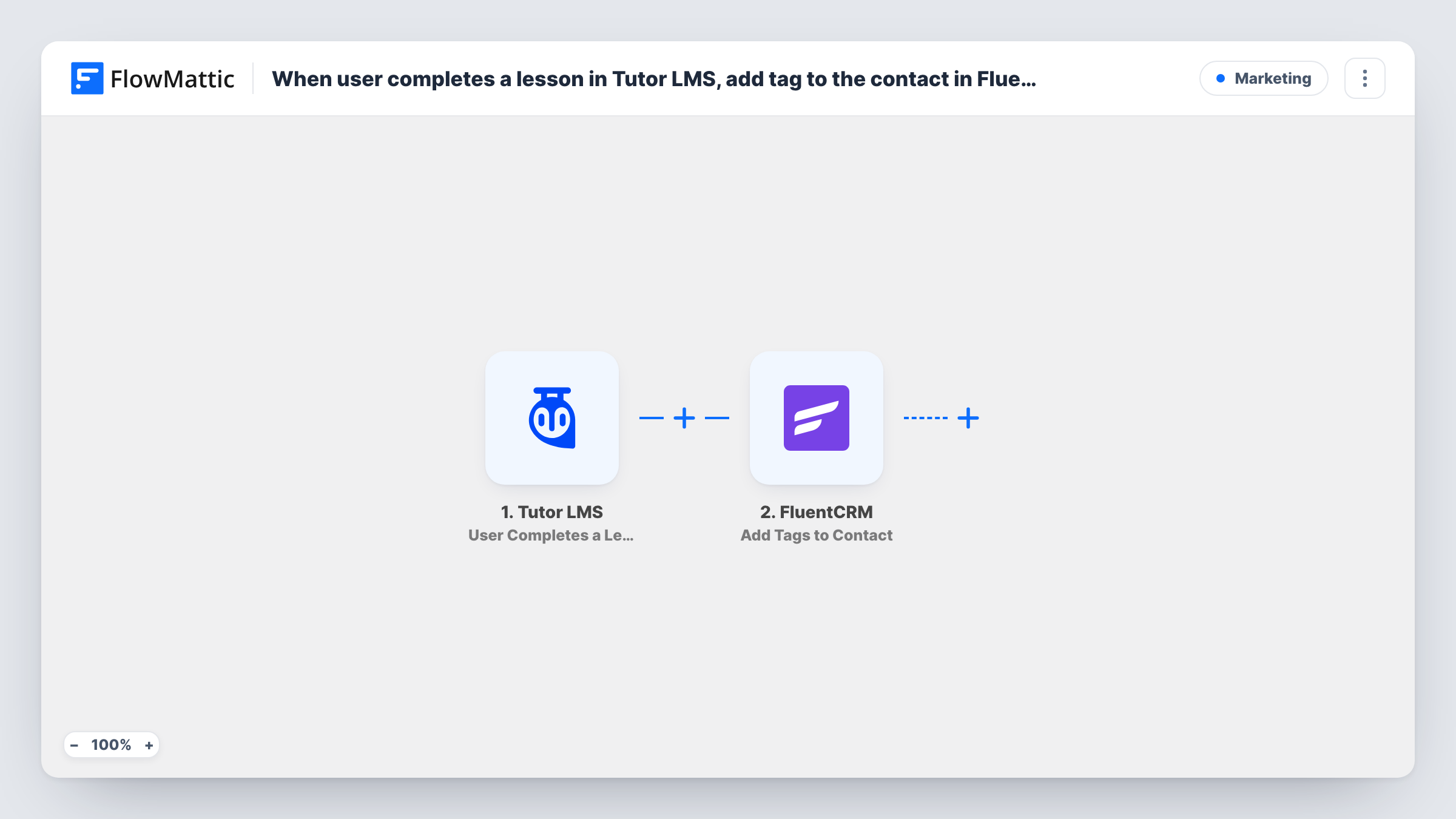
The Tutor LMS trigger, User Completes a Lesson, runs when a user completes a lesson in a course. FlowMattic then sends the student's details to FluentCRM, where Add Tags to Contact puts the tags you choose on that person's contact record. You map the student's email from the Tutor LMS data so FluentCRM knows whom to tag.
FluentCRM's catalog entry says this action works on an existing contact. Students who are already in FluentCRM get the tag. A student with no FluentCRM contact gets nothing, and Task History shows FluentCRM's reply for that run. As imported, a finished lesson in any course runs the workflow.
Start a FluentCRM email series at a key lesson
Tag students who finish the lesson that ends module one, and let a FluentCRM automation that watches for that tag send the module two reminder.
Segment active learners
A course-specific tag on each finished lesson lets you build a FluentCRM segment of students who are working through that course right now.
Offer a follow-up course
Tag the student when they finish the closing lesson of your beginner course, and use the tag to send details of the next course.
How this workflow runs
What happens at each step once the workflow is on, and what you need before you import it.
 Tutor LMS User Completes a Lesson
Runs whenever a user completes a lesson in a Tutor LMS course on your site. The student's details plus the lesson and course data become available to map.
- FluentCRM Add Tags to Contact
Adds the tags you choose to the student's existing FluentCRM contact. Map the student's email from Tutor LMS so the right contact is found, and check a test run in Task History.
What you need
- FlowMatticCore
- Tutor LMS PluginPlugin
- FluentCRM PluginPlugin
After importing, map your own data. To keep the template universal, not every step is pre-filled. Open each step in the builder and connect your accounts and fields (channels, lists, sheets, recipients) before you switch the workflow on.
Make it yours
Changes worth making after you import it.
- Add a Filter after the trigger that continues only for the lesson or course you care about, using the lesson or course value from a test run. Otherwise every finished lesson applies the tag.
- To make sure each student is in FluentCRM before their first lesson, build a second workflow on Tutor LMS User Enrolls in Course that runs FluentCRM Create or Update Contact.
- Use a tag name that says what happened, such as "Finished: Module 1", so a FluentCRM automation can start from that one tag.
Questions about this workflow
Does FluentCRM create a contact for a Tutor LMS student who isn't in it?
No. Add Tags to Contact works on an existing contact, so a student who isn't in FluentCRM is not tagged. Task History shows what FluentCRM returned. A separate workflow that creates contacts at enrolment closes that gap.
Will finishing any Tutor LMS lesson add the FluentCRM tag?
Yes, as imported. There is no Filter, so a completed lesson in any course runs both steps. Add a Filter to limit it to one lesson or course.
Must Tutor LMS and FluentCRM be on the same WordPress site as FlowMattic?
Yes. Both are WordPress plugins, and FlowMattic reads the Tutor LMS event and writes to FluentCRM on the site where all three are installed.
What if the student already has the FluentCRM tag?
The step asks FluentCRM to add the same tag again. Check a test run with a student who already has it to see how FluentCRM responds and whether your tag-based automation starts a second time.
More Marketing workflows
Other ready-to-import templates from the same category.





Import this workflow into your WordPress site
Download the JSON, import it from the Workflows screen and connect your accounts. Every run stays on your server, with no per-task fees.
30-day money-back guarantee Unlimited workflows and runs Self-hosted