

Log every Lokalise key added in a Google Sheets spreadsheet
Every time a translation key is added to a Lokalise project, this workflow writes it to a new Google Sheets row, so you keep a dated record of new strings outside Lokalise.
 Lokalise
 Google Sheets
2 steps Setup ~5 min Used on 1.2k sites Free to import
What this workflow does
New translation keys appear in Lokalise whenever developers ship features, and translators, product managers and clients all want to know what arrived. A spreadsheet is the easiest place for people outside Lokalise to see that list. This workflow writes each new key to a sheet as it is added.
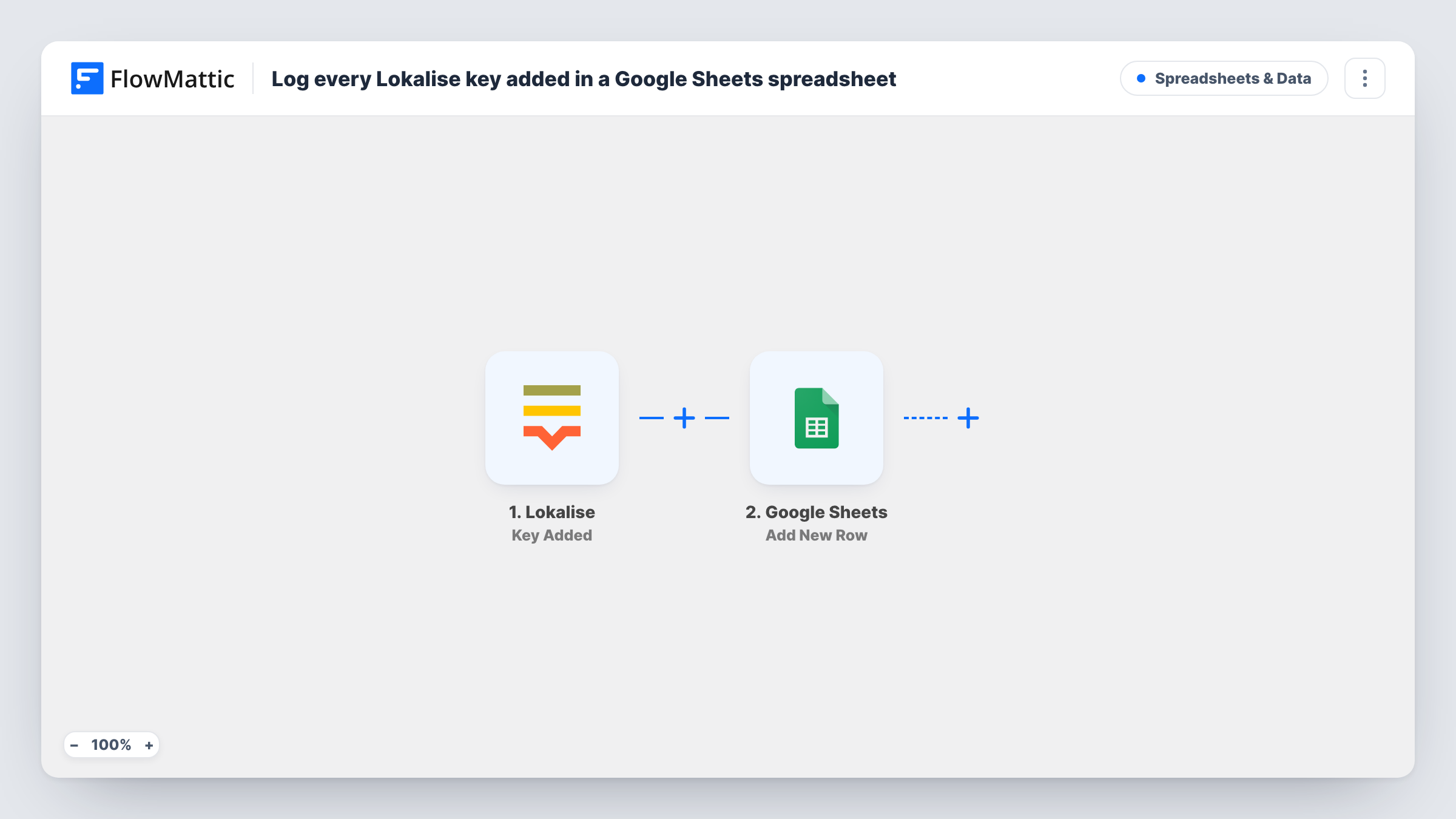
The Lokalise trigger fires when a new translation key is added to a project. FlowMattic receives the key details Lokalise sends with the event. The Google Sheets step then adds a row to your chosen spreadsheet, and you decide which key details fill which column, for example the key name, the project and the base text if it is included.
Each added key gets its own row. Edits to a key are not part of this trigger, so changing an existing key's text does not add another line. If your team adds keys by uploading files, test one upload and check Task History to see how those keys arrive.
Translator workload planning
A localization lead watches the sheet fill during a sprint and sees how many new strings each language team will need to translate.
Release notes for a client
An agency managing an app's copy shares the spreadsheet with the client, so they can review the new keys added for each release without a Lokalise seat.
Auditing key naming
A tech lead scans the sheet weekly for keys that break the team's naming convention and fixes them before translation starts.
How this workflow runs
What happens at each step once the workflow is on, and what you need before you import it.
 Lokalise Key Added
Starts a run when someone adds a new translation key to a Lokalise project. The key details in the event become values you can place in sheet columns.
- Google Sheets Add New Row
Appends one row per new key to the Google Sheets spreadsheet you pick. Connect your Google account, choose the sheet and map each Lokalise key detail to a column.
What you need
- FlowMatticCore
- Lokalise AccountAccount
- Google Sheets AccountAccount
After importing, map your own data. To keep the template universal, not every step is pre-filled. Open each step in the builder and connect your accounts and fields (channels, lists, sheets, recipients) before you switch the workflow on.
Make it yours
Changes worth making after you import it.
- After import, add a test key in a Lokalise project so FlowMattic captures the real event fields, then map them to the spreadsheet's columns.
- Logging several Lokalise projects? Add a project column and map the project name or ID from the trigger, if it is sent, so you can filter the sheet per project.
- Want new keys flagged for the team as well? Add a Slack Send Channel Message step after the sheet step to post the key name to your localization channel.
Questions about this workflow
Does editing a Lokalise key add a row to the sheet?
No. The trigger is Key Added, which fires when a new key appears in a project. Lokalise has a separate Key Modified trigger for changes to keys that already exist.
Will keys added before import be logged in Google Sheets?
No. Only keys added after you turn the workflow on start a run. Export your existing keys from Lokalise if you want them in the sheet too.
Which Lokalise key details reach the spreadsheet?
Whatever the Key Added event carries. Add a test key and look at the captured data in FlowMattic to see which values you can map to columns.
Do keys from a Lokalise file upload reach the sheet?
Check with a small trial first: upload a small file with a few new keys, then compare Task History and the sheet with what Lokalise shows as added.
More Spreadsheets & Data workflows
Other ready-to-import templates from the same category.





Import this workflow into your WordPress site
Download the JSON, import it from the Workflows screen and connect your accounts. Every run stays on your server, with no per-task fees.
30-day money-back guarantee Unlimited workflows and runs Self-hosted