

Create a ClickUp task when a LeanIX fact sheet field is updated
Whenever a field on a LeanIX fact sheet is updated, this workflow creates a task in ClickUp with the change details, so architecture edits get reviewed by the team that tracks its work in ClickUp.
 LeanIX
 ClickUp
2 steps Setup ~5 min Used on 1.3k sites Productivity Free to import
What this workflow does
LeanIX holds your enterprise architecture: applications, owners, lifecycles and the links between them. When someone edits a fact sheet field, the change can matter to people who never open LeanIX, such as a team that has to act on a new end-of-life date. This workflow puts each change in front of them as a ClickUp task.
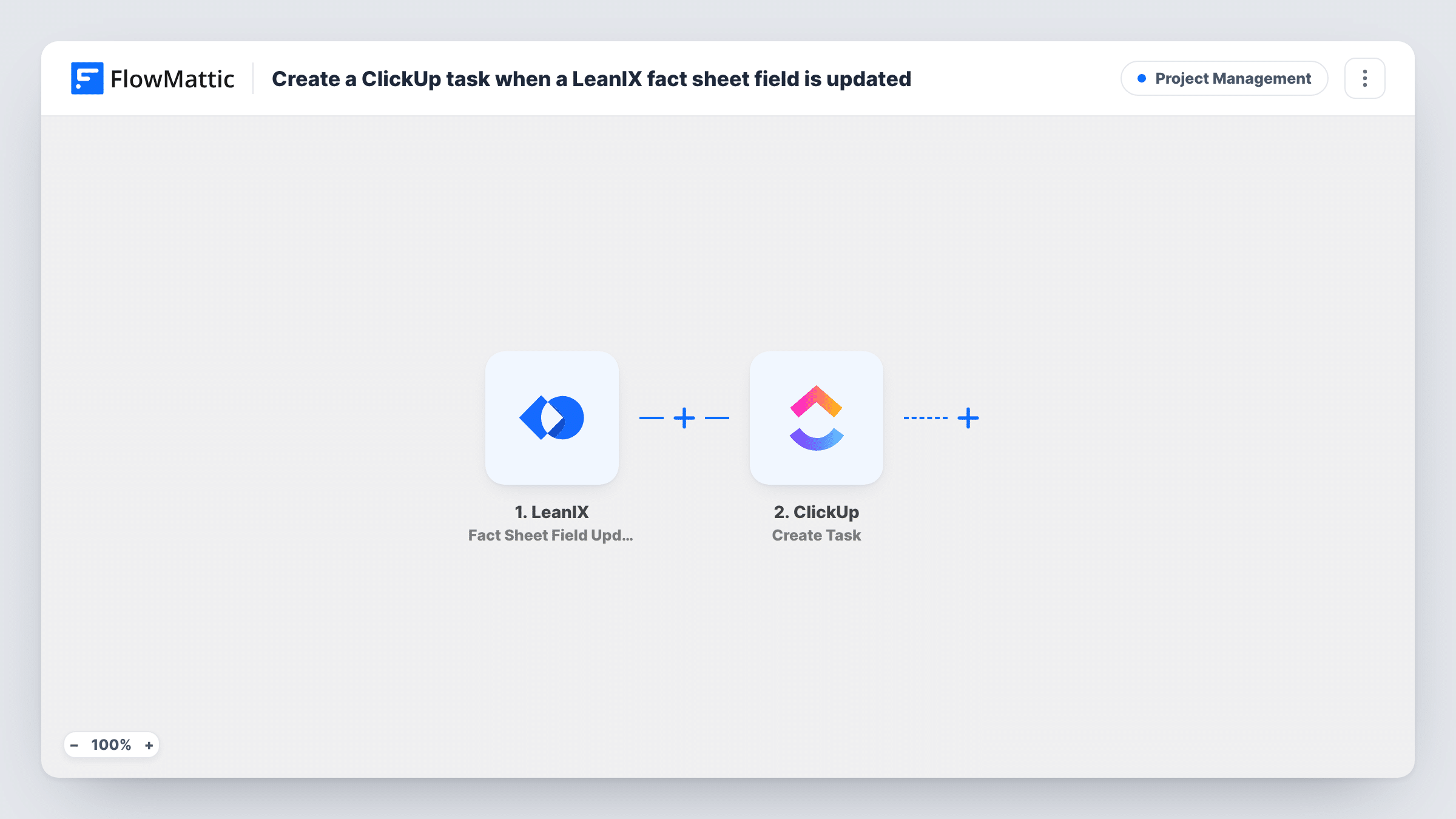
The LeanIX trigger fires when a field on a fact sheet is updated. FlowMattic passes the event details to ClickUp, where Create Task adds a task to the list you choose. You map the fact sheet name and the changed field into the task name and description.
Every field update creates its own task. An edit session that touches five fields can produce five tasks, so think about volume before you switch it on. A Filter after the trigger, set to the fields or fact sheet types you care about, keeps the list manageable.
Review lifecycle changes
When an architect changes an application's lifecycle field in LeanIX, the platform team gets a ClickUp task to plan the related upgrade or retirement work.
Ownership hand-offs
A change to a fact sheet's responsible person creates a ClickUp task for the new owner's manager to confirm the hand-over.
Data quality follow-up
Edits to key LeanIX fields land as tasks in a data-governance list, where a reviewer checks each change against your modelling rules.
How this workflow runs
What happens at each step once the workflow is on, and what you need before you import it.
 LeanIX Fact Sheet Field Update
Fires when a field on a LeanIX fact sheet is updated. The details the event carries, such as the fact sheet and the changed field, are passed to ClickUp.
- ClickUp Create Task
Creates a new task in the ClickUp list you select. Map the LeanIX fact sheet name and change details into the task name and description, and connect your ClickUp account.
What you need
- FlowMatticCore
- LeanIX AccountAccount
- ClickUp AccountAccount
After importing, map your own data. To keep the template universal, not every step is pre-filled. Open each step in the builder and connect your accounts and fields (channels, lists, sheets, recipients) before you switch the workflow on.
Make it yours
Changes worth making after you import it.
- Add a Filter after the trigger that continues only for the fields you track, matched on the field name in the event, so routine edits don't fill ClickUp with tasks.
- Include a link to the LeanIX fact sheet in the task description, if a test run shows a URL or ID you can build one from, so the reviewer opens the right record.
- If you only want to hear about new fact sheets rather than edits, LeanIX also has a Fact Sheet Created trigger you can use in a separate workflow.
Questions about this workflow
Does every LeanIX field update create a ClickUp task?
Yes, as imported. Each Fact Sheet Field Update event runs the workflow once. Add a Filter after the trigger to limit it to particular fields or fact sheet types.
Which LeanIX details can go into the task?
Whatever the event carries. Edit a test fact sheet after import, look at the captured data, and map the values you need into the ClickUp task.
Will repeat edits to the same LeanIX field update one task?
No. Create Task makes a new task each time, so several edits to one field produce several tasks.
Can I assign the ClickUp task to someone?
Open the Create Task step after import and check its options against a test run. You can also assign tasks in ClickUp after they arrive.
More Project Management workflows
Other ready-to-import templates from the same category.




Import this workflow into your WordPress site
Download the JSON, import it from the Workflows screen and connect your accounts. Every run stays on your server, with no per-task fees.
30-day money-back guarantee Unlimited workflows and runs Self-hosted