

When form submitted in Contact Form 7, create ticket in Zoho Desk with customer details
Every Contact Form 7 submission on your WordPress site opens a new Zoho Desk ticket holding the sender’s details and message you map, so support requests are tracked in your help desk.
 Contact Form 7
 Zoho Desk
2 steps Setup ~5 min Used on 816 sites Free to import
What this workflow does
A contact form that only sends email puts support requests in someone's inbox, where they are hard to assign or track. If your team already works in Zoho Desk, those messages belong there as tickets. This workflow opens one for each form submission.
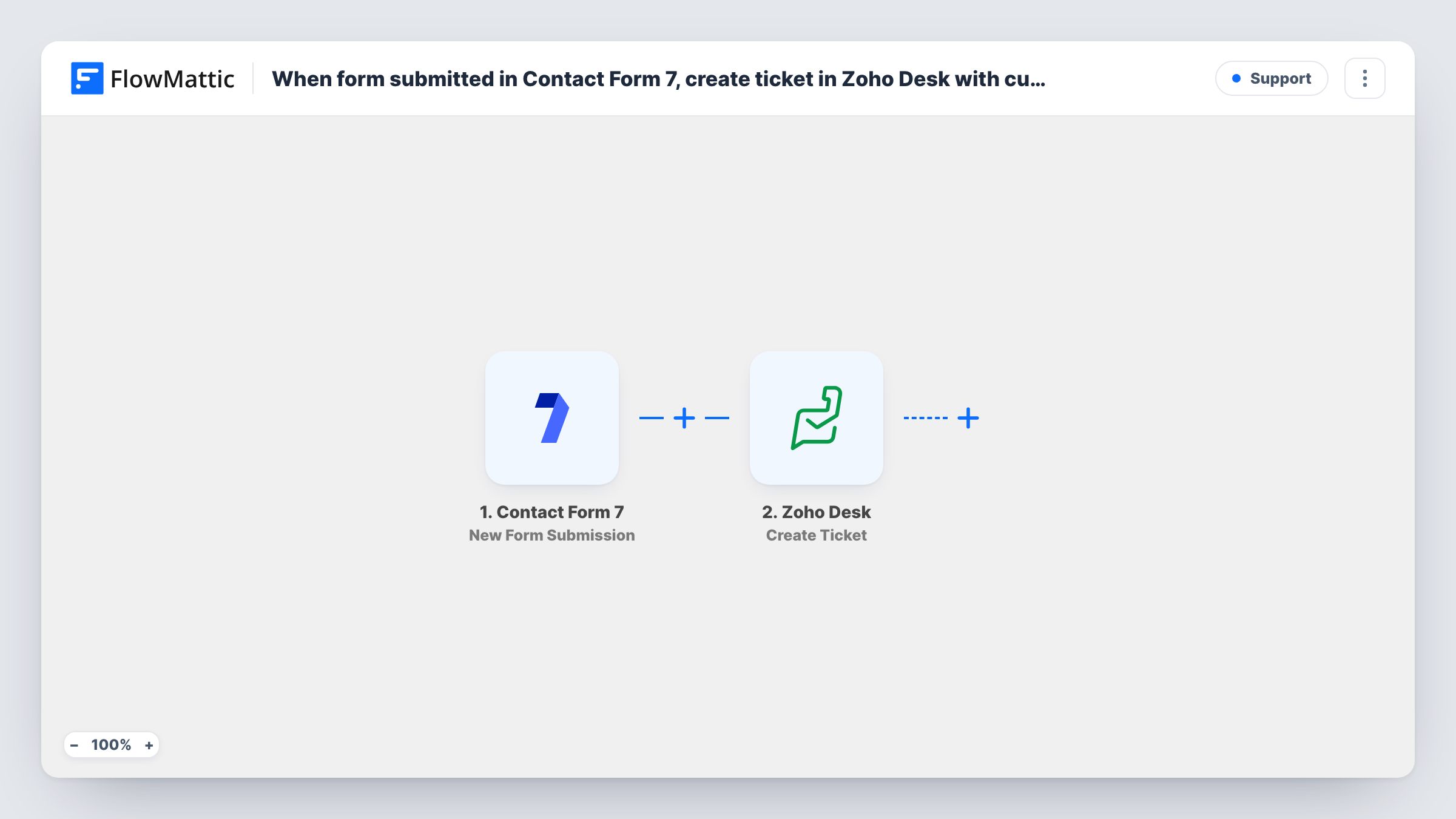
The Contact Form 7 trigger fires each time a visitor sends a form on your site. FlowMattic passes every submitted field to Zoho Desk, whose Create Ticket action opens a support ticket. You map the visitor's name and email as the customer details and the form's subject and message into the ticket.
There is no Filter, so every submission becomes a ticket, including spam that gets past your form's protection. Contact Form 7 keeps sending its usual notification email, since the workflow only listens. Task History shows the Zoho Desk response for each ticket.
Support page on a product website
Customers write in through a Contact Form 7 form on your help page. Each message arrives in Zoho Desk as a ticket that an agent can claim and answer.
Warranty or returns requests
A returns form collects the order number and the problem. The Zoho Desk ticket holds both, so the agent has what they need to start the return.
Agency client requests
Clients send change requests through a form on the agency site. Tickets in Zoho Desk give the team one queue instead of scattered emails.
How this workflow runs
What happens at each step once the workflow is on, and what you need before you import it.
 Contact Form 7 New Form Submission
Starts a run for every Contact Form 7 entry a visitor sends. Every field in the form, from name to message, becomes data you can map.
- Zoho Desk Create Ticket
Creates a ticket in Zoho Desk from the submission. Map the sender's name and email and the form's message, and run a test to see which ticket fields the step asks for.
What you need
- FlowMatticCore
- Contact Form 7 PluginPlugin
- Zoho Desk AccountAccount
After importing, map your own data. To keep the template universal, not every step is pre-filled. Open each step in the builder and connect your accounts and fields (channels, lists, sheets, recipients) before you switch the workflow on.
Make it yours
Changes worth making after you import it.
- Use email* in the Contact Form 7 form tag so the email field is required. Zoho Desk then always has an address to reply to.
- Add a Filter after the trigger that continues only when a topic dropdown is set to Support, if the same form also takes sales or general questions.
- Start the ticket subject with a fixed label such as Web form, so agents can tell these tickets from ones that arrived by email.
Questions about this workflow
Will Contact Form 7 still email me the submission?
Yes. The workflow reads the submission without changing the form's mail settings. You get the email as before, and the ticket is created in Zoho Desk as well.
What if the visitor already has open Zoho Desk tickets?
This step always creates a new ticket. How Zoho Desk ties it to an existing contact depends on the email you map, so test with a known customer's address.
Does it work with several Contact Form 7 forms?
Check a test submission from each form you use. If only one form should create tickets, add a Filter after the trigger on a value that tells the forms apart, such as the form ID if the test data shows it.
Can agents reply to the visitor from Zoho Desk?
Replies go to the email on the ticket, so map the visitor's email into the ticket's contact details when you set up the step.
More Support workflows
Other ready-to-import templates from the same category.







Import this workflow into your WordPress site
Download the JSON, import it from the Workflows screen and connect your accounts. Every run stays on your server, with no per-task fees.
30-day money-back guarantee Unlimited workflows and runs Self-hosted