

Send reminder emails for pending Zoho Sign documents from Airtable records
Add a record to your Airtable table with a Zoho Sign document’s ID, and this workflow asks Zoho Sign to send a reminder email to the recipients who haven’t signed yet, so chasing a signature takes one new row.
 Airtable
 Zoho Sign
2 steps Setup ~5 min Used on 2.7k sites Free to import
What this workflow does
Contracts and forms that wait for a signature hold up the rest of the work. Zoho Sign can remind recipients, but someone has to open each document and press the button. If your team already tracks agreements in Airtable, this workflow lets a new record do the chasing.
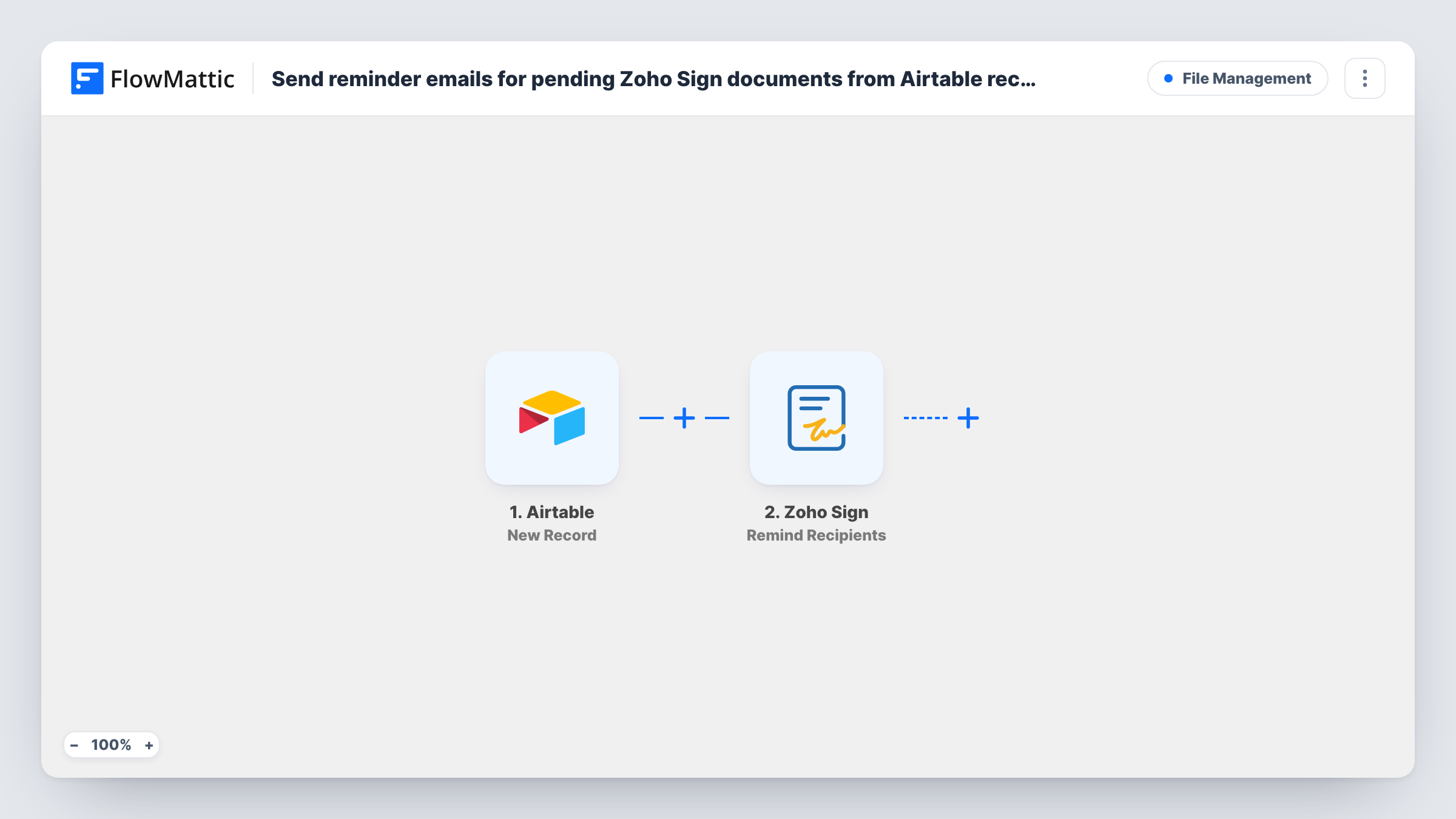
The Airtable trigger watches the table you choose and starts a run for each record added to it. FlowMattic passes that record to Zoho Sign, and the Remind Recipients step sends a reminder email to the recipients still pending on that document. Recipients who have already signed are not reminded.
Zoho Sign needs to know which document to chase, so your Airtable table must hold the Zoho Sign request ID in its own column, and you map that column into the step. The trigger fires once, when the record is created. Editing the record later does not send another reminder. Test with a known document first, and check Task History for Zoho Sign's response.
Sales team chasing contract signatures
A rep adds a row to the Airtable follow-up table with the Zoho Sign request ID, and the client's pending signers get a reminder email from Zoho Sign.
HR offer letters
When an offer letter in Zoho Sign has been waiting too long, HR logs it in an Airtable reminders table, which triggers the reminder to the candidate.
Agency client approvals
Project managers keep a table of documents to chase. Each new entry prompts Zoho Sign to email whoever on that document hasn't signed.
How this workflow runs
What happens at each step once the workflow is on, and what you need before you import it.
 Airtable New Record
Fires when a new record is created in the Airtable table you choose. The record's fields, including the column that holds the Zoho Sign request ID, are passed on for mapping.
- Zoho Sign Remind Recipients
Sends a reminder email from Zoho Sign to the pending recipients of one document. Map the request ID from your Airtable record so Zoho Sign knows which document to remind about.
What you need
- FlowMatticCore
- Airtable AccountAccount
- Zoho Sign AccountAccount
After importing, map your own data. To keep the template universal, not every step is pre-filled. Open each step in the builder and connect your accounts and fields (channels, lists, sheets, recipients) before you switch the workflow on.
Make it yours
Changes worth making after you import it.
- Keep a dedicated Airtable table for reminder requests, with one column for the Zoho Sign request ID, so every new row has the value the step needs.
- Add a Filter after the trigger that continues only when the request ID column is not empty, so rows added without an ID end the run instead of calling Zoho Sign.
- To remind again later, add a new record for the same document. Editing the existing record does not trigger another run.
Questions about this workflow
Where does the Zoho Sign document ID come from?
From your Airtable record. The table must store the Zoho Sign request ID in a column, and you map that column into the Remind Recipients step. The workflow does not look the document up for you.
Will recipients who already signed get a reminder?
No. Zoho Sign's Remind Recipients action sends the reminder to recipients who are still pending on the document.
Does updating an Airtable record send another Zoho Sign reminder?
No. The trigger is New Record, so only creating a record starts a run. Add a new record when you want to send a second reminder.
What if the document is already completed?
There is nobody pending to remind. Zoho Sign's reply for that run is shown in Task History.
More File Management workflows
Other ready-to-import templates from the same category.






Import this workflow into your WordPress site
Download the JSON, import it from the Workflows screen and connect your accounts. Every run stays on your server, with no per-task fees.
30-day money-back guarantee Unlimited workflows and runs Self-hosted