

Convert course content into audio for new lessons in Tutor LMS
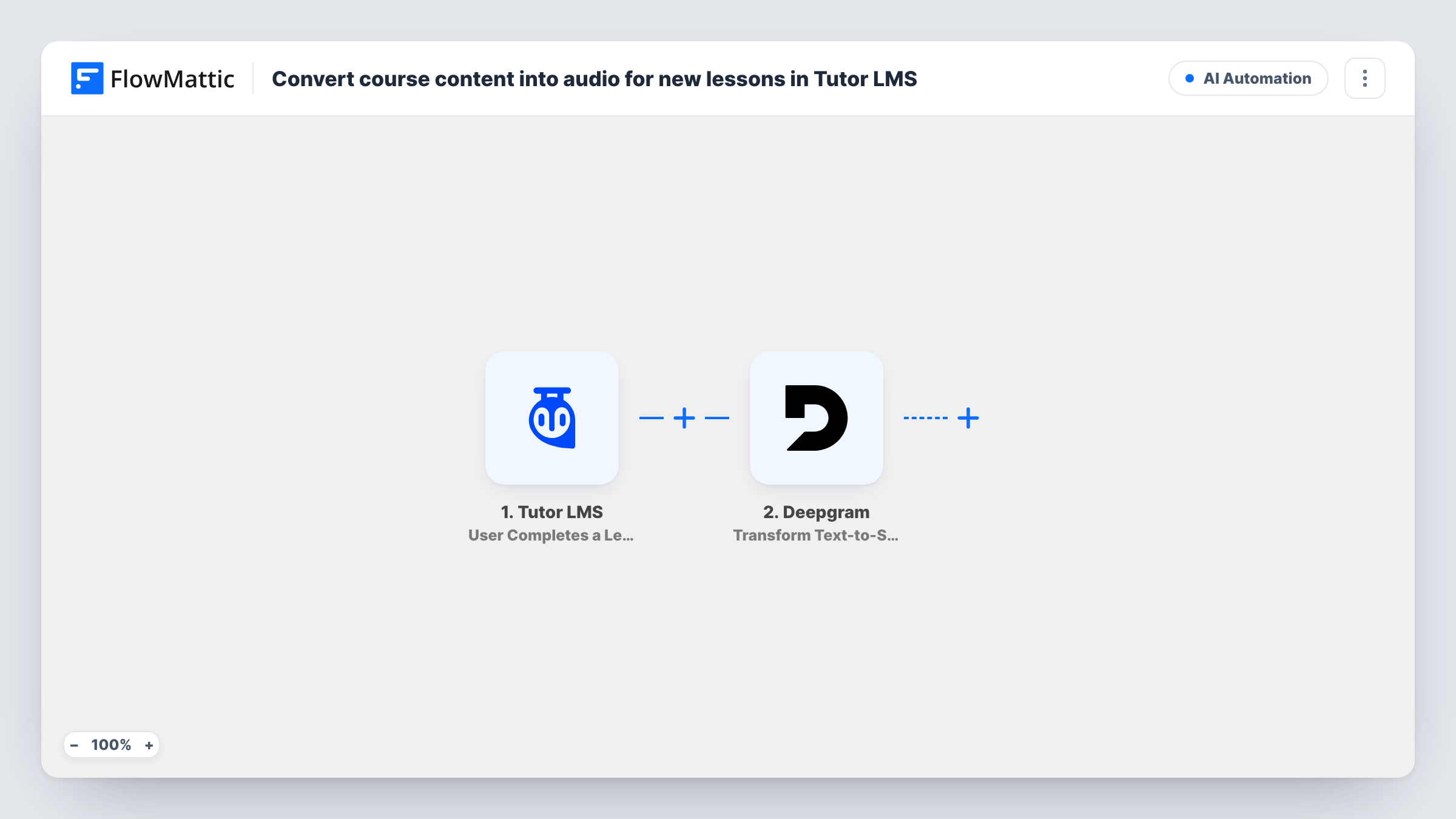
When a Tutor LMS lesson is first published, FlowMattic sends the lesson’s content to Deepgram text-to-speech and gets back an audio version you can then store or share.
 WordPress
 Filter
 Deepgram
3 steps Setup ~5 min Used on 1.7k sites Free to import
What this workflow does
Some students would rather listen to a lesson on a commute than read it at a desk. This workflow takes the written content of each new Tutor LMS lesson and turns it into speech with Deepgram, so an audio version exists without anyone recording it by hand.
The WordPress New Post trigger fires once, when a post or custom post type entry is first published. Edits to a lesson that's already live don't start a run. Because blog posts and other custom post types fire it too, a Filter comes next: it continues only when the post type exactly matches lesson, the post type Tutor LMS uses for lessons. The match ignores upper and lower case.
The Deepgram step then converts the lesson's post content into speech. The text is already mapped from the trigger, so you only connect your Deepgram account after import.
Deepgram is the last step in the template. The audio Deepgram returns isn't saved to your site or attached to the lesson until you add a step that does it. Publish a test lesson and look at Task History to see what Deepgram sends back before you choose where it goes. Lesson content can also include HTML or shortcodes, so listen to the result once.
Audio versions for an online course
A language school publishes text lessons in Tutor LMS and wants a spoken version of each one generated as soon as the lesson goes live.
Accessibility for students who prefer listening
A training provider offers learners with reading difficulties an audio take on every new lesson, starting from the Deepgram output of this flow.
Drafting podcast-style recaps
A course creator turns each new written lesson into speech, reviews the result, and reuses it as a short audio recap for the course community.
How this workflow runs
What happens at each step once the workflow is on, and what you need before you import it.
 WordPress New Post
Fires once, when a post or custom post type entry is first published on your WordPress site. The post's type, title and content are passed on; edits to live posts don't fire it.
- Filter Continue If Condition Meet
Continues only when the published post's type exactly matches lesson, the post type Tutor LMS uses for lessons. Blog posts and other custom post types stop here.
- Deepgram Transform Text-to-Speech
Sends the lesson's post content to Deepgram and converts it to speech. The text is pre-mapped from the trigger; connect Deepgram and check a test run for the audio it returns.
What you need
- FlowMatticCore
- Deepgram AccountAccount
After importing, map your own data. To keep the template universal, not every step is pre-filled. Open each step in the builder and connect your accounts and fields (channels, lists, sheets, recipients) before you switch the workflow on.
Make it yours
Changes worth making after you import it.
- Add a WordPress New Media step after the Deepgram step to put the audio in your Media Library, if a test run shows Deepgram returning a file or link you can map.
- Once the audio is in the Media Library, a WordPress Update Post step after it can add the audio link to the lesson. Updating a live lesson doesn't fire New Post again.
- If lessons contain markup, put a Text Formatter step such as HTML to Markdown between the Filter and the Deepgram step, then map its output into the text instead.
- Long lessons make long audio, so publish a short test lesson first to check the voice and the result.
Questions about this workflow
Do students get the Tutor LMS lesson audio automatically?
Not as imported. The workflow converts the lesson to speech, but nothing saves the audio or adds it to the lesson. Add a step after the Deepgram step that stores it, such as WordPress New Media.
Will editing an existing lesson create new audio?
No. The New Post trigger only fires when a post is first published, so later edits to a lesson don't run the workflow again.
Why does the workflow need a Filter on the post type?
New Post fires for regular posts and custom post types alike, not only lessons. The Filter between the trigger and the Deepgram step lets only posts whose type is lesson continue, so ordinary articles aren't converted.
Do I need the Tutor LMS integration connected?
No. The workflow reads lessons through the WordPress trigger, so you only need Tutor LMS installed on the site and a Deepgram account to connect.
More AI Automation workflows
Other ready-to-import templates from the same category.








Import this workflow into your WordPress site
Download the JSON, import it from the Workflows screen and connect your accounts. Every run stays on your server, with no per-task fees.
30-day money-back guarantee Unlimited workflows and runs Self-hosted