

Send a Slack alert when a Whereby user is waiting in the lobby
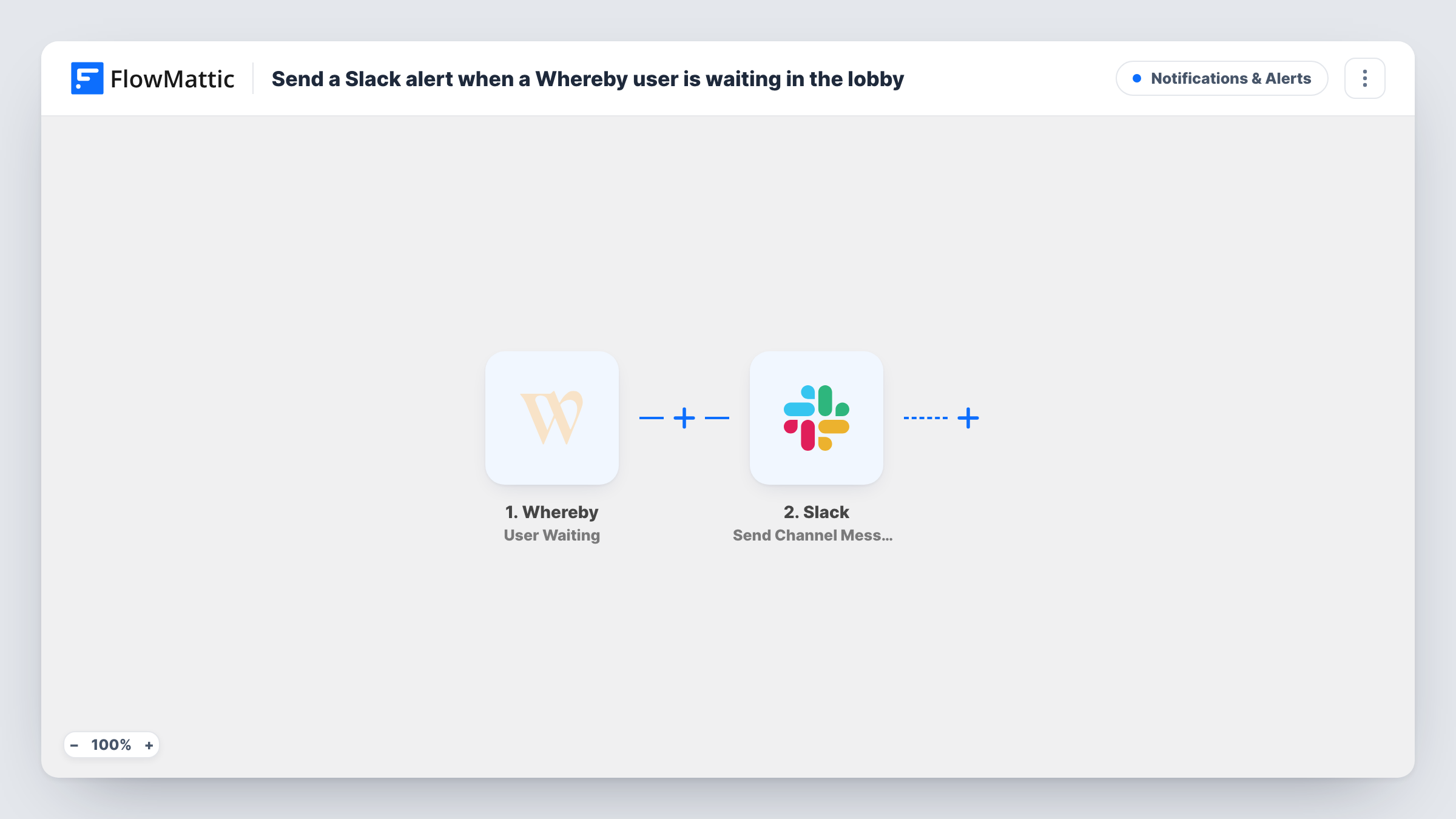
When a visitor knocks on a Whereby meeting room from the waiting room, this workflow posts a Slack channel message, so a host sees that someone is waiting to be let in.
 Whereby
 Slack
2 steps Setup ~5 min Used on 2.8k sites Free to import
What this workflow does
A locked Whereby room keeps uninvited people out, but a guest who knocks while the host is in another tab can sit in the waiting room unnoticed. If your team already watches Slack, an alert there is hard to miss. This workflow posts one as soon as someone knocks.
FlowMattic describes the Whereby User Waiting trigger as firing when a visitor knocks on the meeting room from the waiting room. The details Whereby sends about that knock, such as the room, become values you can use. The Slack Send Channel Message action then posts a message to the channel you choose, with the text and Whereby values you put in it.
Each knock produces one Slack message. If a visitor cancels their knock, nothing is posted for that, because the template only listens for the knock itself. Task History keeps a record of each run and the Slack response.
Clinic or therapy practice
Patients knock on a practitioner's Whereby room. The front-desk Slack channel shows each knock, so staff can tell the practitioner a patient has arrived.
Sales demos with a shared room
Prospects knock on the demo room. The sales channel gets the alert and whoever is free admits the visitor.
Office hours for a support team
Customers drop into a support room during set hours. Agents watch one Slack channel instead of keeping the Whereby tab in view.
How this workflow runs
What happens at each step once the workflow is on, and what you need before you import it.
 Whereby User Waiting
Runs when a visitor knocks on your Whereby meeting room from the waiting room. Whereby's details about the knock are captured. Have someone knock on a test room to see what arrives.
- Slack Send Channel Message
Posts the waiting-room alert to a Slack channel. Choose the channel after you connect Slack, and write a short message with the Whereby room value so hosts know which room to open.
What you need
- FlowMatticCore
- Whereby AccountAccount
- Slack AccountAccount
After importing, map your own data. To keep the template universal, not every step is pre-filled. Open each step in the builder and connect your accounts and fields (channels, lists, sheets, recipients) before you switch the workflow on.
Make it yours
Changes worth making after you import it.
- Use Slack's Send Direct Message action instead if one host owns the room and should get the knock alert personally.
- If the alert belongs in a private Slack channel, replace the step with Send Private Channel Message, since Send Channel Message is for regular channels.
- Add a Filter after the trigger on the room value Whereby sends, so only knocks on certain rooms post to this channel.
Questions about this workflow
When does the Whereby User Waiting trigger fire?
When a visitor knocks on the meeting room from the waiting room. Visitors who enter a room without knocking do not start a run.
Does the Slack alert let the visitor in?
No. It only tells your team someone is waiting. A host still admits the visitor in Whereby.
What if the Whereby visitor gives up before anyone answers?
The Slack message stays, because the template does not handle cancelled knocks. FlowMattic's Whereby integration also has a Knock Cancelled trigger you could use in a second workflow.
Can different Whereby rooms alert different Slack channels?
They can if you place a Router right after the Whereby trigger. Give each route a condition on the room value and its own Slack step for that room's channel.
More Notifications & Alerts workflows
Other ready-to-import templates from the same category.




Import this workflow into your WordPress site
Download the JSON, import it from the Workflows screen and connect your accounts. Every run stays on your server, with no per-task fees.
30-day money-back guarantee Unlimited workflows and runs Self-hosted