

Generate an order invoice with PDF Builder and archive it in Supabase Storage
For each new WooCommerce order, this workflow renders an invoice PDF from your PDF Builder template, uploads it to a Supabase Storage bucket and emails the buyer a download link that lasts seven days.
 WooCommerce
 PDF Builder
 Supabase
 Email
Email5 steps Setup ~8 min Used on 1.7k sites Databases & Sync Free to import
What this workflow does
Invoices are easy to send and easy to lose. Keeping a copy of each one outside WordPress gives you an archive, and a time-limited link lets the customer download theirs without the file being open to everyone. This workflow does all of that when an order comes in.
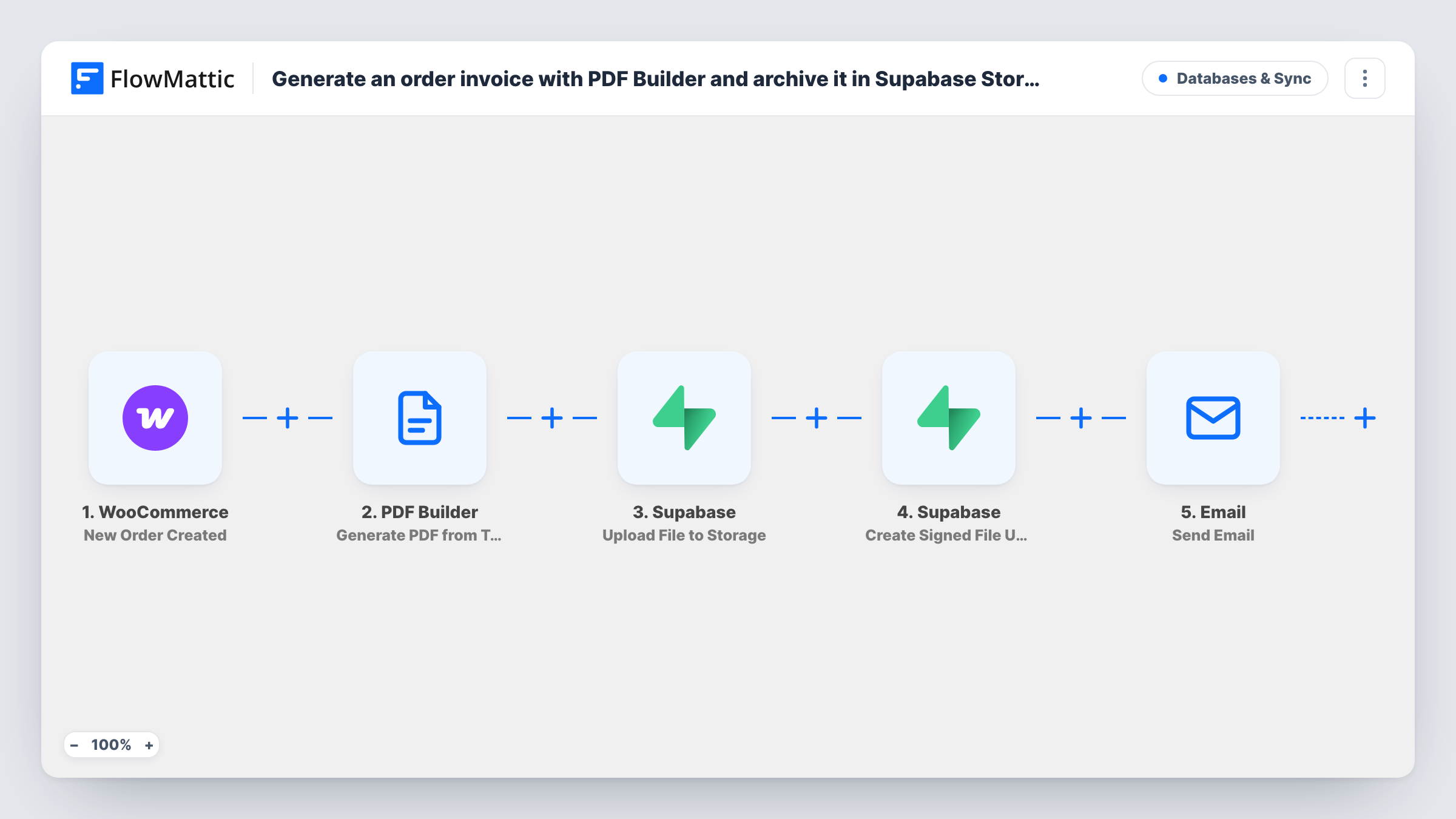
The WooCommerce trigger starts the run as each order reaches your store. PDF Builder then renders a PDF from a saved template, names it after the order number and saves it to the Media Library. Next, Supabase uploads that file to a bucket called invoices, under a path with the order number. A second Supabase step creates a signed URL for the file that expires after 604800 seconds, which is seven days.
The last step is FlowMattic's Email module, which mails the billing address with the order number in the subject and the signed link in the body. The template points at PDF Builder template 12, an ID from the author's site, so choose your own invoice template after import. The PDF also stays in your Media Library.
An off-site invoice archive
A shop keeps every invoice in a private Supabase bucket, filed by order number, so the accountant can find any of them without logging into WordPress.
Invoices for business buyers
B2B customers who need an invoice for their own records get a link to the PDF as soon as they order.
Digital goods with proof of purchase
A store selling courses or downloads sends each buyer a branded invoice PDF they can save for expenses.
How this workflow runs
What happens at each step once the workflow is on, and what you need before you import it.
 WooCommerce New Order Created
Starts whenever WooCommerce records a new order. The order number, billing name, billing email and other order data are passed to the steps after it.
- PDF Builder Generate PDF from Template
Renders a PDF from a saved PDF Builder template, named document- plus the order number, and saves it to the Media Library. Pick your own template; the shipped ID 12 is from the template author's site.
- Supabase Upload File to Storage
Uploads the PDF to the Supabase Storage bucket invoices, at invoices/order- plus the order number. Create that bucket first, or change the bucket name in this and the next step.
- Supabase Create Signed File URL
Creates a signed URL for the uploaded invoice that expires after seven days. The bucket and file path match the upload step, so the link points at that order's PDF.
 Email Send Email
Emails the customer's billing address with the order number in the subject and the signed download link in the body. Delivery uses WordPress mail unless you enter SMTP details in the step.
What you need
- FlowMatticCore
- WooCommerce PluginPlugin
- Supabase AccountAccount
After importing, map your own data. To keep the template universal, not every step is pre-filled. Open each step in the builder and connect your accounts and fields (channels, lists, sheets, recipients) before you switch the workflow on.
Make it yours
Changes worth making after you import it.
- Map the order's details, such as line items, totals and billing address, into the PDF Builder step's template data. Run a test order to check what appears on the invoice.
- Keep the Supabase bucket private. The signed URL then works for seven days, while the file itself stays closed to anyone without a link.
- To include only paid orders, add a Filter after the trigger on the order status, for example continuing when it equals processing.
Questions about this workflow
Do I need my own PDF Builder template?
Yes. The template refers to template ID 12 from its author's site. Create an invoice template in PDF Builder, select it in the step and map the WooCommerce order data into it.
What happens after the seven-day link expires?
The customer can no longer open it, but the PDF stays in your Supabase bucket. Change expires_in in the signed URL step if you want a longer or shorter window.
Does every WooCommerce order get an invoice, even unpaid ones?
Yes, as imported. The trigger fires when an order is created, whatever its status. Add a Filter on the order status if you only want invoices for paid orders.
Can the invoice be attached to the email instead of linked?
FlowMattic's Email step can attach files stored on your WordPress site, and PDF Builder saves the PDF to the Media Library, so you can attach it there instead of sending a link.
More Databases & Sync workflows
Other ready-to-import templates from the same category.






Import this workflow into your WordPress site
Download the JSON, import it from the Workflows screen and connect your accounts. Every run stays on your server, with no per-task fees.
30-day money-back guarantee Unlimited workflows and runs Self-hosted