Share passwords securely with expiring, view-limited links
Share Secrets turns a password or API key into a link that expires after a set time, a set number of views,…


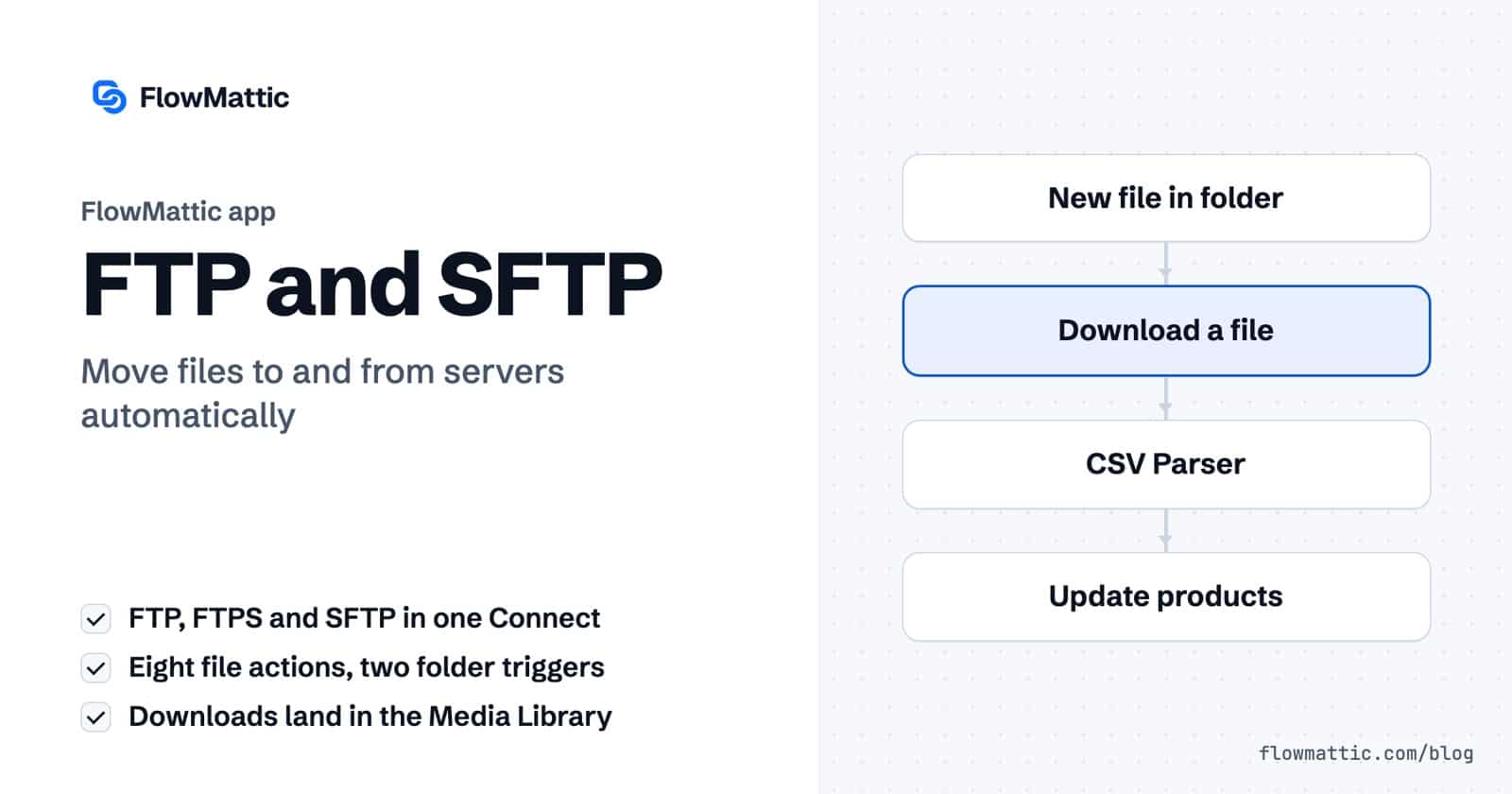
FTP automation lets your WordPress site move files to and from remote servers without anyone opening an FTP client. FlowMattic, the automation plugin for WordPress, has a built-in FTP app that uploads, downloads, renames, lists and deletes files on FTP, FTPS and SFTP servers as workflow steps, and starts workflows when a file lands in a folder.
It suits anyone who still trades files with a partner by FTP: stores sending order files to a warehouse, agencies archiving client media, finance teams dropping invoices on an accounting server. This guide covers the Connect, the eight actions, the two folder triggers, and the limits worth knowing before you rely on it.
The FTP app is a core app in the workflow builder. Its server details live in a FTP / SFTP Connect, so a step only picks a Connect by name and never holds the password itself. Every action opens a connection, does one job and closes it.
It has eight actions: Upload a file, Download a file, Delete a file or folder, List folder content, Rename / move a file or folder, Create a folder, Check if file exists and Get file info. It also has two polling triggers: New File in a Folder and File Modified in a Folder.
In Connects, add a new Connect and choose FTP / SFTP. Pick the Protocol (FTP, FTPS (FTP over SSL) or SFTP (SSH)), then enter the Host, Port, Username and Password. For SFTP you can paste a Private Key (SFTP only); for FTP and FTPS, set Passive Mode. Save with Test Connection & Save.
Add a step, choose FTP, pick the action, then select your server in FTP Connect. Fill in the paths, mapping file names or URLs from earlier steps where you need them, and test the step. Paths are cleaned up for you: a missing leading slash is added and a trailing slash removed.

Choose FTP as the trigger, pick New File in a Folder or File Modified in a Folder, select the Connect, set the Folder Path and how often to check. The first capture records the files already in the folder as the baseline. After that, each check compares the folder against the last snapshot and runs the workflow once for every new or changed file, with file_name, file_path, file_size, modified_time and folder_path. File Modified also passes previous_size and previous_modified.
| Action | Fields | Returns |
|---|---|---|
| Upload a file | Source URL, or Source File Path (Server); Remote File Path (required) | remote_path |
| Download a file | Remote File Path (required); Local Save Path (Optional) | local_path, file_url, attachment_id, file_size |
| Delete a file or folder | Remote Path; Is it a folder? | path |
| List folder content | Folder Path (defaults to /) | item_count and items, each with name, path, type, size and modified |
| Rename / move a file or folder | Current Path; New Path | old_path, new_path |
| Create a folder | Folder Path | path |
| Check if file exists | Remote Path | exists, type |
| Get file info | Remote File Path | size, modified and type; over SFTP also permissions and accessed |
A few behaviours from the code are worth knowing. If the Remote File Path for an upload has no file extension, it is treated as a folder and the source file name is added to it. Missing parent folders are created before the upload. A download with no Local Save Path goes to the WordPress uploads folder and is added to the Media Library, so the next step gets a public file_url. To move a file, give Rename / move a New Path in a different folder.
A store whose warehouse still takes a nightly CSV over SFTP builds the file in WordPress and uploads it at the same time every evening. No one has to remember to export it.
Flow: Schedule (Every Day) → step that collects the day’s orders → CSV Creator → FTP: Upload a file
A supplier drops a new CSV on its FTP server every week. The workflow notices it, pulls it into the Media Library and updates products row by row.
Flow: FTP: New File in a Folder → Download a file → CSV Parser (file_url) → Iterator → WooCommerce product update
An agency copies every file a client adds to the Media Library to its own archive server, filed by client and month, so a broken site never takes the originals with it.
Flow: WordPress New Media → FTP: Upload a file (Source URL = media URL, Remote File Path = /archive/northwind/2026-10/)
Each paid order produces a PDF invoice that the accountants’ system picks up from an SFTP folder, named with the order number so it is easy to match.
Flow: WooCommerce order → PDF Template Builder → FTP: Upload a file
Operations watches a folder of rate sheets. When one changes size or timestamp, the team channel gets the file name with its old and new size.
Flow: FTP: File Modified in a Folder → Slack message (file_name, previous_size, file_size)
A partner uploads PDF reports to a shared folder. Each new one is downloaded, its text extracted and summarised by an AI Agent, and the summary is emailed to Amelia Okafor before she opens the file.
Flow: FTP: New File in a Folder → Download a file → PDF Parser → AI Agent → Send Email
file_url and no Media Library entry.FTP sits alongside the parsers, formatters and file tools described on the data tools page.
Yes. Create an FTP / SFTP Connect with the SFTP (SSH) protocol, then use the Upload a file action in any workflow, with a source URL or a file path on your server. Your host needs the PHP SSH2 extension for SFTP.
Use the FTP app’s New File in a Folder trigger, set the Folder Path and a check frequency, and capture once to record the current files. From then on, each new file runs the workflow once, with its name, path, size and modified time.
Yes. The Connect offers FTP, FTPS (FTP over SSL) and SFTP (SSH). For SFTP you can paste a private key; the password field then acts as the key’s passphrase.
By default into your WordPress uploads folder, registered in the Media Library, with the URL and attachment ID passed to the next step. Set Local Save Path to store the file somewhere else on the server.
Ready to replace the manual routine with FTP automation? See FlowMattic plans and build your first file workflow.
Share Secrets turns a password or API key into a link that expires after a set time, a set number of views,…
Generate Magic Login Link creates single-use sign-in links from any workflow, valid from 1 minute to 30 days, with a confirmation page…
Compress any image from a URL as a workflow step: choose quality, convert to WebP, JPEG or PNG, cap the size, and…