

AI agent that spots duplicate leads and keeps the CRM clean
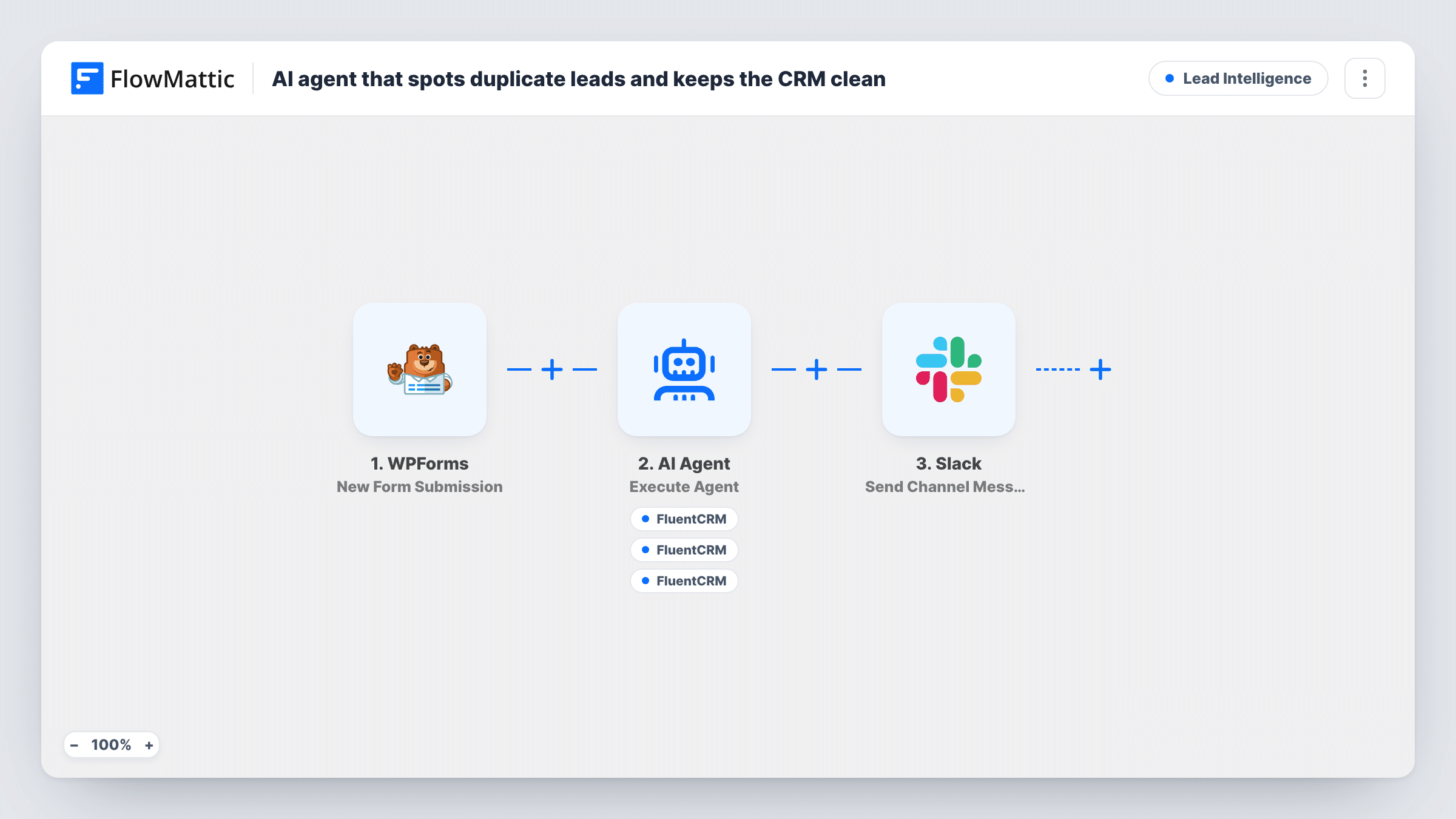
An AI agent checks each new WPForms lead against FluentCRM by email, notes and tags existing contacts as duplicates, creates and tags new ones, and Slack gets a note for every lead.
 WPForms
 AI Agent
 FluentCRM
 Slack
Slack7 steps Setup ~12 min Used on 2.6k sites Growth Free to import
What this workflow does
People fill in forms more than once: a second quote request, a newsletter sign-up after a contact form. Without a check, your team can't tell a returning lead from a new one. This workflow has an AI agent look each WPForms submission up in FluentCRM first, then record what it found on the contact.
The WPForms trigger starts a run for each new form submission and passes the name, email and phone. The AI agent is told to look the contact up by email first. If a contact exists, it should add a note describing the duplicate and tag it as a duplicate. If none exists, it should create a contact and tag it as new.
The agent has four FluentCRM tools: Get Contact by Email, Create or Update Contact, Add Note to Contact and Add Tags to Contact. The email is mapped into each tool from the form; the agent writes the first name, note text and tags. It decides which tools to call, so review the first few runs in Task History.
The match is by email address only. The same person using a different email is not caught, and the workflow doesn't merge two contacts into one. A final Slack step then posts that the email was processed for duplicates, with fixed text that doesn't say what the agent found.
Returning quote requests flagged
A landscaping firm sees a duplicate tag and a dated note on any contact who asks for a second quote, so the sales rep knows to call back rather than start fresh.
Clean lists for email campaigns
A course seller filters FluentCRM by the new tag to welcome first-time leads, and leaves out people already in the CRM.
Spotting form spam patterns
An agency notices the same emails picking up repeated duplicate notes, a sign that a bot is resubmitting its contact form.
How this workflow runs
What happens at each step once the workflow is on, and what you need before you import it.
 WPForms New Form Submission
Fires on each new WPForms submission and passes the submitter's name, email and phone to the agent. Re-map those fields to your form's own fields after import.
- AI Agent Execute Agent
An AI agent on OpenAI GPT-4o reads the submission and is told to check FluentCRM by email, then note and tag duplicates or create and tag new contacts.
- FluentCRM Get Contact by Email
Agent tool. Looks up a FluentCRM contact by the email from the form. What it returns tells the agent whether the person is already in your CRM.
- FluentCRM Create or Update Contact
Agent tool. Creates a contact with the form's email and a first name the agent fills in, or updates the contact that already has that email.
- FluentCRM Add Note to Contact
Agent tool. Adds a note, written by the agent, to the contact with the form's email. It only works on a contact that already exists.
- FluentCRM Add Tags to Contact
Agent tool. Applies the tags the agent chooses, such as duplicate or new, to the contact with the form's email. The contact must exist first.
- Slack Send Channel Message
Posts "Processed" followed by the lead's email and "for duplicates" to the Slack channel you pick, once the agent step is done.
What you need
- FlowMatticCore
- WPForms PluginPlugin
- AI ProviderAccount
- FluentCRM PluginPlugin
- Slack AccountAccount
After importing, map your own data. To keep the template universal, not every step is pre-filled. Open each step in the builder and connect your accounts and fields (channels, lists, sheets, recipients) before you switch the workflow on.
Make it yours
Changes worth making after you import it.
- Name the exact tags in the system prompt, such as "duplicate-lead" and "new-lead", and create them in FluentCRM first, so the agent uses the same tags every time.
- Map the agent's output into the Slack message, so the channel shows whether each lead was a duplicate or new rather than only that it was processed.
- Ask the agent in its prompt to include the form name and submission date in the duplicate note, so your team can see what the person asked for the second time.
Questions about this workflow
Does this merge duplicate contacts in FluentCRM?
No. It flags them. An existing contact gets a note and a duplicate tag, and FluentCRM's own email matching means the same email never becomes a second contact. Merging separate records is up to you.
Will it catch the same person with a different email?
No. Every lookup and every tool uses the email from the WPForms entry, so a lead who switches email address looks new and gets a new contact.
What if the agent skips the FluentCRM lookup?
The prompt tells it to look up first, but the agent chooses its tools. Check Task History for the first runs, and tighten the system prompt if it ever creates without looking.
Which WPForms fields does the agent receive?
The name, email and phone mapped in its input. Add other fields to the agent's input after import if you want it to mention them in the note.
More Lead Intelligence workflows
Other ready-to-import templates from the same category.







Import this workflow into your WordPress site
Download the JSON, import it from the Workflows screen and connect your accounts. Every run stays on your server, with no per-task fees.
30-day money-back guarantee Unlimited workflows and runs Self-hosted