

Create ClickUp tasks from form submissions
Turn each Fluent Forms submission into a ClickUp task, with the form’s subject as the task name and the message plus the sender’s name and email in the description.
 Fluent Forms
 ClickUp
2 steps Setup ~5 min Used on 1.2k sites Productivity Free to import
What this workflow does
Requests that arrive through a website form usually end up in someone's inbox, where they wait until a person copies them into the team's task list. If your team already plans its work in ClickUp, that copy step is just a delay. This workflow puts each request into ClickUp the moment the form is sent.
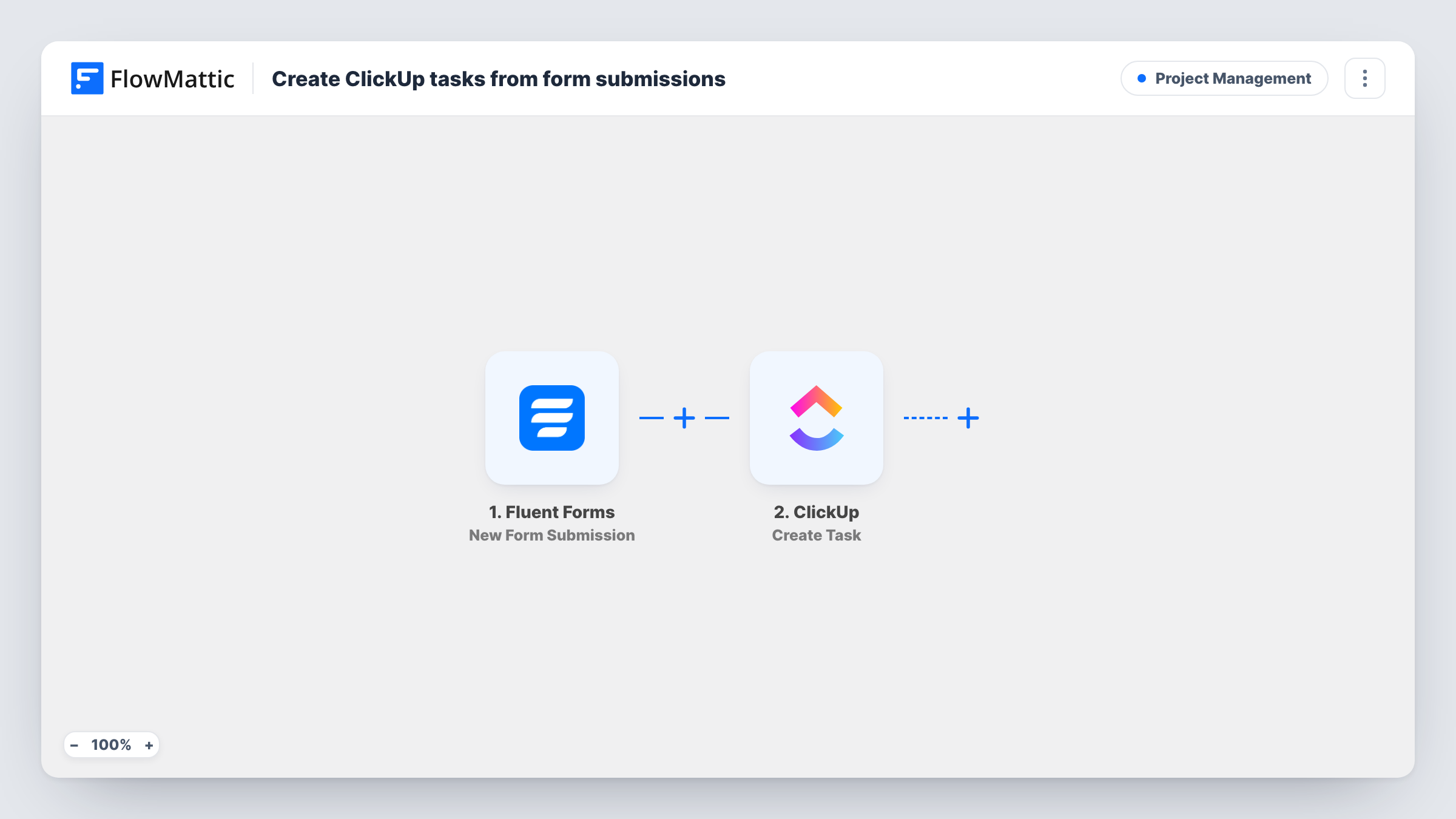
The Fluent Forms trigger runs whenever a visitor submits a form on your WordPress site. FlowMattic then uses the Create Task action in ClickUp. The template maps the form's subject field to the task name. The task description holds the message, then a From line with the sender's name and email address, so whoever picks up the task knows who to reply to.
Your form entries remain in Fluent Forms on your own site. The task is a copy of the request, created by FlowMattic through your connected ClickUp account. Each submission gives one new task, and every run appears in Task History.
Website change requests from clients
An agency gives clients a Fluent Forms request page. Each request becomes a ClickUp task with the client's message and email, ready to be assigned.
Internal IT or facilities requests
Staff report a broken laptop or a booking need through an intranet form, and the request lands in the ClickUp space where the team tracks its work.
Content ideas from writers
Contributors pitch an article through a form. The subject becomes the task name, so the editor sees each pitch as a task with the pitch text inside.
How this workflow runs
What happens at each step once the workflow is on, and what you need before you import it.
 Fluent Forms New Form Submission
Runs when a visitor submits a Fluent Forms form. The subject, message, name and email fields are passed on for the ClickUp task.
- ClickUp Create Task
Adds a new ClickUp task for the submission. The task name comes from the form's subject field, and the description holds the message followed by the sender's name and email. Connect your ClickUp account on import and run a test to confirm where the task appears.
What you need
- FlowMatticCore
- Fluent Forms PluginPlugin
- ClickUp AccountAccount
After importing, map your own data. To keep the template universal, not every step is pre-filled. Open each step in the builder and connect your accounts and fields (channels, lists, sheets, recipients) before you switch the workflow on.
Make it yours
Changes worth making after you import it.
- The template expects form fields for subject, message, name and email. If your form names them differently, remap each one in the ClickUp step after a test submission.
- Add a Filter after the trigger if one form serves several purposes, for example continuing only when a request type dropdown equals Bug, so only those submissions become tasks.
- Use a Router with one ClickUp step per route to send different request types to different places in ClickUp, giving each route a condition on a distinct dropdown value.
Questions about this workflow
What if my Fluent Forms form has no subject field?
The task name is mapped from a field called subject. Without it, the name would be blank, so map another field, such as the name or a dropdown, to the task name after import.
Will a ClickUp task be created for every Fluent Forms submission?
Yes, as imported. There is no condition between the steps, so each submission that reaches the trigger creates one task. Add a Filter if you only want some of them.
Does Fluent Forms still keep the entry after the task is created?
Yes. The workflow reads the submission and creates the task. It does not delete or change the entry Fluent Forms stores on your site.
Can the sender's email be used to reply from ClickUp?
The email is written into the task description as text. Your team can copy it from there to reply, but the workflow does not send any email itself.
More Project Management workflows
Other ready-to-import templates from the same category.





Import this workflow into your WordPress site
Download the JSON, import it from the Workflows screen and connect your accounts. Every run stays on your server, with no per-task fees.
30-day money-back guarantee Unlimited workflows and runs Self-hosted