

Add a Google Calendar event for an employee's first day from Keka HR
When Keka HR sends a new-employee event, this workflow creates a Google Calendar event for that person’s first day, so the manager and team see the start date on the calendar they already use.
 Keka HR
 Google Calendar
2 steps Setup ~5 min Used on 1.2k sites Free to import
What this workflow does
A new starter's first day needs a manager, a desk and a welcome, and that only works if the date is on someone's calendar. HR often knows the joining date in Keka HR well before the team does. This workflow puts the day on a Google Calendar from the event Keka sends.
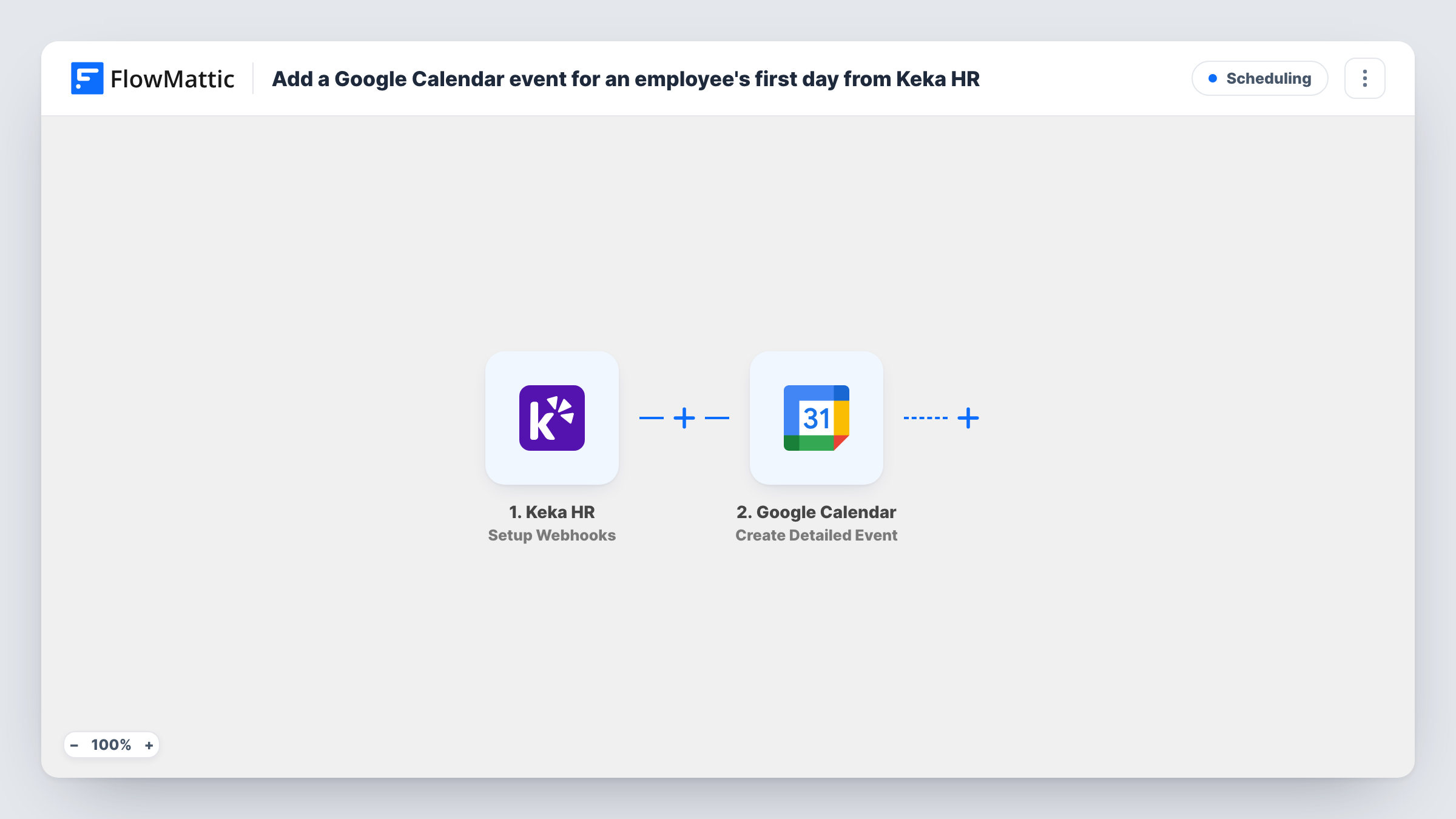
The Keka HR trigger receives the events you specify in Keka's webhook setup. For this flow, send only the event for a new employee. FlowMattic passes the employee data to Google Calendar, where Create Detailed Event adds an event to the calendar you choose. You map the employee's name and joining date into the event.
The calendar entry is only as good as the data Keka sends. Run a test after import to confirm the payload holds a joining date. Each run, with its data, is listed in Task History.
Team calendar for new joiners
A shared Onboarding calendar shows every upcoming first day, so office staff prepare a desk and access card for the right date.
Manager planning view
Point the step at a calendar the hiring managers share, so each of them sees who joins their team and on which day.
Remote starter welcome call
The event becomes a welcome call on the joining date, with the new hire's name in the title so the team knows who is starting.
How this workflow runs
What happens at each step once the workflow is on, and what you need before you import it.
 Keka HR Setup Webhooks
Receives the Keka HR events you pick in Keka's webhook settings at FlowMattic's URL. Choose only the new-employee event so other HR events don't create calendar entries.
- Google Calendar Create Detailed Event
Adds the first-day event to whichever Google Calendar you point the step at. Map the new hire's name into the title and the joining date into the event's date, after a test run shows Keka's values.
What you need
- FlowMatticCore
- Keka HR AccountAccount
- Google Calendar AccountAccount
After importing, map your own data. To keep the template universal, not every step is pre-filled. Open each step in the builder and connect your accounts and fields (channels, lists, sheets, recipients) before you switch the workflow on.
Make it yours
Changes worth making after you import it.
- In Keka HR, send only the new-employee event to this webhook. Any other event type you select would also create a calendar entry.
- Check a test payload for the joining date's format. If Google Calendar can't read it, add a Date/Time Formatter step before the calendar step to convert it.
- Write the department or role into the event description, where Keka includes it, so viewers know which team the person joins.
Questions about this workflow
Which Keka HR events create a first-day calendar entry?
Only the events you choose in Keka HR's webhook setup. Pick the new-employee event alone; anything else you add will also create a calendar event.
What if the joining date changes in Keka HR later?
The template doesn't update the calendar event. It creates one event per incoming Keka event, so a later change needs you to edit the calendar by hand or add more steps.
Does the new employee get an invite?
Not as imported. The event is added to the calendar you pick, and the template sends nothing to the new hire. Check the step's options after import if you want to invite people.
More Scheduling workflows
Other ready-to-import templates from the same category.



Import this workflow into your WordPress site
Download the JSON, import it from the Workflows screen and connect your accounts. Every run stays on your server, with no per-task fees.
30-day money-back guarantee Unlimited workflows and runs Self-hosted