

Add a Google Calendar event when a new Epos Now booking is made
When a booking is created in Epos Now, this workflow adds a matching event to your Google Calendar, so table and appointment bookings appear in the calendar your staff already check.
 Epos Now
 Google Calendar
2 steps Setup ~5 min Used on 1.1k sites Free to import
What this workflow does
Bookings taken in Epos Now live in your till system. Staff who plan their day in Google Calendar have to look in two places, or someone copies each booking across. This workflow puts each new booking on the calendar for you.
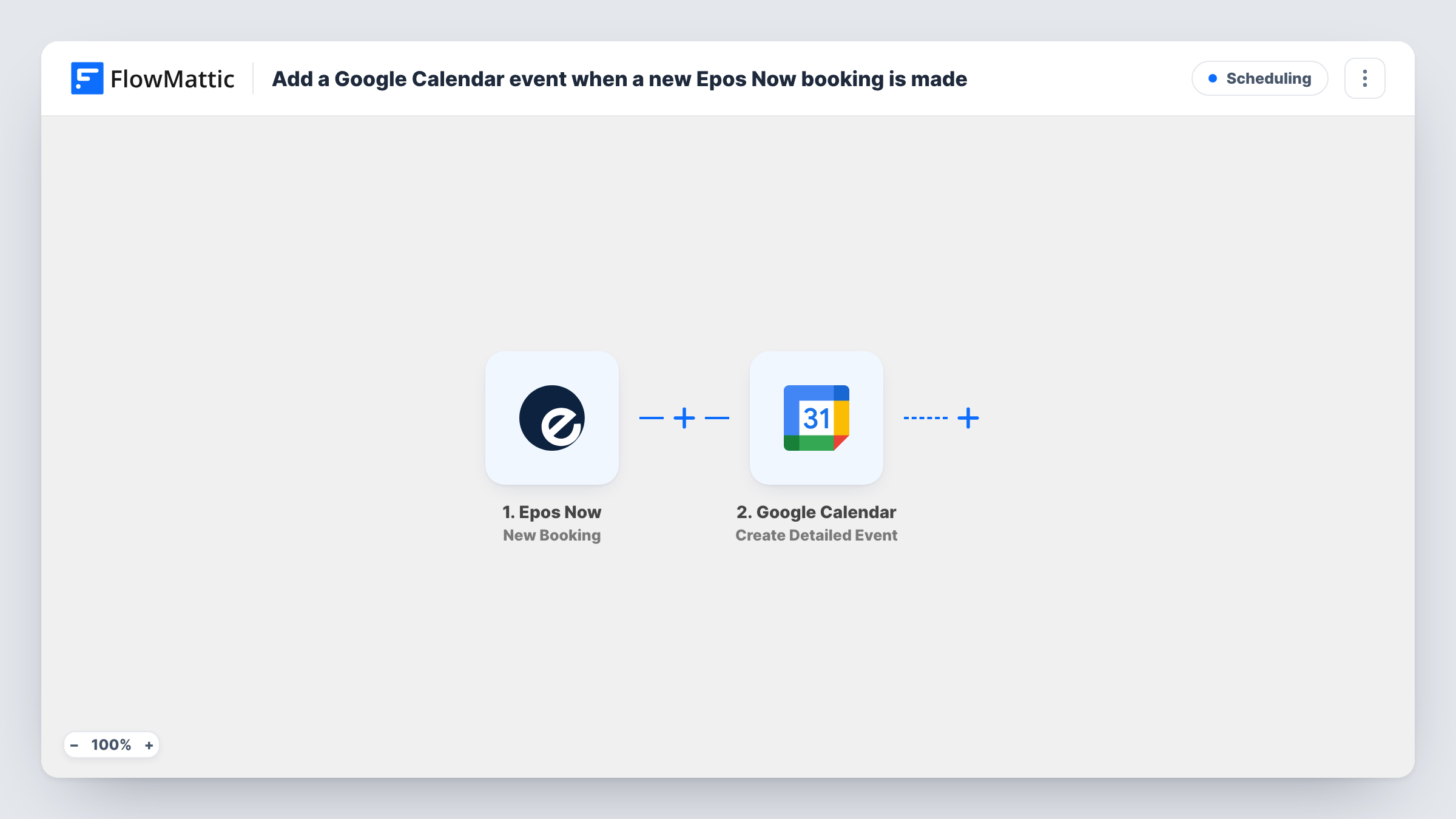
The Epos Now trigger fires when a booking is created. FlowMattic receives the booking's details and passes them to Google Calendar. Its Create Detailed Event action adds a new event to the calendar you choose, and you map the booking's date, time and customer details into the event.
The workflow only adds events. A booking changed or cancelled later in Epos Now stays as it was on the calendar, so update those by hand. Task History lists each run and what Google Calendar returned.
Restaurant table bookings
Front-of-house staff see each new Epos Now table booking in a shared Google Calendar on the host stand tablet.
Salon and spa appointments
Bookings taken at the counter in Epos Now land on the team calendar, so stylists can check their day from their phones.
Private hire and events
Function room bookings made in Epos Now appear on the manager's calendar next to staff rotas and supplier deliveries.
How this workflow runs
What happens at each step once the workflow is on, and what you need before you import it.
 Epos Now New Booking
Runs when a booking is created in your Epos Now account. The booking's details are passed to the Google Calendar step for mapping.
- Google Calendar Create Detailed Event
Creates a new event in the Google Calendar you select. Map the booking's date, time and customer details into the event, then run a test to confirm it lands at the right time.
What you need
- FlowMatticCore
- Epos Now AccountAccount
- Google Calendar AccountAccount
After importing, map your own data. To keep the template universal, not every step is pre-filled. Open each step in the builder and connect your accounts and fields (channels, lists, sheets, recipients) before you switch the workflow on.
Make it yours
Changes worth making after you import it.
- Use a separate Google Calendar just for Epos Now bookings, so staff can show or hide them next to their own events.
- Make a test booking in Epos Now after import, then check the event's times in Google Calendar to confirm the time zone is right.
- Add a second action after the calendar step, such as a Slack message, if staff should also be told about each new booking.
Questions about this workflow
Does a cancelled Epos Now booking come off the calendar?
No. The trigger fires only when a booking is created. Changes and cancellations in Epos Now don't reach the calendar, so remove or edit those events yourself.
Which Google Calendar does the Epos Now booking go to?
The one you select in the Google Calendar step, from the Google account you connect. It can be a shared calendar your staff subscribe to.
Will older Epos Now bookings be added?
No. Only bookings created after you turn the workflow on are sent to Google Calendar.
More Scheduling workflows
Other ready-to-import templates from the same category.





Import this workflow into your WordPress site
Download the JSON, import it from the Workflows screen and connect your accounts. Every run stays on your server, with no per-task fees.
30-day money-back guarantee Unlimited workflows and runs Self-hosted