

Add a Monday.com item for every new Edens invoice issued
Each time an invoice is issued in Edens, this workflow creates a new item on the Monday.com board you choose, so the invoice shows up where your team already plans and tracks work.
 Edens
 Monday.com
2 steps Setup ~5 min Used on 3.3k sites Productivity Free to import
What this workflow does
Invoices often need follow-up work: checking the figures, chasing approval, filing them for the accountant. If that work lives in Monday.com, someone has to notice each new invoice in Edens and add it to the board by hand. Here, FlowMattic adds the item the moment Edens issues the invoice.
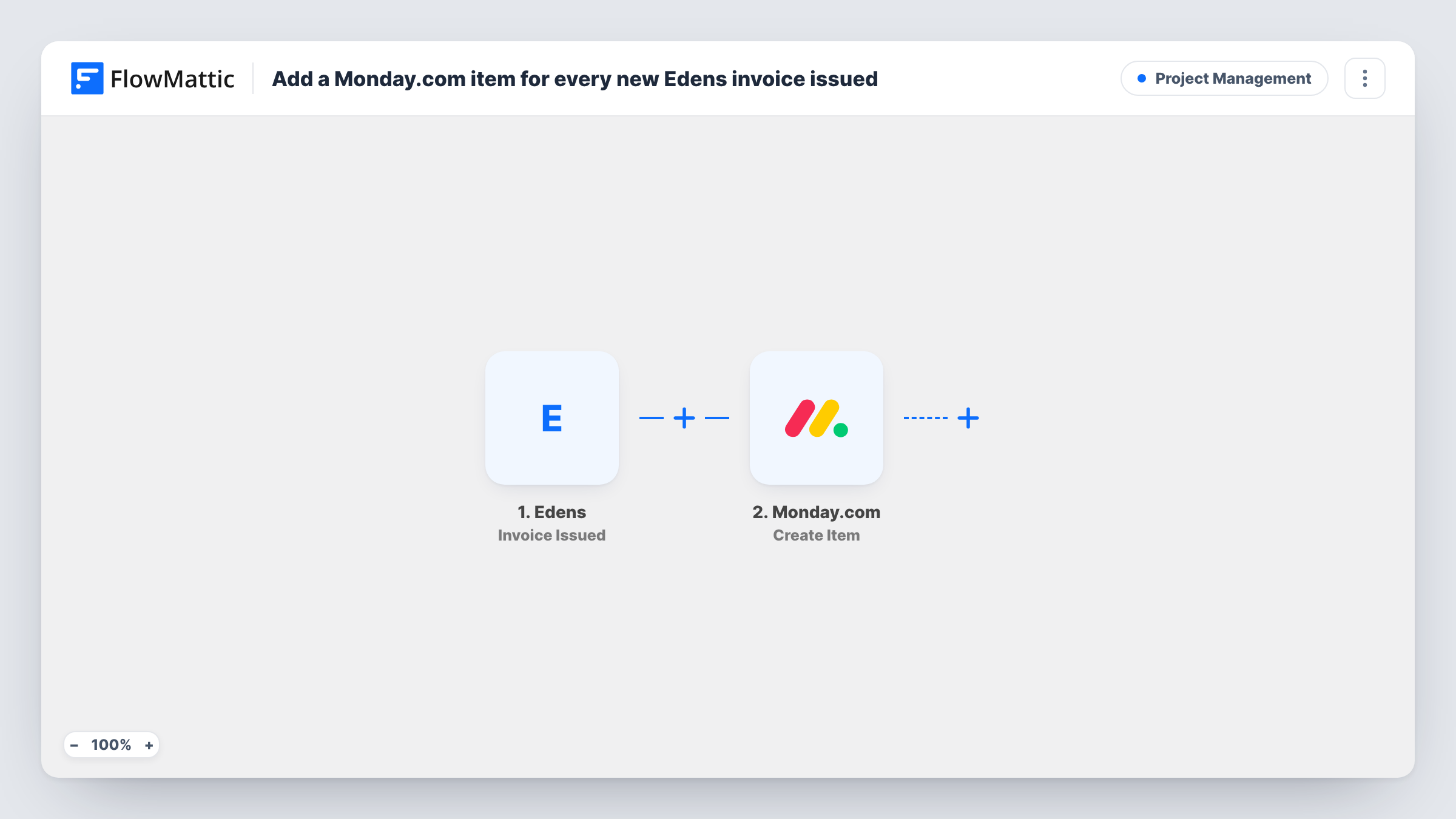
The Edens trigger fires when an invoice is issued, and the data that comes with the event is available to map. The Monday.com step then runs Create Item, adding a new item to a board in your account. You decide what the item is called and which details from the invoice go into it.
Each issued invoice gives you exactly one new item, so the board grows into a running list of what has been billed. The workflow does not update items later, for example when an invoice is paid. Edens also has an Invoice Paid trigger in FlowMattic, which you can use in a second workflow if you want to track payments too. You can look back at each invoice's run in Task History.
Finance review board
Every invoice issued in Edens appears on a Monday.com board where a finance lead checks it and moves it through review.
Client account tracking
Account managers see each new invoice for their clients as an item on the board they already use for client work, without logging into Edens.
Month-end filing checklist
Each issued invoice becomes an item your bookkeeper ticks off once it has been filed and sent to the accountant.
How this workflow runs
What happens at each step once the workflow is on, and what you need before you import it.
 Edens Invoice Issued
Runs when an invoice is issued in Edens. The invoice data from the event is passed on, so you can map it into the Monday.com item.
- Monday.com Create Item
Creates a new item on a Monday.com board in your connected account. Map invoice details from the trigger into the item, then run a test to confirm it lands on the right board.
What you need
- FlowMatticCore
- Edens AccountAccount
- Monday.com AccountAccount
After importing, map your own data. To keep the template universal, not every step is pre-filled. Open each step in the builder and connect your accounts and fields (channels, lists, sheets, recipients) before you switch the workflow on.
Make it yours
Changes worth making after you import it.
- Build the item name from invoice details, such as the invoice number and the recipient, so items are easy to tell apart on the board.
- Create a second workflow on the Edens Invoice Paid trigger if you also want paid invoices recorded in Monday.com.
- Add a Filter after the trigger if only some invoices belong on this board, for example those above a set amount. Test it with a real invoice first.
- Issue a test invoice in Edens after import so FlowMattic captures the event data, then map it in the Monday.com step.
Questions about this workflow
Will invoices I issued in Edens before importing appear in Monday.com?
No. The trigger fires on new Invoice Issued events, so only invoices issued after you turn the workflow on create items.
Does the Monday.com item change when the Edens invoice is paid?
No. This workflow only creates items. To react to payments, use the Edens Invoice Paid trigger in a separate workflow.
Which Monday.com board do the items go to?
The board you pick in the Create Item step after connecting your Monday.com account. You can point it at any board your account can reach.
Do I need accounts for both Edens and Monday.com?
Yes. You connect your Edens account for the trigger and your Monday.com account for the Create Item step.
More Project Management workflows
Other ready-to-import templates from the same category.





Import this workflow into your WordPress site
Download the JSON, import it from the Workflows screen and connect your accounts. Every run stays on your server, with no per-task fees.
30-day money-back guarantee Unlimited workflows and runs Self-hosted