

Add each new Cal.com booking to Google Calendar
Every booking created in Cal.com becomes an event on the Google Calendar you pick, with the title, time and attendee details you map from the booking.
 Cal.com
 Google Calendar
2 steps Setup ~5 min Used on 2.5k sites Free to import
What this workflow does
You might take bookings in Cal.com but want them on a Google Calendar that Cal.com isn't connected to: a shared team calendar, an assistant's calendar, or one used for planning resources. This workflow copies each new booking there as an event.
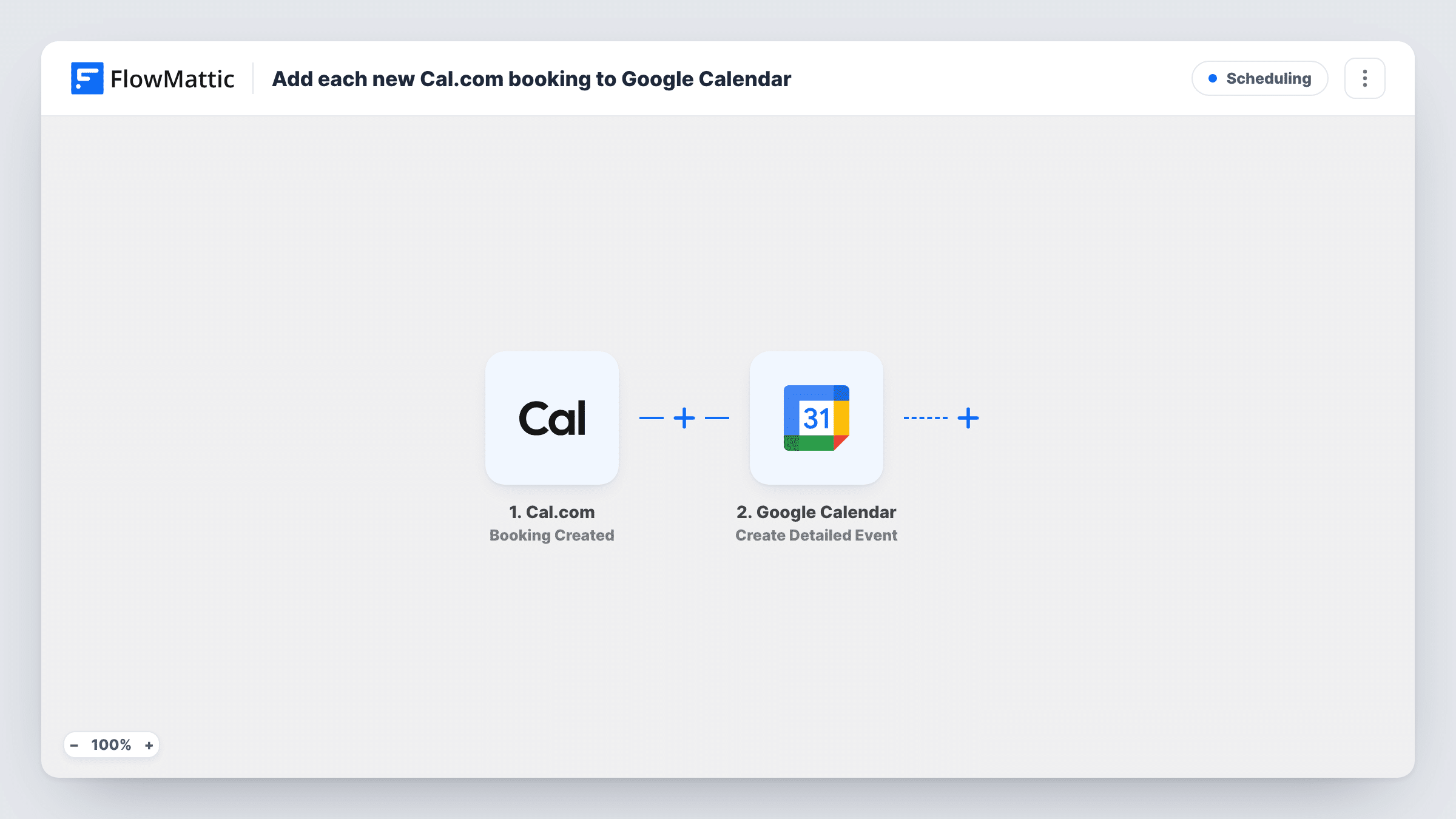
The Cal.com trigger fires when a booking is created. FlowMattic sends the booking details to Google Calendar, where Create Detailed Event adds an event to the calendar you select. You map the booking's start and end times, a title, and any attendee or note details you want on the event.
A run begins only for freshly created Cal.com bookings. Cal.com has separate triggers for cancellations and reschedules, and this template doesn't use them, so those changes are not reflected on the Google event. You can follow each copied booking in Task History.
Shared team calendar
Each rep's Cal.com bookings appear on one team calendar, so a manager sees the whole day at a glance.
Assistant managing your diary
Your assistant works from their own Google Calendar and gets your Cal.com bookings there without needing your login.
Meeting room planning
In-person bookings are copied to a calendar for the office room, so others know when it is taken.
How this workflow runs
What happens at each step once the workflow is on, and what you need before you import it.
 Cal.com Booking Created
Runs when a new booking is created in Cal.com. The booking's times, title and attendee details can be mapped into the calendar event.
- Google Calendar Create Detailed Event
Puts the booking on the Google Calendar you choose as a new event. Connect Google, select the calendar, and map the Cal.com start and end times along with a title.
What you need
- FlowMatticCore
- Cal.com AccountAccount
- Google Calendar AccountAccount
After importing, map your own data. To keep the template universal, not every step is pre-filled. Open each step in the builder and connect your accounts and fields (channels, lists, sheets, recipients) before you switch the workflow on.
Make it yours
Changes worth making after you import it.
- If Cal.com already writes bookings to a Google Calendar through its own calendar connection, pick a different calendar here to avoid two events for one booking.
- Book a test slot after import so FlowMattic captures how Cal.com sends the start and end times, then map them in the event step.
- Copy this workflow with the Booking Cancelled trigger and send yourself a notice, so you know which calendar events to remove.
Questions about this workflow
Does a rescheduled Cal.com booking move the Google event?
No. This workflow is wired to Cal.com's Booking Created event alone. Rescheduling is a separate Cal.com trigger, so the event created earlier keeps its original time.
Will I get duplicate events in Google Calendar?
Only if Cal.com also writes to the same calendar through its own connection. Choose a calendar Cal.com doesn't write to, and each booking appears once.
Are past Cal.com bookings copied over?
No. A run starts for bookings created after the workflow is turned on. Bookings made before that are not added.
More Scheduling workflows
Other ready-to-import templates from the same category.







Import this workflow into your WordPress site
Download the JSON, import it from the Workflows screen and connect your accounts. Every run stays on your server, with no per-task fees.
30-day money-back guarantee Unlimited workflows and runs Self-hosted