

Add new FluentCRM contact to FluentCommunity
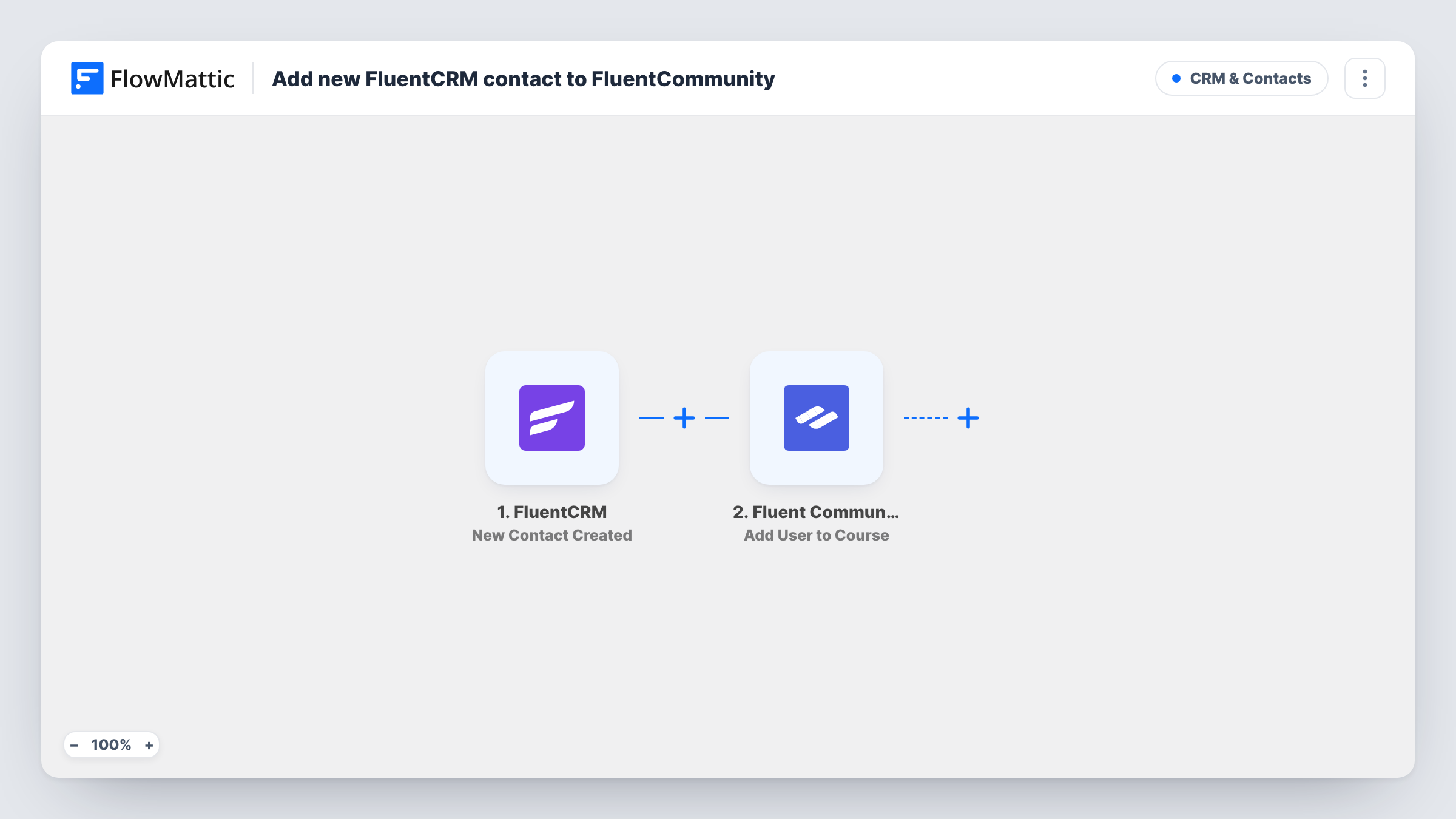
When a contact is created in FluentCRM, FlowMattic looks for a WordPress account with the same email and, if one exists, adds that user to the FluentCommunity course you choose.
 FluentCRM
 WordPress
 Filter
 Fluent Community
4 steps Setup ~8 min Used on 1.5k sites Free to import
What this workflow does
FluentCRM holds your contacts, while FluentCommunity courses are tied to WordPress user accounts. With this workflow, a new CRM contact who already has a login on your site is placed straight into a course, without you matching emails to usernames by hand.
The FluentCRM trigger runs whenever a new contact is created and hands over the contact's details. The next step searches WordPress for a user whose email matches the contact's email, which the template already maps for you.
A Filter then checks that the lookup returned a user ID. Contacts with no WordPress account stop there, so nothing is sent to the course for them. Contacts that do have an account move on to FluentCommunity, where the Add User to Course step enrolls that user ID. The template maps only the user ID, so after import you pick the course in that step.
Before going live, create a test contact with the email of an existing site user, then one with an unknown email, and compare both runs in Task History.
Course access for customers already on your site
A coach whose clients have WordPress logins adds them to FluentCRM after a sales call, and each one lands in the onboarding course in FluentCommunity.
Members imported from an event list
A community manager adds attendees to FluentCRM after a workshop; those who already have site accounts are placed in the follow-up course straight away.
Keeping CRM and community in step
A membership site that creates the WordPress account first and the CRM contact second uses this flow so the course enrollment follows the contact automatically.
How this workflow runs
What happens at each step once the workflow is on, and what you need before you import it.
 FluentCRM New Contact Created
Runs each time a new contact is created in FluentCRM. The contact's email and other details become available to the next steps.
- WordPress Get User by Email
Looks up a WordPress user by email, using the FluentCRM contact's email that the template maps in. When a match exists, the user's ID is returned for the later steps.
- Filter Continue If Condition Meet
Continues only when the WordPress lookup returned a user ID that is not empty. Contacts without a site account stop here and are not added to any course.
- Fluent Community Add User to Course
Adds the WordPress user found in step 2 to a FluentCommunity course. The user ID is already mapped; after import you choose the course the contact should join.
What you need
- FlowMatticCore
- FluentCRM PluginPlugin
- FluentCommunity PluginPlugin
After importing, map your own data. To keep the template universal, not every step is pre-filled. Open each step in the builder and connect your accounts and fields (channels, lists, sheets, recipients) before you switch the workflow on.
Make it yours
Changes worth making after you import it.
- To enroll contacts without an account too, replace the Filter with a Router between the WordPress lookup and the course step. Give the empty-ID route a WordPress New User step and its own Add User to Course step; the found-user route keeps the existing one.
- If only some contacts belong in the course, add a second condition to the existing Filter, for example on a FluentCRM tag or list field you pick, so the check stays between the WordPress lookup and the course step.
- FluentCommunity also offers Add User to Multiple Courses. Swap it into the last step if every new contact should join a set of courses at once.
Questions about this workflow
What happens to a FluentCRM contact who has no WordPress account?
The WordPress lookup finds no user, the Filter sees an empty user ID, and the run stops before FluentCommunity. No account is created. To enroll those contacts too, swap the Filter for a Router between the WordPress lookup and the course step, with a New User step on the empty-ID route.
Do I need both FluentCRM and FluentCommunity on the same site?
Yes. Both are WordPress plugins, and the course step enrolls a WordPress user, so the contact's account, the CRM and the community all need to live on the site where FlowMattic runs.
Which FluentCommunity course does the contact join?
The one you pick in the Add User to Course step after import. The template only maps the user ID, so the course is left for you to set.
Does editing an existing FluentCRM contact enroll them?
No. The trigger is New Contact Created, so only contacts created after the workflow is turned on start a run. Existing contacts need to be enrolled another way.
More CRM & Contacts workflows
Other ready-to-import templates from the same category.






Import this workflow into your WordPress site
Download the JSON, import it from the Workflows screen and connect your accounts. Every run stays on your server, with no per-task fees.
30-day money-back guarantee Unlimited workflows and runs Self-hosted