

Add new Waitwhile visitors as HubSpot CRM contacts
Each new Waitwhile visit or booking creates a contact in HubSpot CRM from the visitor’s details, so the people who queue or book with you end up in your CRM for follow-up.
 Waitwhile
 HubSpot CRM
2 steps Setup ~5 min Used on 2.8k sites Free to import
What this workflow does
Visitors give Waitwhile their name and contact details when they join a queue or book a time. Unless someone copies those details across, they never reach the CRM your sales or marketing team works from. Here, each new Waitwhile visit turns into a HubSpot contact without that copying.
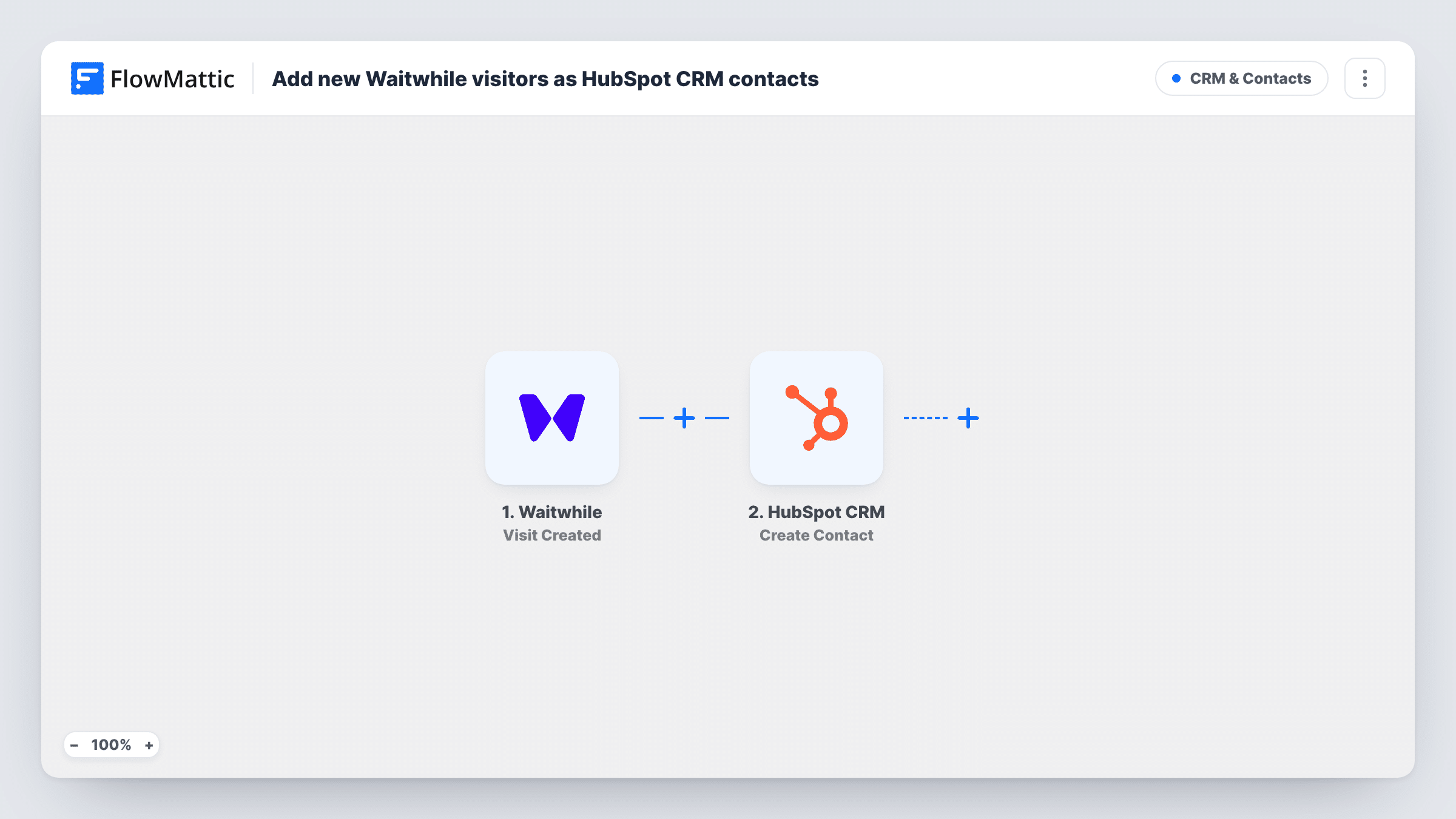
The Waitwhile trigger fires each time a new waitlist visit or booking is created. FlowMattic then runs the Create Contact action in HubSpot CRM, using the visit details you map to contact properties such as email, first name, last name and phone.
Note that the HubSpot action here never updates a contact. A returning visitor whose email is already in HubSpot may be refused as a duplicate; You can read HubSpot's reply to the attempt in Task History. If your Waitwhile visits don't collect an email address, check what HubSpot accepts for a contact in your account and test with a real visit before you rely on it.
Showroom visitors for sales follow-up
Walk-ins to a car or furniture showroom join a Waitwhile queue, and each one appears in HubSpot so a salesperson can follow up later.
Consultation bookings at a clinic
People who book a consultation through Waitwhile become HubSpot contacts, ready for reminders and newsletters sent from HubSpot.
Event check-in desk
Attendees queuing at a pop-up event are added through Waitwhile, and HubSpot collects them as contacts for the post-event email.
How this workflow runs
What happens at each step once the workflow is on, and what you need before you import it.
 Waitwhile Visit Created
Fires when a new visit or booking is created in Waitwhile. The visitor details that come with it are passed on for mapping into HubSpot.
- HubSpot CRM Create Contact
Adds the Waitwhile visitor to HubSpot CRM as a contact. Map the visitor's email, name and phone from the Waitwhile data to the matching contact properties, and connect your HubSpot account.
What you need
- FlowMatticCore
- Waitwhile AccountAccount
- HubSpot CRM AccountAccount
After importing, map your own data. To keep the template universal, not every step is pre-filled. Open each step in the builder and connect your accounts and fields (channels, lists, sheets, recipients) before you switch the workflow on.
Make it yours
Changes worth making after you import it.
- Add a Filter after the trigger that continues only when the visitor's email is not empty, so visits without an address don't send incomplete contacts to HubSpot.
- Make one test visit with a brand-new email and one with an address already in HubSpot, then compare both runs in Task History so you know how your account treats repeat visitors.
- Map the Waitwhile location or service into a HubSpot property you create for it, so you can later segment contacts by where they visited.
Questions about this workflow
What happens when a returning Waitwhile visitor is already in HubSpot?
The HubSpot action in this template adds contacts and never edits them. HubSpot may refuse a duplicate email, and the response for that run appears in Task History. The visitor's existing HubSpot record stays as it was.
Does Waitwhile need to collect an email address?
It helps. Email is the usual way HubSpot identifies a contact. Check which fields your Waitwhile visit form collects and run a test visit to see what reaches HubSpot.
Does a free HubSpot account work for adding Waitwhile visitors?
This workflow only creates contacts through your connected HubSpot account. Check your own HubSpot plan for any limits on contacts or API access.
More CRM & Contacts workflows
Other ready-to-import templates from the same category.




Import this workflow into your WordPress site
Download the JSON, import it from the Workflows screen and connect your accounts. Every run stays on your server, with no per-task fees.
30-day money-back guarantee Unlimited workflows and runs Self-hosted