

Add user to a list in FluentCRM when they get access to a product in DAP
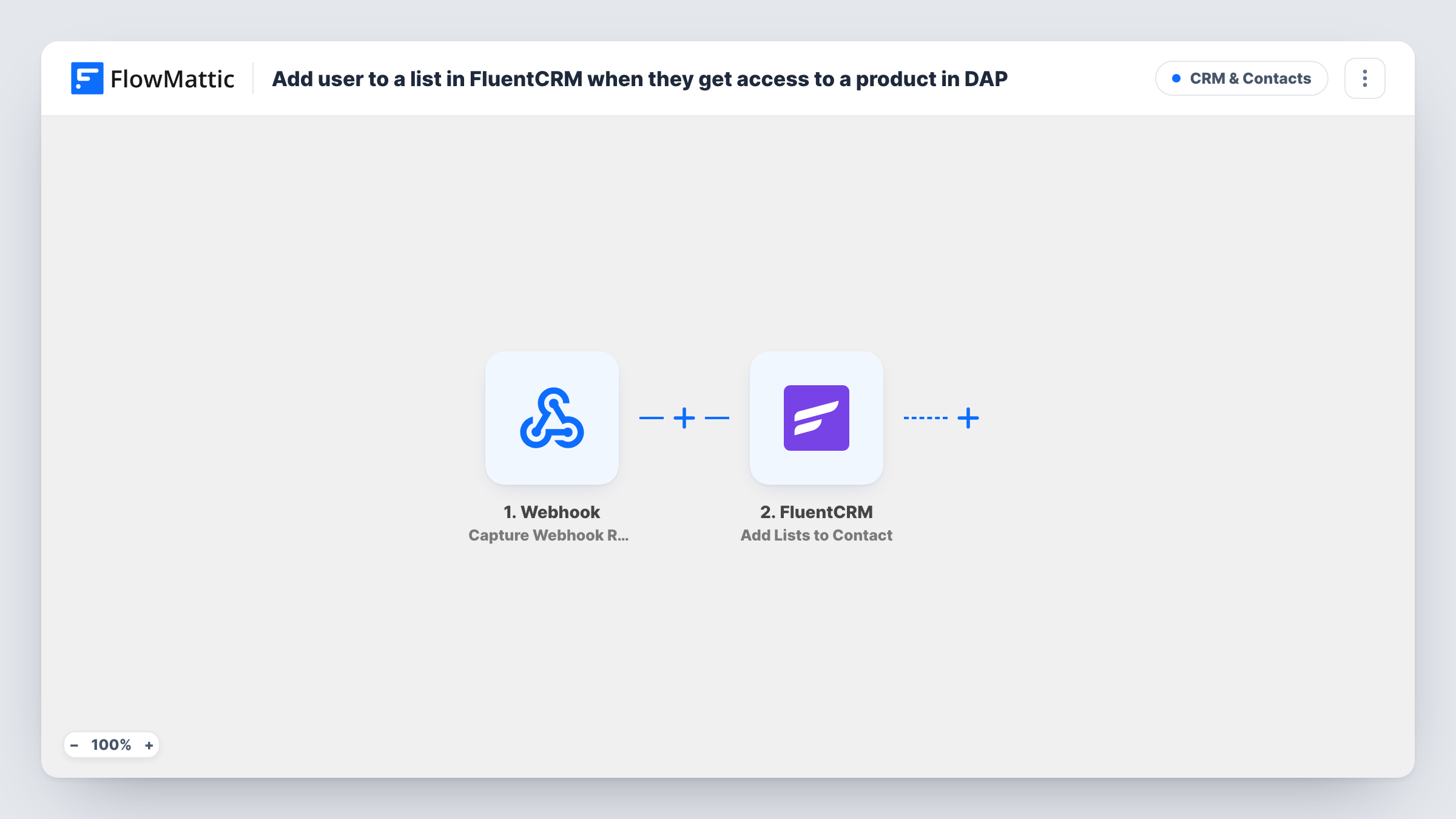
When a member receives access to a product in Digital Access Pass, FlowMattic creates or updates their FluentCRM contact by email and then adds that contact to the lists you pick, ready for product emails.
 Digital Access Pass ( DAP )
 FluentCRM
3 steps Setup ~5 min Used on 2.3k sites Free to import
What this workflow does
Members who get access to a product usually need emails about it: onboarding, updates, related offers. If your email marketing runs in FluentCRM, the member has to be a contact on the right list first. This workflow puts them there as soon as Digital Access Pass grants the access.
The Digital Access Pass ( DAP ) trigger fires when a user receives access to a product, with the user and product details. Grant access to a test member after import to see the fields.
Next, FluentCRM creates a new contact or updates the existing one, matched by email address. That step ships unmapped, so map the member's email and name. The Add Lists to Contact step then adds one or more lists to that contact. It works only on a contact that already exists, which is why the create-or-update step comes first. Map the contact from the step before it and pick your lists.
Every product grant runs both steps, so a member who gets a second product is updated rather than duplicated, and the lists are added again. Choose lists that make sense for any product, or limit them per product as the tips describe. Task History shows what FluentCRM returned at each step.
Customer list for a digital download
A designer selling templates through DAP adds every buyer to a FluentCRM Customers list for update notices and new releases.
Members list for a community
A paid community puts each new member on its Members list in FluentCRM, which receives the weekly digest.
Course students for onboarding emails
An online school adds students to a list that a FluentCRM automation watches, so a welcome sequence starts when they join it.
How this workflow runs
What happens at each step once the workflow is on, and what you need before you import it.
 Digital Access Pass ( DAP ) User Receives Access to Product
Fires when a member receives access to a product in Digital Access Pass. The member and product details are passed on to FluentCRM.
- FluentCRM Create or Update Contact
Creates a FluentCRM contact, or updates the one with the same email address. The step ships unmapped: map the member's email and name from the DAP data.
- FluentCRM Add Lists to Contact
Adds one or more FluentCRM lists to the contact. Map the contact from the previous step and choose the lists; the template leaves both unset.
What you need
- FlowMatticCore
- Digital Access Pass ( DAP ) AccountAccount
- FluentCRM PluginPlugin
After importing, map your own data. To keep the template universal, not every step is pre-filled. Open each step in the builder and connect your accounts and fields (channels, lists, sheets, recipients) before you switch the workflow on.
Make it yours
Changes worth making after you import it.
- Put a Filter between the DAP trigger and the Create or Update Contact step that continues only for one product, and make a copy of the workflow for each product with its own list.
- Keep a list per product line instead of one big list, so you can later email only the members of one product.
- Build a FluentCRM automation that starts when a contact is added to the list, so the welcome emails go out without another step here.
Questions about this workflow
What if the member is already a FluentCRM contact?
The Create or Update Contact step matches by email, so it updates that contact instead of making a new one. The lists are then added to the existing contact.
Why are there two FluentCRM steps instead of one?
Add Lists to Contact only works on a contact that already exists. The Create or Update Contact step makes sure there is one first, so new DAP members can be added to lists too.
Can different DAP products go to different FluentCRM lists?
Yes. Add a Router between the DAP trigger and the Create or Update Contact step, with one route per product and conditions that can't both match, and give each route its own copy of both FluentCRM steps with its list.
More CRM & Contacts workflows
Other ready-to-import templates from the same category.





Import this workflow into your WordPress site
Download the JSON, import it from the Workflows screen and connect your accounts. Every run stays on your server, with no per-task fees.
30-day money-back guarantee Unlimited workflows and runs Self-hosted