

Create a ClickUp task for each new Zoom meeting registrant
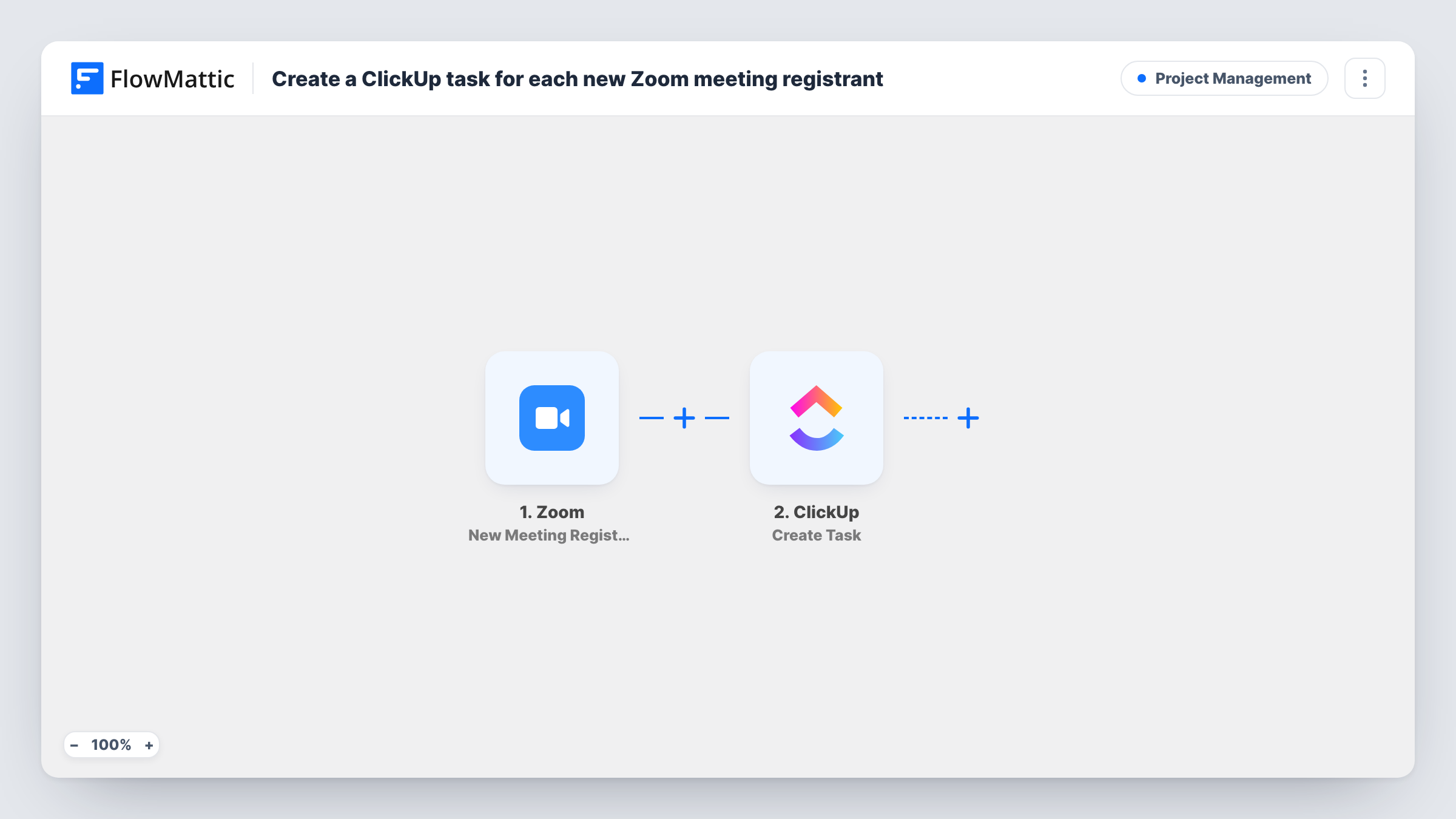
Every time someone registers for a Zoom meeting on your account, this workflow creates a ClickUp task with their details, so your team can assign, prepare and follow up on each registrant from ClickUp.
 Zoom
 ClickUp
2 steps Setup ~5 min Used on 2.5k sites Productivity Free to import
What this workflow does
When a Zoom meeting takes registrations, the sign-ups sit in Zoom while the work around them happens elsewhere. If your team plans its week in ClickUp, a new registrant who needs a call, a pre-meeting email or a seat check has to be copied over by hand. This workflow turns each registration into a task.
The Zoom trigger fires when a new registrant is added to a meeting on the connected account, which only happens for meetings with registration switched on. FlowMattic passes the registration data to ClickUp, where Create Task adds a task in the place you choose. Map the registrant's name into the task name and put their email and the meeting topic in the description, so whoever picks it up has what they need.
One registration creates one task, with no grouping by meeting and no check for an existing task. A person who registers for three sessions will appear in three tasks. Anything the step does not set, you can change on the task in ClickUp afterwards. Task History in FlowMattic lists every run.
Sales demo sign-ups
Prospects register for a group product demo on Zoom. Each one becomes a ClickUp task so a sales rep can research the company and send a note before the session.
Client onboarding calls
New clients book a place on a weekly onboarding meeting. The account team gets a task per client to check their setup before the call.
Consultations that need a form checked
A coach asks registrants to complete an intake form. The ClickUp task reminds an assistant to confirm the form arrived for each person.
How this workflow runs
What happens at each step once the workflow is on, and what you need before you import it.
 Zoom New Meeting Registrant
Fires each time Zoom adds a registrant to one of your meetings. Only meetings with registration enabled produce this event, and every registration is passed on.
- ClickUp Create Task
Creates a task in ClickUp for the registrant. Choose where the task goes after import, then map the name, email and meeting topic from Zoom into the task.
What you need
- FlowMatticCore
- Zoom AccountAccount
- ClickUp AccountAccount
After importing, map your own data. To keep the template universal, not every step is pre-filled. Open each step in the builder and connect your accounts and fields (channels, lists, sheets, recipients) before you switch the workflow on.
Make it yours
Changes worth making after you import it.
- Add a Filter after the Zoom trigger that continues only for one meeting ID, so registrants for internal meetings do not fill your ClickUp list.
- Add a second action after ClickUp, such as a Slack post, so the person who owns registrant follow-ups also gets a message naming the new sign-up.
- Register yourself for a test meeting after import so FlowMattic captures real Zoom data before you map the ClickUp task fields.
Questions about this workflow
Will a ClickUp task be created for every Zoom meeting on my account?
Only for meetings that take registrations, and then for every registrant. Add a Filter on the meeting ID or topic to limit it to the meetings you care about.
Can each registrant's ClickUp task go to a set team member?
Check the Create Task step's options after import. If it offers an assignee, set one there. Otherwise assign the tasks in ClickUp as they arrive.
What if a registrant cancels their Zoom registration?
The task stays in ClickUp. This template only listens for new registrants and has no step that removes or updates tasks.
Does this work with Zoom Webinars?
No. The trigger is New Meeting Registrant, so it covers meeting registrations only. Webinar registrations are a separate Zoom event.
More Project Management workflows
Other ready-to-import templates from the same category.



Import this workflow into your WordPress site
Download the JSON, import it from the Workflows screen and connect your accounts. Every run stays on your server, with no per-task fees.
30-day money-back guarantee Unlimited workflows and runs Self-hosted