

Create a ClickUp task to review each new Gradeazy student response
When a student submits a new response in Gradeazy, this workflow creates a task in ClickUp to review it, so every piece of work to grade shows up in the list your team already works from.
 Gradeazy
 ClickUp
2 steps Setup ~5 min Used on 3.3k sites Productivity Free to import
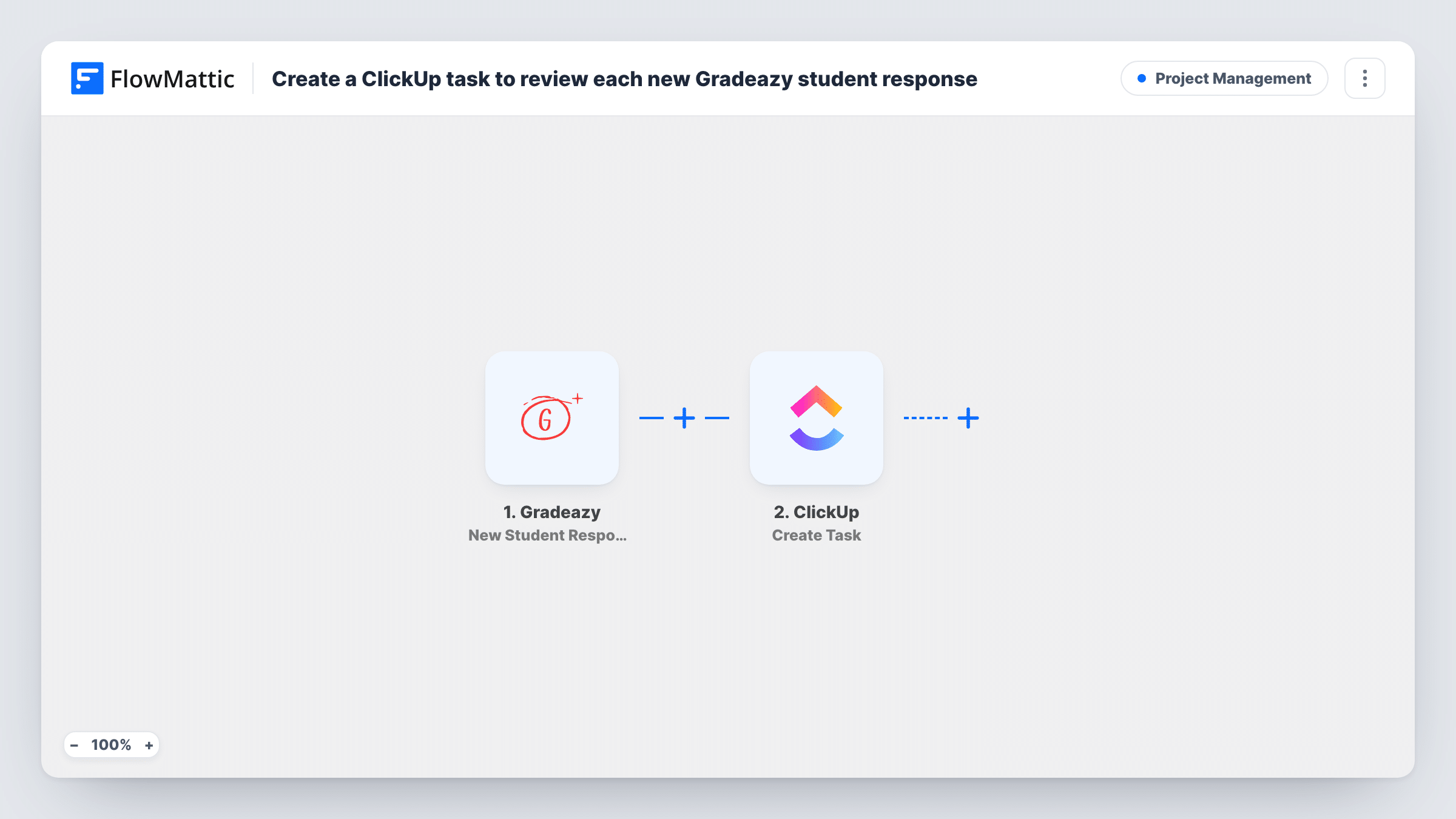
What this workflow does
Teachers and tutors who plan their week in ClickUp still have to check Gradeazy to see what students have handed in. Responses can wait days before anyone notices them. This workflow puts each new response into ClickUp as a task, so reviewing it becomes part of your normal to-do list.
The Gradeazy trigger fires when a new student response arrives. The response data it receives is passed on. The ClickUp step then creates a task in the list you choose, built from the details you map, such as the student and the assignment, depending on what Gradeazy sends.
Each response creates its own task. Assign, schedule and close them in ClickUp the way you handle any other work. You can trace each Gradeazy response to its task in Task History.
Tutor managing several classes
A private tutor sees each new Gradeazy submission as a ClickUp task and works through them alongside lesson prep.
Teaching assistants sharing grading
Tasks land in a shared ClickUp list, where a lead teacher assigns each review to an assistant.
Online course with written assignments
A course creator tracks every assignment to mark in ClickUp and closes the task once feedback is sent.
How this workflow runs
What happens at each step once the workflow is on, and what you need before you import it.
 Gradeazy New Student Response
Runs when a new student response is submitted in Gradeazy. The response details are passed to the ClickUp step for mapping. Connect your Gradeazy account on import.
- ClickUp Create Task
Creates a ClickUp task to review the response. Map the student and assignment details from Gradeazy into it, and connect your ClickUp account. Check the task in a test run.
What you need
- FlowMatticCore
- Gradeazy AccountAccount
- ClickUp AccountAccount
After importing, map your own data. To keep the template universal, not every step is pre-filled. Open each step in the builder and connect your accounts and fields (channels, lists, sheets, recipients) before you switch the workflow on.
Make it yours
Changes worth making after you import it.
- Include the student's name and the assignment in the task name, if Gradeazy sends them, so the list is easy to scan.
- Add a Filter after the trigger if only responses to certain assignments need a review task.
- Submit a test response after import, so FlowMattic captures the Gradeazy fields for mapping.
Questions about this workflow
Does every Gradeazy student response create a ClickUp task?
Yes, as imported. Add a Filter after the trigger if only some responses should create one.
Does closing the ClickUp task update the grade in Gradeazy?
No. This template creates review tasks in ClickUp and never writes back, so you still enter marks in Gradeazy itself.
Are responses submitted before the workflow is on turned into tasks?
No. Only responses that arrive after you turn it on start a run.
Which ClickUp list do the review tasks go into?
The list you pick in the ClickUp step after import. Run a test to confirm the task lands there.
More Project Management workflows
Other ready-to-import templates from the same category.



Import this workflow into your WordPress site
Download the JSON, import it from the Workflows screen and connect your accounts. Every run stays on your server, with no per-task fees.
30-day money-back guarantee Unlimited workflows and runs Self-hosted