

Create a ClickUp task when a Contentful editorial task is created
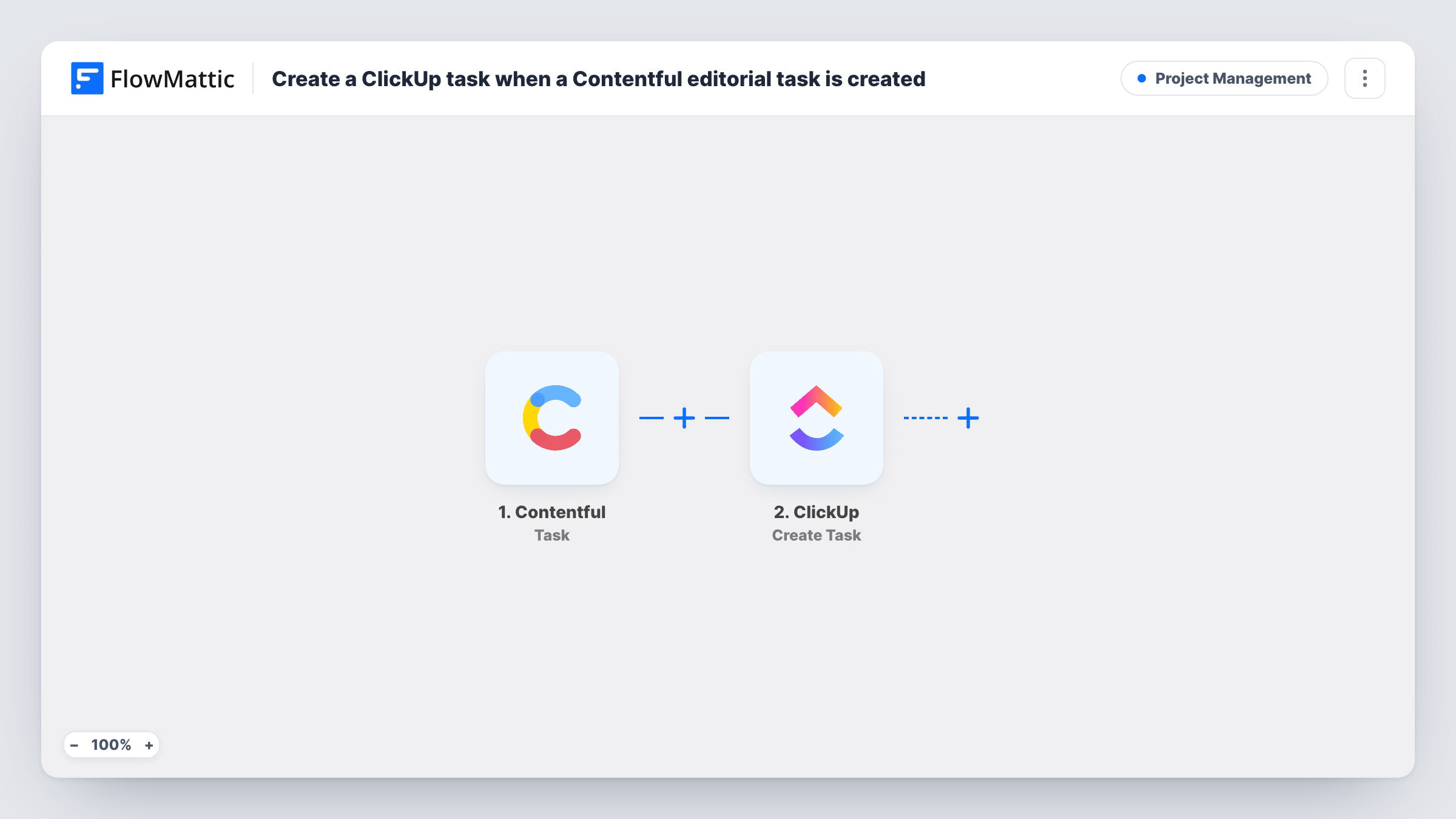
When an editor creates a task on a Contentful entry, FlowMattic creates a matching task in ClickUp, so content to-dos sit in the same place as the rest of your team’s work.
 Contentful
 ClickUp
2 steps Setup ~5 min Used on 343 sites Productivity Free to import
What this workflow does
Contentful's tasks are handy for leaving to-dos on an entry, such as "check the legal wording" or "add the hero image", but the people doing that work often plan their week in ClickUp. This workflow copies each new Contentful task into ClickUp, so it shows up in the assignee's list with everything else.
The Contentful Task trigger receives task events that Contentful sends to the workflow's webhook. FlowMattic describes it as firing when a task is created, saved or deleted. When you add the webhook in Contentful, select only the create event for tasks, so edits and deletions don't produce extra ClickUp tasks. A test task then shows which details arrive, such as the task body and the entry it belongs to.
The ClickUp Create Task step adds the task to the list you pick. It ships unmapped: connect ClickUp, choose the list, and map the Contentful task text into the task name or description.
The two tasks aren't linked afterwards. Completing the task in ClickUp doesn't resolve it in Contentful, and later changes in Contentful don't update ClickUp. Run a test with one task and check Task History before relying on it.
Content fixes in the sprint board
A product marketing team's editors leave tasks on Contentful entries, and each one lands in the team's ClickUp sprint list for planning.
Translation requests
A localisation lead adds a Contentful task asking for a German version of a page, and the translator picks it up from their ClickUp list.
Design requests from editors
Editors who need a new image for an article raise a task in Contentful, which the design team sees as a ClickUp task.
How this workflow runs
What happens at each step once the workflow is on, and what you need before you import it.
 Contentful Task
Receives Contentful task events through the webhook you add in Contentful. Select only the task create event there, so each new task starts one run.
- ClickUp Create Task
Adds the Contentful to-do as a new task in one of your ClickUp lists. The step ships unmapped, so connect ClickUp, pick the list and map the Contentful task text into the name and description.
What you need
- FlowMatticCore
- Contentful AccountAccount
- ClickUp AccountAccount
After importing, map your own data. To keep the template universal, not every step is pre-filled. Open each step in the builder and connect your accounts and fields (channels, lists, sheets, recipients) before you switch the workflow on.
Make it yours
Changes worth making after you import it.
- In Contentful's webhook settings, tick only the create event for tasks, so saving or deleting a task doesn't make another ClickUp task.
- Include the Contentful entry ID or a link to the entry in the ClickUp description, so the assignee can open the right content straight away.
- Send all Contentful tasks to one dedicated ClickUp list, which makes them easy to filter and report on.
- Create one test task in Contentful after setting up the webhook and confirm in Task History that only one run started.
Questions about this workflow
Will editing a Contentful task create another ClickUp task?
Only if the Contentful webhook sends save events. Select just the create event for tasks when you set up the webhook, and edits won't start a run.
Does completing the ClickUp task resolve it in Contentful?
No. The workflow only creates the ClickUp task. Nothing syncs status back to Contentful.
Is the ClickUp task assigned to the same person as in Contentful?
Not automatically. Contentful and ClickUp have separate users, so check a test run for the assignee data Contentful sends and decide how to map it, or assign tasks in ClickUp.
Do Contentful entry comments create ClickUp tasks too?
No. This workflow listens to tasks only. FlowMattic's Contentful integration has a separate Comment trigger if you want to handle comments.
More Project Management workflows
Other ready-to-import templates from the same category.




Import this workflow into your WordPress site
Download the JSON, import it from the Workflows screen and connect your accounts. Every run stays on your server, with no per-task fees.
30-day money-back guarantee Unlimited workflows and runs Self-hosted