

Create a ClickUp task when an important Amplitude event occurs
When an Amplitude custom monitor sends its alert to FlowMattic, this workflow creates a ClickUp task from it, so a change in your product data you flagged as important gets an owner and a place on the board.
 Amplitude
 ClickUp
2 steps Setup ~5 min Used on 3.5k sites Productivity Free to import
What this workflow does
Analytics alerts are easy to read and forget. A drop in sign-ups or a spike in errors shows up in Amplitude, someone mentions it, and nobody owns the follow-up. Turning each alert into a ClickUp task gives it a place in your team's normal work.
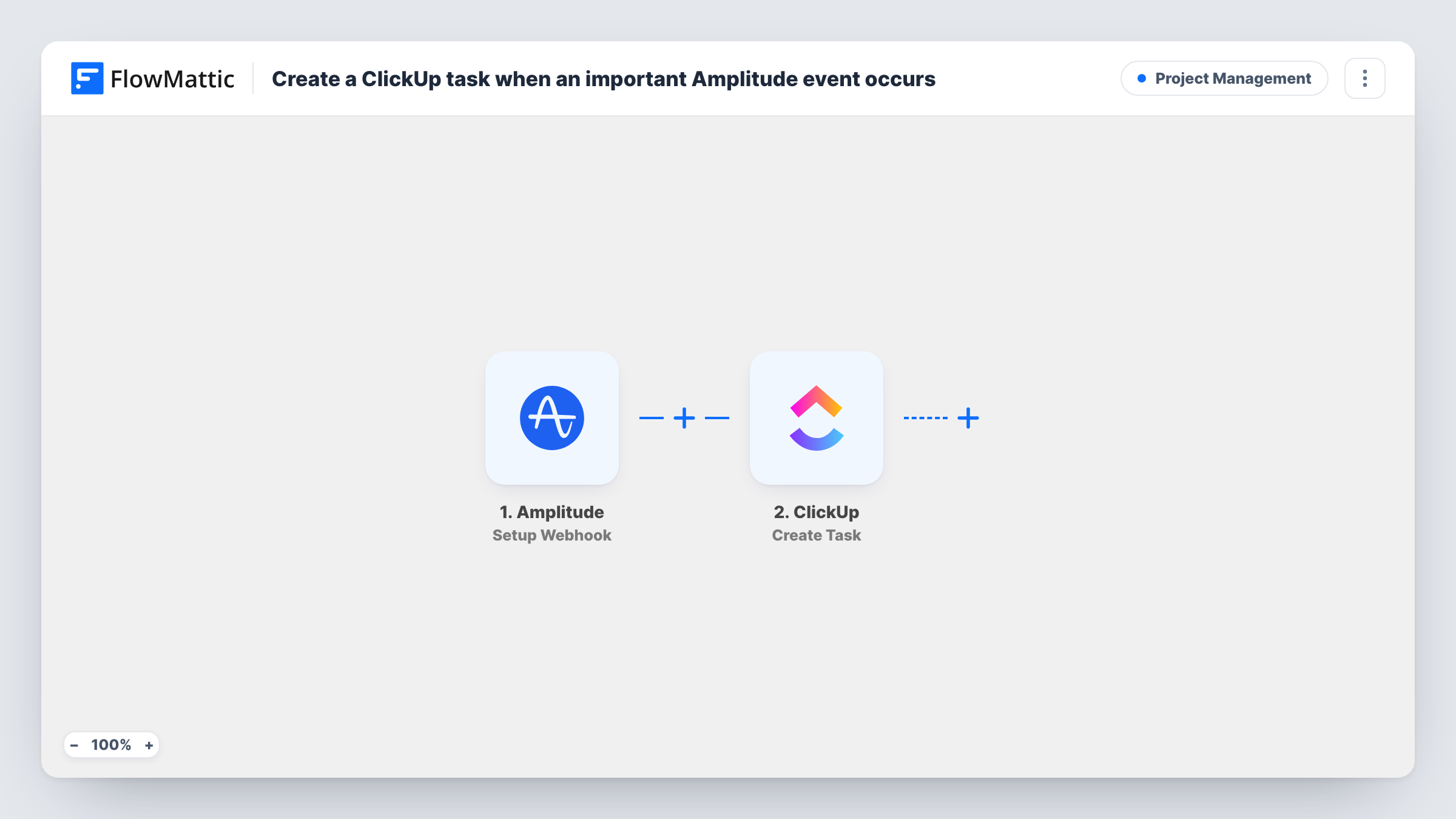
The Amplitude trigger, Setup Webhook, fires for custom monitors in Amplitude. You decide what counts as important by setting up the monitor in Amplitude and sending its alerts to this workflow, following the trigger's setup steps in FlowMattic. The alert's data becomes available to map. The ClickUp step, Create Task, then adds a task with the name and description you build from the alert.
Each alert Amplitude sends creates one task, so a monitor that fires often will add many tasks. Task History shows each run, which helps when you check that the monitor is reaching FlowMattic.
Sign-up drop investigation
A monitor watches daily sign-ups. When Amplitude flags an unusual dip, a ClickUp task appears in the growth team's list to look into the cause.
Checkout conversion alerts
An e-commerce product team monitors checkout completions, and each alert becomes a task for the engineer on call to check for a broken step.
Feature launch tracking
After a release, a monitor on the new feature's usage event creates a ClickUp task for the product manager when the numbers move outside the expected range.
How this workflow runs
What happens at each step once the workflow is on, and what you need before you import it.
 Amplitude Setup Webhook
Fires when an Amplitude custom monitor sends its alert to the workflow. Set up the monitor in Amplitude and connect it as the trigger's setup explains, then send a test alert.
- ClickUp Create Task
Creates a ClickUp task from the Amplitude alert. Write the task name and description, insert the alert details you want, and connect your ClickUp account on import.
What you need
- FlowMatticCore
- Amplitude AccountAccount
- ClickUp AccountAccount
After importing, map your own data. To keep the template universal, not every step is pre-filled. Open each step in the builder and connect your accounts and fields (channels, lists, sheets, recipients) before you switch the workflow on.
Make it yours
Changes worth making after you import it.
- Include the monitor's name or the metric from the alert in the ClickUp task name, so tasks from different Amplitude monitors are easy to tell apart.
- Tune the monitor's threshold in Amplitude before relying on this workflow. A noisy monitor creates a ClickUp task for every alert it sends.
- If your team discusses incidents in Slack, add a Slack Send Channel Message step after ClickUp so the alert reaches people right away as well as the board.
Questions about this workflow
Which Amplitude events create a ClickUp task?
Only alerts from the custom monitors you point at this workflow. The trigger does not watch every tracked event, so you choose what matters by how you set up the monitor.
Will a repeated Amplitude alert create duplicate ClickUp tasks?
Yes. Each alert starts its own run and creates a new task. ClickUp is not checked for an existing task about the same monitor.
Which ClickUp list gets the Amplitude alert task?
ClickUp tasks always belong to a list, so check which list the ClickUp step targets after import. Send a test alert to confirm the task lands where your team will see it.
Does this change anything in Amplitude?
No. The workflow only receives the monitor's alert. Your Amplitude charts, monitors and data stay as they are.
More Project Management workflows
Other ready-to-import templates from the same category.




Import this workflow into your WordPress site
Download the JSON, import it from the Workflows screen and connect your accounts. Every run stays on your server, with no per-task fees.
30-day money-back guarantee Unlimited workflows and runs Self-hosted