

Create a FluentCRM contact for each new Academy LMS student registration
When a new student registers in Academy LMS, FlowMattic creates a contact for them in FluentCRM, so every learner is in your CRM for welcome emails and segments.
 Academy LMS
 FluentCRM
2 steps Setup ~5 min Used on 3.1k sites Free to import
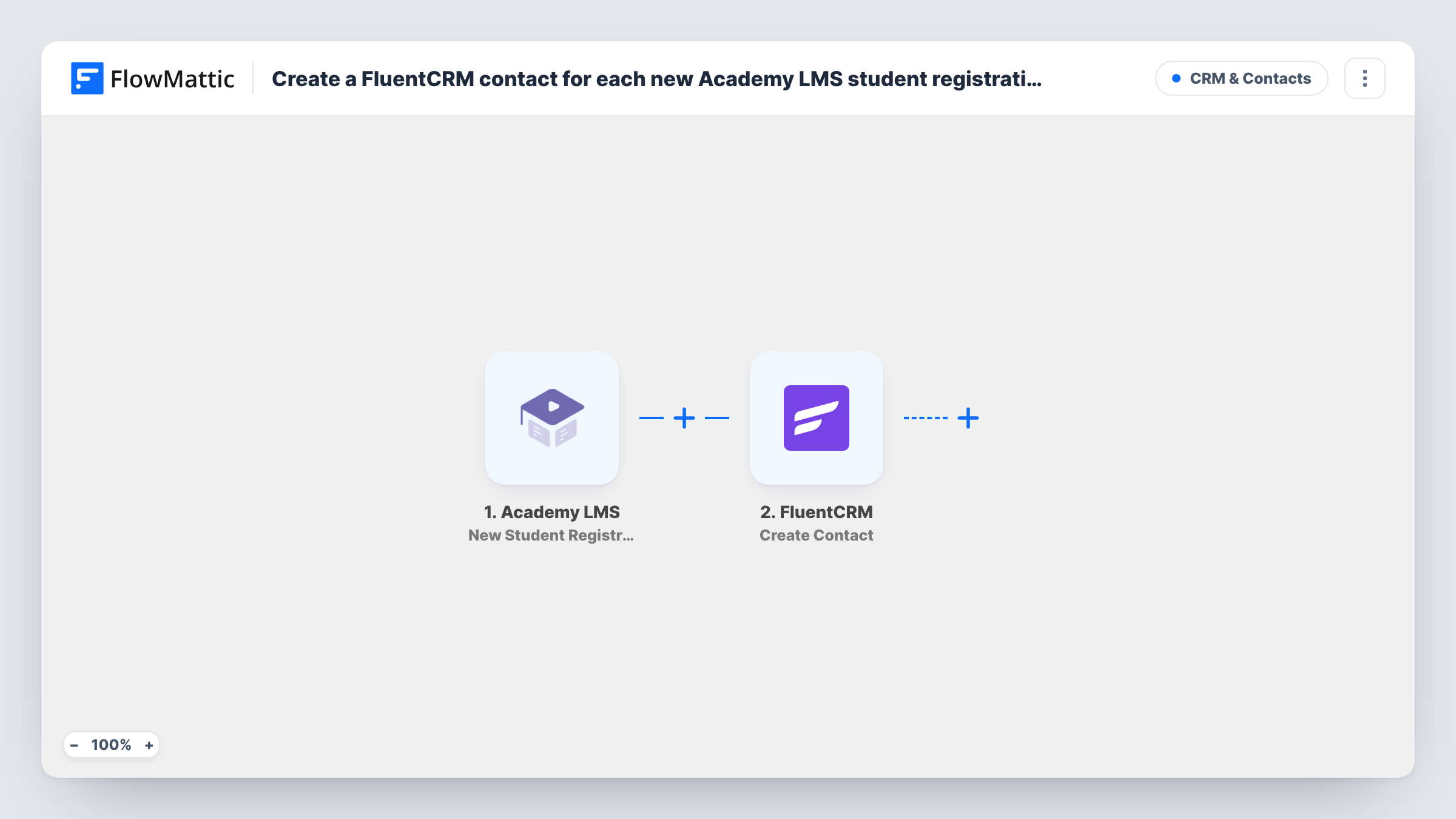
What this workflow does
Academy LMS handles your courses, and FluentCRM handles your email marketing, both inside WordPress. Without a link between them, new learners never reach your CRM unless you import them. This workflow adds each new student to FluentCRM as they register.
The Academy LMS trigger, New Student Registration, fires when a new student is registered. FlowMattic passes the student's details to FluentCRM, where Create Contact creates a new contact. You map the email and name from Academy LMS into the contact fields.
Create Contact is meant for new contacts. If the student's email is already in FluentCRM, for example because they joined your newsletter earlier, FluentCRM may decline to add it again; Task History shows the reply. FluentCRM's Create or Update Contact action is the choice if you'd rather update existing people.
Welcome sequence for new learners
A FluentCRM automation that starts on new contacts sends each registered student a welcome series about getting started with your courses.
Segmenting learners from buyers
Every registered student lands in FluentCRM, where lists and tags let you email learners separately from customers of your other products.
Re-engaging students who never enrol
Students who registered but haven't joined a course are in FluentCRM, so you can send them a course recommendation.
How this workflow runs
What happens at each step once the workflow is on, and what you need before you import it.
 Academy LMS New Student Registration
Starts each time someone signs up as a student in Academy LMS, handing their registration data to the FluentCRM step.
- FluentCRM Create Contact
Creates a new contact in FluentCRM from the student's details. Map the email and name from Academy LMS, and choose any list or status options the step offers after import.
What you need
- FlowMatticCore
- Academy LMS AccountAccount
- FluentCRM PluginPlugin
After importing, map your own data. To keep the template universal, not every step is pre-filled. Open each step in the builder and connect your accounts and fields (channels, lists, sheets, recipients) before you switch the workflow on.
Make it yours
Changes worth making after you import it.
- Already have many people in FluentCRM? Swap this step for FluentCRM's Create or Update Contact, which matches by email, so existing contacts are updated instead.
- Follow the contact step with FluentCRM's Add Tags to Contact and a tag such as "Academy student". By then the contact exists, so the tag has someone to land on.
- Register a test student after import and look at the FluentCRM contact, to confirm the name fields were mapped the right way round.
Questions about this workflow
What if the Academy LMS student is already a FluentCRM contact?
This step never updates anyone. FluentCRM may refuse a second contact with the same email, and Task History shows its response. Use Create or Update Contact if repeats are common for you.
Does this wait until the student enrols in an Academy LMS course?
No. It runs on registration. Academy LMS has a separate New Enroll trigger you can use in another workflow.
Do Academy LMS and FluentCRM need to share a WordPress site with FlowMattic?
Yes. Both plugins must be installed on the site where FlowMattic runs, so it can read the registration and create the contact.
More CRM & Contacts workflows
Other ready-to-import templates from the same category.




Import this workflow into your WordPress site
Download the JSON, import it from the Workflows screen and connect your accounts. Every run stays on your server, with no per-task fees.
30-day money-back guarantee Unlimited workflows and runs Self-hosted