

Create a follow-up task in ClickUp when a new Upnify opportunity is created
Each time an opportunity is created in Upnify, this workflow adds a follow-up task to ClickUp with the deal details you map, so your sales team has a task to work from for every new deal.
 Upnify
 ClickUp
2 steps Setup ~5 min Used on 895 sites Productivity Free to import
What this workflow does
A new opportunity in your CRM is only useful if someone follows it up. When your team plans its work in ClickUp, a deal that exists only in Upnify can go untouched. This workflow gives each new opportunity a matching ClickUp task.
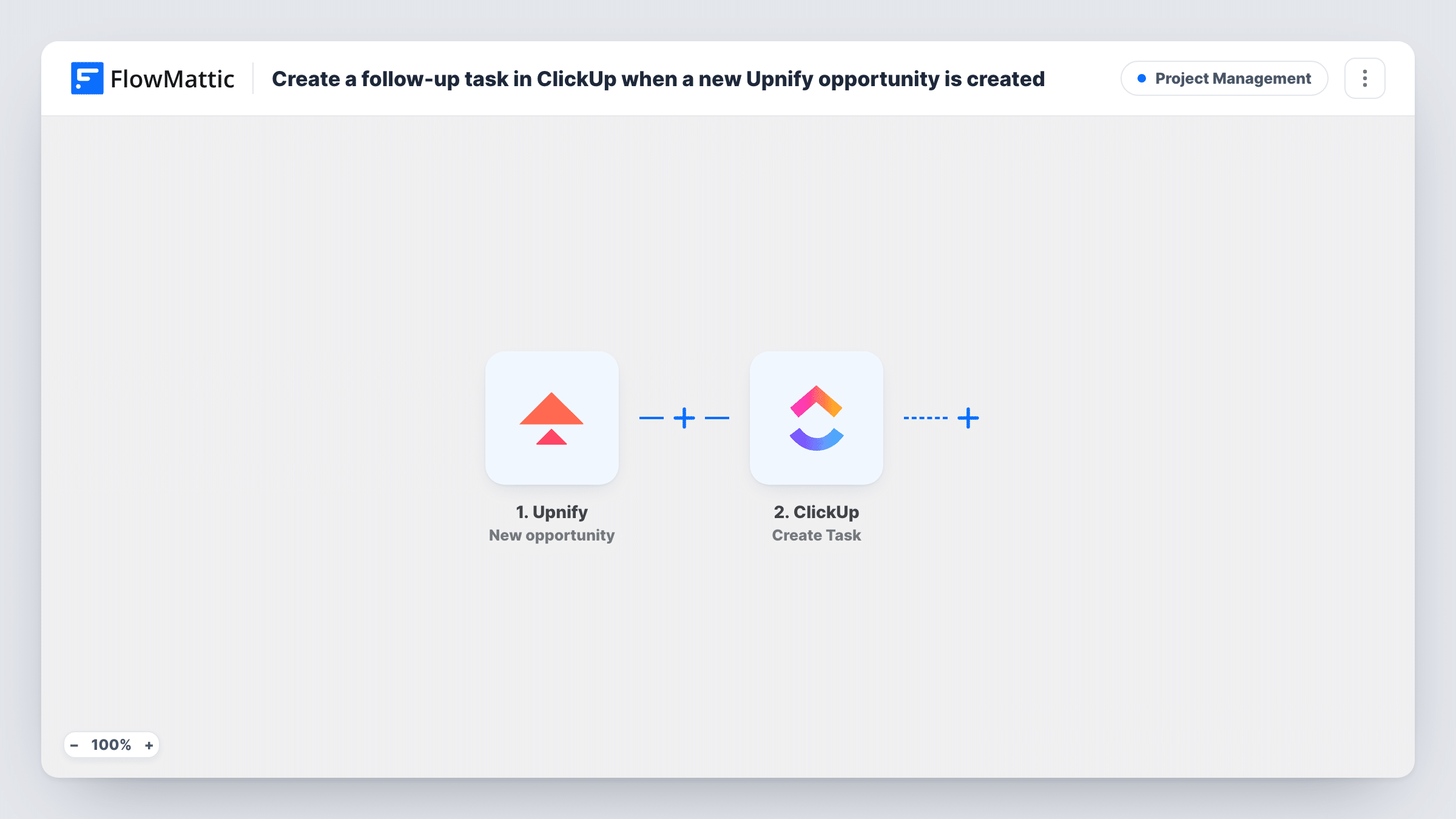
The Upnify trigger is New opportunity, which fires when an opportunity is created. FlowMattic receives the opportunity data and makes it available to map. The ClickUp step then runs Create Task, which creates a new task in the place you choose in ClickUp. Map the opportunity's details into the task, for example the deal or client name in the task name and the value and notes in the description.
The task is a starting point: your team assigns it, sets dates and closes it in ClickUp as the deal moves. Upnify itself is not changed. Task History lists each run with ClickUp's response.
Sales follow-ups in a shared task list
A small sales team works from one ClickUp list. Every new Upnify opportunity appears there as a task that someone picks up and calls.
Proposal preparation
When a rep opens an opportunity in Upnify, a ClickUp task is created for the proposal writer with the client name and the deal notes.
Agency onboarding prep
An agency logs prospective projects as Upnify opportunities, and each one becomes a ClickUp task for the account manager to review the brief.
How this workflow runs
What happens at each step once the workflow is on, and what you need before you import it.
 Upnify New opportunity
Fires when an opportunity is created in Upnify. Connect your Upnify account and create a test opportunity so its fields can be mapped.
- ClickUp Create Task
Opens a follow-up task in ClickUp for the new deal. Choose where it goes, map the Upnify opportunity details into the task, and connect your ClickUp account.
What you need
- FlowMatticCore
- Upnify AccountAccount
- ClickUp AccountAccount
After importing, map your own data. To keep the template universal, not every step is pre-filled. Open each step in the builder and connect your accounts and fields (channels, lists, sheets, recipients) before you switch the workflow on.
Make it yours
Changes worth making after you import it.
- Put the opportunity's value and client name in the task name, so your ClickUp list shows which deals matter most without opening each task.
- If only large deals need a task, add a Filter after the trigger that continues when the opportunity amount is greater than your threshold.
- Want a task when a deal moves stage too? Build a second workflow on Upnify's Opportunity Phase Change trigger.
Questions about this workflow
Does editing an Upnify opportunity create another ClickUp task?
No. New opportunity fires when an opportunity is created. Edits use Upnify's separate Opportunity Edited trigger, which this workflow doesn't use.
Can the ClickUp task be assigned to the rep who owns the opportunity?
Check what the Create Task step offers after you connect ClickUp, and whether the Upnify data includes the owner. A test run shows both.
What if the ClickUp step fails for an Upnify opportunity?
Task History shows the ClickUp step's response for that run. The Upnify opportunity is not affected.
Are existing Upnify opportunities turned into ClickUp tasks?
No. Only opportunities created after the workflow is on start a run.
More Project Management workflows
Other ready-to-import templates from the same category.



Import this workflow into your WordPress site
Download the JSON, import it from the Workflows screen and connect your accounts. Every run stays on your server, with no per-task fees.
30-day money-back guarantee Unlimited workflows and runs Self-hosted